• ×
    Information
    Need Windows 11 help?
    Check documents on compatibility, FAQs, upgrade information and available fixes.
    Windows 11 Support Center.
  • post a message
  • ×
    Information
    Need Windows 11 help?
    Check documents on compatibility, FAQs, upgrade information and available fixes.
    Windows 11 Support Center.
  • post a message
Guidelines
Join the HP Community Solve‑a‑thon | Help Others & Share Your Solutions | Live on Zoom | 2:30 PM to 2:30 AM IST | Every Wednesday Click here to know more
Common problems for Battery
We would like to share some of the most frequently asked questions about: Battery Reports, Hold a charge, Test and Calibrating Battery . Check out this link: Is your notebook plugged in and not charging?
HP Recommended
HP 15 Notebook K3Z20UA#ABA
Microsoft Windows 10 (64-bit)

Not sure which Board Topic this falls under. I am not techy at all as to why I am here.

Ever since Windows 10 Oct. 2020 update my laptop is either non responsive or slow among more issues I will explain.

I use Google Chrome over Edge. 

When I click on Chrome to launch mostly blue circle spins for a second then nothing happens. 

Then if I restart laptop which gets annoying many times a day. It will work til I am done and laptop goes into sleep mode and then repeat the whole process over.

Also when I restart my One Drive comes up every time that I am not signed. Yet another hassle to keep redoing. 

And Google Chrome doesn't seem to auto fill username and passwords that I have saved and keep redoing that for it not to work.

I have tried the HP Performance Tune Up, looked for Updates nothing there.

Not sure what to try next so looking for help please.

Thank you

1 REPLY 1
HP Recommended

@aprildc


Welcome to HP Community


I have gone through your Post and would like to help


I suggest you download and run the HP Support Assistant from this Link: https://www8.hp.com/us/en/campaigns/hpsupportassistant/hpsupport.html?jumpid=va_r602_us/en/any/psg/p...


HPSA will automatically search for all the latest drivers for your Notebook


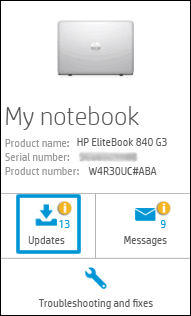
  1. Click My devices in the top menu, and then click Updates in the My PC or My notebook pane.

    Click Updates in the My notebook pane

  2. Click Check for updates and messages to scan for new updates.

     Updates list in HP Support Center

  3. Review the list of updates. Updates with a yellow information icon are recommended. Updates with a blue information icon are optional.

  4. Click the update name for a description, version number, and file size.

  5. Select the box next to any updates you want to install, and then click Download and install.

Also ensure Windows is up to date.


Select the Start  button, and then go to Settings  > Update & security  > Windows Update , and select Check for updates. If Windows Update says your device is up to date, you have all the updates that are currently available


Keep me posted how it goes


Thank you and have a wonderful day 😊


If the information I've provided was helpful, give us some reinforcement by clicking the "Solution Accepted" on this Post and it will also help other community members with similar issue.

KrazyToad
I Am An HP Employee

† The opinions expressed above are the personal opinions of the authors, not of HP. By using this site, you accept the <a href="https://www8.hp.com/us/en/terms-of-use.html" class="udrlinesmall">Terms of Use</a> and <a href="/t5/custom/page/page-id/hp.rulespage" class="udrlinesmall"> Rules of Participation</a>.