-
×InformationNeed Windows 11 help?Check documents on compatibility, FAQs, upgrade information and available fixes.
Windows 11 Support Center. -

-
×InformationNeed Windows 11 help?Check documents on compatibility, FAQs, upgrade information and available fixes.
Windows 11 Support Center. -

Create an account on the HP Community to personalize your profile and ask a question
07-12-2022 08:47 AM
HP Photosmart 5514. I have been using this printer for some time with no printing issues. Recently, the black ink was printing white streaks on the printing paper. I checked the ink cartridges and noticed the black ink had spilled into the righthand side corner. Did the necessary cleaning steps by cleaning the print heads and replacing the black cartridge with a new one. I'm still having the same problem; black ink is pooling up in the righthand side. I've done the cleaning process and test runs protocol several times to no avail. Please help.
07-15-2022 08:45 AM
@MLR25
Welcome to the HP support community.
I understand that you are getting print quality issues, I am glad to assist you.
Make sure that the cartridges are properly vented and seated correctly
- Press the Power button to turn on the printer, if it is not already turned on.
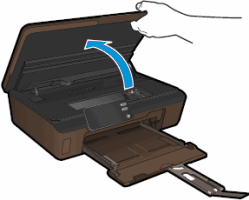
- Open the ink cartridge access door. The carriage moves to the access area.

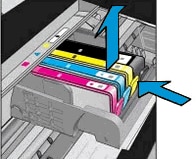
- Press the tab on the front of the ink cartridge inward to release it, and then pull up on the ink cartridge to remove it from the slot.

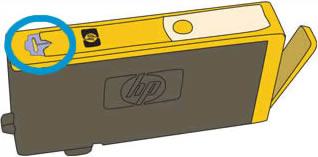
- Examine the vent area on each ink cartridge, above the HP logo on the top of the ink cartridge.

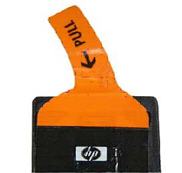
- If the ink cartridge still has the orange pull-tab attached, pull to remove it.

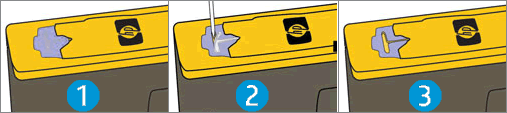
- If the vent is clogged, use a straight pin to gently remove excess adhesive from the vent.

- Clogged vent
- With a straight pin, gently remove excess adhesive from the vent
- Unclogged vent
- Slide the ink cartridge into its slot, and then press down on the ink cartridge until it snaps into place.
- NOTE:Make sure that each ink cartridge is installed in the correct slot. Match the shape of the icon and the color of the ink cartridge with the slot that has the same shaped icon and color.

- Repeat these steps to inspect the vents on each of the ink cartridges.
- Make sure that each ink cartridge is firmly in place in its slot. Run your finger along the top of the ink cartridges to feel for any that are protruding, and if any are, press down firmly until each ink cartridge snaps into place.
- Close the ink cartridge access door.
- Try the print job again.
Refer to this HP document for further assistance:- Click here
Keep me posted.
If this helps, please mark the public post as an accepted solution so that it benefits several others.
Cheers.
Sandytechy20
I am an HP Employee