• ×
    Information
    Need Windows 11 help?
    Check documents on compatibility, FAQs, upgrade information and available fixes.
    Windows 11 Support Center.
  • post a message
  • ×
    Information
    Need Windows 11 help?
    Check documents on compatibility, FAQs, upgrade information and available fixes.
    Windows 11 Support Center.
  • post a message
Guidelines
Join the HP Community Solve‑a‑thon | Help Others & Share Your Solutions | Live on Zoom | 2:30 PM to 2:30 AM IST | Every Wednesday Click here to know more
Check some of the most frequent questions about Instant Ink: HP INSTANT INK, HP+ PLANS: INK AND TONER.


Check out our Black or Color Ink Not Printing, Other Print Quality Issues info about: Print quality and Cartridge Issues.
HP Recommended
Microsoft Windows 10 (64-bit)

Two questions...

1) What are the Pantone color codes for HP902XL Cyan; 902XL Magenta, and 902XL Yellow?

2) Why am I having frequent issues with Cyan (Blue) print quality...even after cleaning printheads and/or installing new cartridge?

I have submitted question (2) several times and get the standard answer...the link to the HP cartridge trouble shooting procedures which I HAVE done with only limited success.  Costing a small fortune in wasted ink, paper and new cartridges.  Is it time to switch to an ESPSON?!

Need a REAL way to correct this!

3 REPLIES 3
HP Recommended

@WhiteG

Thank you for posting on HP Support Community.
 

Don't worry as I'll be glad to help,

I appreciate your efforts to try and resolve the issue. This seems like a hardware issue with the printer or ink cartridge. 

Keep me posted for further assistance.

ECHO_LAKE
I am an HP Employee

HP Recommended

I'm having the same problem with my HP6978 all-in-one. Cyan doesn't work via print or copy function. I am using (new) cartridges supplied by HP InstantInk. I have read a lot of posts on this site and followed the recommended cleaning functions multiple times without positive results. If this is a hardware malfunction, is there a reset/driver solution? Obviously the cost of repairs may not be worth it compared to the cost of a new printer.

HP Recommended

@TC1941

Thank you for posting on the HP Support Community.
 

Don't worry as I'll be glad to help, to provide an accurate resolution, I need a few more details:

  • 1) Does the copy print out the same way?
  • 2) What's the application you are trying to print from?
  • 3)Have you tried printing from a different application or device?

While you respond to that, let's print a Print Quality Diagnostic page –

  1. From the printer control panel, open the Setup  menu.

  2. Open the Printer Maintenance menu.

  3. If necessary, open the Tools menu, and then touch Clean Printhead.

    A test page prints.

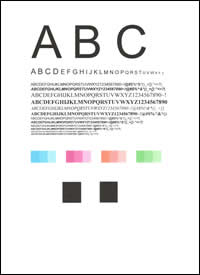
    Example of the printhead cleaning test page

  4. Examine the test page.

    • If the print quality is unacceptable, touch Clean Again to continue the next level of cleaning. If necessary, repeat these steps for the third cleaning cycle.

      NOTE: If the printhead is badly clogged, it might require another cleaning cycle. If so, wait 30 minutes before you perform all three levels of cleaning again.
    • If the print quality is acceptable, touch Done. Try to print. 

Hope this helps! Keep me posted for further assistance.
Please click “Accept as Solution” if you feel my post solved your issue, it will help others find the solution. Click the “Kudos, Thumbs Up" on the bottom right to say “Thanks” for helping!

ECHO_LAKE
I am an HP Employee

† The opinions expressed above are the personal opinions of the authors, not of HP. By using this site, you accept the <a href="https://www8.hp.com/us/en/terms-of-use.html" class="udrlinesmall">Terms of Use</a> and <a href="/t5/custom/page/page-id/hp.rulespage" class="udrlinesmall"> Rules of Participation</a>.