• ×
    Information
    Need Windows 11 help?
    Check documents on compatibility, FAQs, upgrade information and available fixes.
    Windows 11 Support Center.
  • post a message
  • ×
    Information
    Need Windows 11 help?
    Check documents on compatibility, FAQs, upgrade information and available fixes.
    Windows 11 Support Center.
  • post a message
Guidelines
Seize the moment! nominate yourself or a tech enthusiast you admire & join the HP Community Experts!
Check some of the most frequent questions about Instant Ink: HP INSTANT INK, HP+ PLANS: INK AND TONER.


Check out our Black or Color Ink Not Printing, Other Print Quality Issues info about: Print quality and Cartridge Issues.
HP Recommended
HP OfficeJet Pro 8025 All-in-One Printer

I am an HP ink subscriber, and no matter how new my loaded cartridges are, images do not print out with anywhere near accurate colors. Has anyone discovered why that might be?

Thanks!

1 REPLY 1
HP Recommended

@nh2n 


Welcome to the HP Community Forum.


@nh2n wrote:

Product:  HP OfficeJet Pro 8025 All-in-One Printer 

Operating System:  Unknown

Software / Application:  Unknown

Connection Type:  Unknown


I am an HP ink subscriber, and no matter how new my loaded cartridges are, images do not print out with anywhere near accurate colors. Has anyone discovered why that might be?

Thanks!


There might not be "just one" answer -- 

What?  The answer in your situation might not be the answer for everyone -- or anyone -- else.


In general, Instant Ink is just like any other ink in terms of its chemical makeup.

Your are right that the age of the ink, the condition of the ink, and possibly the amount of ink might impact results.


The usual suspects include -- and might not be limited to:


What you see on the display screen does not match what is reproduced on paper.

What?

Even assuming the monitor is calibrated to closely match the color structure in the image file, his "what you see is not what you get" result might be due to the difference in the way colors are interpreted and appear on a back-lit screen and the way the color data, as pulled from the original image file, appear on printed media.


Not generally useful to do more than eliminate the obvious, you can try Calibrating the color settings on your Display

Settings > enter in search bar: calibrate

Select and run


=+=+=+=+=+=+=+=+=+=+=+=+=+=+=+=+=+=+=+=+=+=


The printer colors are not calibrated to produce the printer's best effort

and, separate or possibly related:

The printer is dirty - rollers, for example

 Black Ink Not Printing, Other Print Quality Issues

and, includes instructions for cleaning the printer:

Paper jam error


=+=+=+=+=+=+=+=+=+=+=+=+=+=+=+=+=+=+=+=+=+=


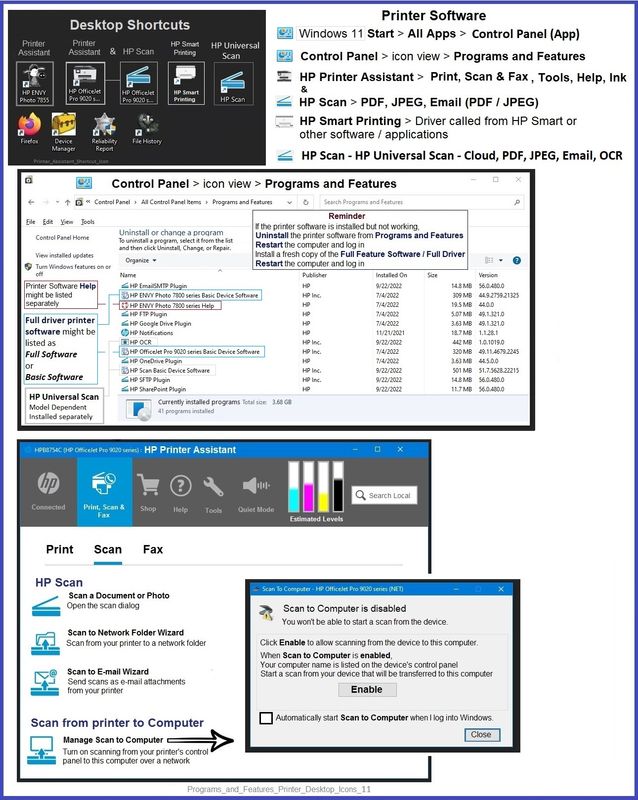
If running a supported Windows Operating System / version,

The Full Feature Software is not installed

HP OfficeJet Pro 8020 All-in-One EasyStart Printer Setup Software – Offline Use Only 

Download, Save, and then run the Installation

After the software is installed, Restart the computer and log in


Example - Windows - Full Feature Software - Installed

Programs_and_Features_Printer_Desktop_Icons_11Programs_and_Features_Printer_Desktop_Icons_11


and / or

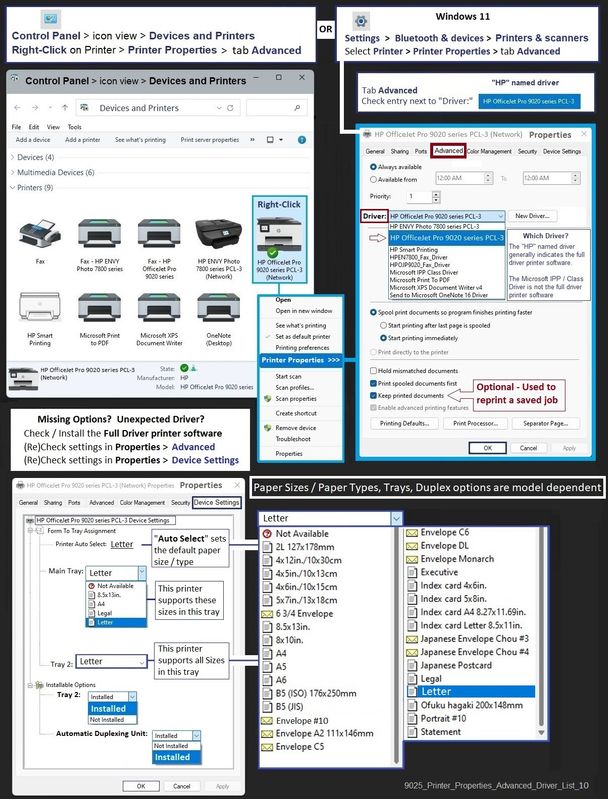
The software is installed but Printer Properties are set to use a Windows / IPP class driver instead of the HP driver named for the particular printer and software.


Windows 11

Settings > Bluetooth & devices > Printers & scanners > Select Printer >

Printer Properties > tab Advanced > Driver = "HP" ...

OR

Control Panel > icon view > Devices and Printers

Right-Click Printer > Printer Properties > tab Advanced > Driver = "HP" ...


Example - Printer Properties

9025_Printer_Properties_Advanced_Driver_List_109025_Printer_Properties_Advanced_Driver_List_10


=+=+=+=+=+=+=+=+=+=+=+=+=+=+=+=+=+=+=+=+=+=


Paper as the source of the issue - The information is provided FYI.


Paper too dry / too damp / not flat / damaged / incorrectly stored / “old”

HP Printers - How to Store and Handle Paper to Avoid Paper Jams


=+=+=+=+=+=+=+=+=+=+=+=+=+=+=+=+=+=+=+=+=+=

What if?

When all else fails,

That is, the printer is clean, the color tests and diagnostics pass, the test print appears correct, and the issue remains unresolved,

Fall back to (use) Photo Editing Software to correct the color as best can be done to get the results you seek on the paper you are using.


HP Smart includes some basic tools as do other apps.


What you use depends on your Operating System, your skill set, and the amount of work you are willing to do to get what you want.


=+=+=+=+=+=+=+=+=+=+=+=+=+=+=+=+=+=+=+=+=+=

References / Resources / Examples


HP Printer Home Page - References and Resources

Learn about your Printer  - Solve Problems

“Things that are your printer”

When the website support page opens, Select (as available) a Category > Topic Subtopic

NOTE:  Content depends on device type and Operating System

Categories:  Alerts, Access to the Print and Scan Doctor (Windows), Warranty Check, HP Drivers / Software / Firmware Updates, How-to Videos, Bulletins/Notices, Lots of How-to Documents, Troubleshooting, Manuals > User Guides, Product Information (Specifications), Supplies, and more

Open

HP OfficeJet Pro 8025 All-in-One Printer 


Thank you for participating in the HP Community --

People who own, use, and support HP devices.

Click Yes to say Thank You

Question / Concern Answered, Click "Accept as Solution"


Dragon-Fur

† The opinions expressed above are the personal opinions of the authors, not of HP. By using this site, you accept the <a href="https://www8.hp.com/us/en/terms-of-use.html" class="udrlinesmall">Terms of Use</a> and <a href="/t5/custom/page/page-id/hp.rulespage" class="udrlinesmall"> Rules of Participation</a>.