• ×
    Information
    Need Windows 11 help?
    Check documents on compatibility, FAQs, upgrade information and available fixes.
    Windows 11 Support Center.
  • post a message
  • ×
    Information
    Need Windows 11 help?
    Check documents on compatibility, FAQs, upgrade information and available fixes.
    Windows 11 Support Center.
  • post a message
Guidelines
Seize the moment! nominate yourself or a tech enthusiast you admire & join the HP Community Experts!
Check some of the most frequent questions about Instant Ink: HP INSTANT INK, HP+ PLANS: INK AND TONER.


Check out our Black or Color Ink Not Printing, Other Print Quality Issues info about: Print quality and Cartridge Issues.
HP Recommended
HP Officejet Pro 6830 e-All-in-One Printer
Microsoft Windows 10 (64-bit)

I have a problem with my Cyan colour not printing.


I have a instant ink account and have followed all the trouble shooting guides and even was supplied with a replacement cartridge to try and rectify this but to no avail. No matter what I do I cannot get cyan to print. I also print out the printer status report and cyan doesn't print but ink information is showing full.


I have been led to believe if it is a fault with the printhead assembly that this is not replaceable which ultimately renders the printer useless unless I want to only print in black.


Anybody had this problem or even if there is a solution I'm unaware of?


Regards


3 REPLIES 3
HP Recommended

Meanwhile they send more ink when we haven't used any.  COME ON HP we're not the only ones with this problem.

HP Recommended

@SixtyRoy and @MaryMouseNuts


Welcome to the HP support community.


I understand that the cyan cartridge is not printing, I will assist you to fix this issue.

Make sure the ink cartridges are properly vented and seated correctly

  1. Press the Power button to turn on the printer, if it is not already on.

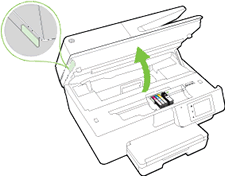
  2. Place your fingers into the slot on the left side of the printer, and then gently lift up to open the cartridge access door. The carriage moves to the cartridge access area. Wait several seconds until the carriage is idle and silent before you continue.

    Image: Open the cartridge access door

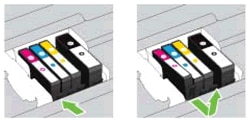
  3. Press the tab inward on the front of the old cartridge to release it, and then pull up on the cartridge to remove it from the slot.

    Image: Remove the cartridge from its slot

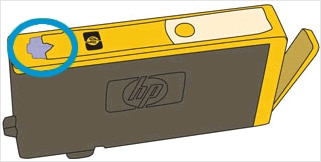
  4. Examine the vent area above the HP logo on the top of the cartridge.

    Image: Examine the vent area on the top of the cartridge

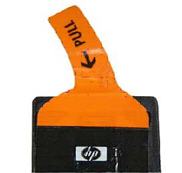
  5. If the cartridge still has the orange pull-tab attached, pull to remove it.

    Image: Remove the orange pull-tab

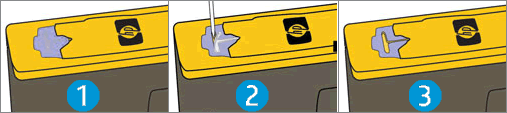
  6. If the vent is clogged, use a straight pin to gently remove excess adhesive from the vent.

    1.  

      Image: Clean the clogged vent with a pin

      Clogged vent
    2. With a straight pin, gently remove excess adhesive from the vent

    3. Unclogged vent

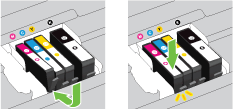
  7. Turn the cartridge so that the cartridge contacts face downward, and then match the label color with the color dot on the carriage.

  8. Slide the cartridge into its slot, and then gently press the cartridge down until it clicks into place.

    Image: Install the cartridge

  9. Repeat these steps to inspect the vents on each of the cartridges.

  10. Make sure that each cartridge is firmly installed in its slot. Run your finger along the top of the cartridges to feel for any that are protruding, and if any are, press down firmly until each cartridge snaps into place.

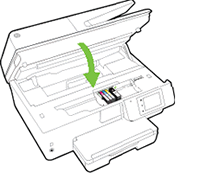
  11. Close the cartridge access door.

    Image: Close the cartridge access door


You can try step 14 of this HP document for more assistance:- click here


Let me know how it goes.

To thank me for my efforts to help you, please mark my post as an accepted solution so that it benefits several others.

Cheers.

Sandytechy20
I am an HP Employee

HP Recommended

Checked everything on each cartridge, replaced the Cyan cartridge, still not printing blue

† The opinions expressed above are the personal opinions of the authors, not of HP. By using this site, you accept the <a href="https://www8.hp.com/us/en/terms-of-use.html" class="udrlinesmall">Terms of Use</a> and <a href="/t5/custom/page/page-id/hp.rulespage" class="udrlinesmall"> Rules of Participation</a>.