
-
×InformationNeed Windows 11 help?Check documents on compatibility, FAQs, upgrade information and available fixes.
Windows 11 Support Center. -
-
×InformationNeed Windows 11 help?Check documents on compatibility, FAQs, upgrade information and available fixes.
Windows 11 Support Center. -
- HP Community
- Printers
- Printer Ink Cartridges & Print Quality
- Re: Cyan not printing

Create an account on the HP Community to personalize your profile and ask a question
Your account also allows you to connect with HP support faster, access a personal dashboard to manage all of your devices in one place, view warranty information, case status and more.
Check some of the most frequent questions about Instant Ink: HP INSTANT INK, HP+ PLANS: INK AND TONER.
Check out our Black or Color Ink Not Printing, Other Print Quality Issues info about: Print quality and Cartridge Issues.

It has been a while since anyone has replied. Simply ask a new question if you would like to start the discussion again.

10-17-2020
03:40 PM
- last edited on
10-19-2020
03:47 PM
by
 RodrigoB
 HP Recommended
I received an email on October 13, 2020 with the following subject line:
Important: Cartridge Problem
HP has recently determined that you may have received Cyan (blue) and/or Yellow cartridge(s) for your OfficeJet Pro 6968 that may have a quality issue. We sincerely apologize for the inconvenience and are working hard to ship replacement cartridges to you within 3-4 weeks.
I'm not sure if any other cartridges are part of this issue. My printer uses HP902 Instant Ink Cartridges.
PS - This issue may NOT have been "solved".
PPS - I too tried "every solution know to humans". The issue has been ongoing for months on my printer. I'm guessing since late in 2019. I just don't do that much critical printing so streaks in my Cyan weren't an issue.
13 REPLIES 13


10-19-2020 03:52 PM
HP Recommended
@BlueCat58 While we wait for the replacement cartridges that could have been delayed due to the pandemic situation we are in, and we appreciate your patience, here's a few other things that may help, if you've not done this, already:
I suggest we use the copier as a stand-alone device to check if the copy function works fine, this could be a software issue, let me know,
And if it doesn't work either, try the below steps:
Step 1: Use genuine HP ink cartridges
HP recommends that you use genuine HP ink or toner supplies. HP cannot guarantee the quality or reliability of non-HP or refilled cartridges. If you do not use genuine HP cartridges, the steps in this document might not resolve the issue. To check the authenticity of your cartridges, go to the HP anti-counterfeit webpage (in English).
Purchase replacement cartridges and other supplies from the HP Store or local retailers.
Step 2: Check the estimated ink levels
Check the estimated ink levels. If an ink cartridge is empty, your printer can print for a period of time in either greyscale or composite black, depending on which ink cartridge is empty. If a color ink cartridge is empty, the printer prints in greyscale using black ink. If the black ink cartridge is empty, the printer prints in composite black using color ink. Composite black might not be as dark as regular printouts.
NOTE:Ink level warnings and indicators provide estimates for planning purposes only. When an indicator shows low ink levels, consider having a replacement ink cartridge available to avoid possible printing delays. You do not need to replace ink cartridges until you are prompted to.
-
On the printer control panel, touch the Ink Level icon (
 ) or (
 ).
).NOTE:
The Ink Level icon that displays on your control panel differs depending on your printer model.
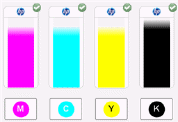
A graphic of the estimated ink levels for each ink cartridge displays on the control panel.
Figure : Estimated ink levels displayed on the printer control panel
-
Identify any ink cartridges that are low or empty, and then continue to the next step.
FOR DETAILS & FURTHER INSTRUCTIONS, USE THIS LINK: CLICK HERE & SKIP TO STEP 3 ONWARD
(By the end of this article all the issues should be resolved)
P.S: Welcome to HP Community 😉
Let me know how that pans out,
If you feel I was helpful, simply click on Accept as Solution to help the community grow,
That said, I will have someone follow-up on this to ensure you've been helped,
Just in case you don't get back to us,
have a good day, ahead.
Riddle_Decipher
I am an HP Employee
Learning is a journey, not a destination.
Let's keep asking questions and growing together.
11-03-2020 08:58 AM - edited 11-03-2020 09:05 AM
HP Recommended
I have the same issue and it has been ongoing. I got that email, and just received new ink so I went ahead and installed it, but same issue. Very streaky. When I run the clean print head option the cyan, purple, and green are streaky. I have a blue heavy photo to print, but I can't! I tried yet another different cyan cartridge and had the same issue. Are they ALL defective???





11-20-2020 12:16 AM
HP Recommended
That's unfortunate. This means that the issue is with the printer hardware. Please reach out to the HP Technical Support team in your region regarding the service options for your printer.
You may create a case on the website to obtain a case number if required. Kindly watch this video to know how.
Keep me posted for any other assistance.
KUMAR0307
I am an HP Employee
11-29-2020 05:21 PM
HP Recommended
Thank you for following this issue.
I doubt that the issue is a hardware problem since the problem produces the same results as other posters with similar issues.
I have decided to "solve" the problem by buying a new printer since my current printer is several years old.
I will be purchasing the 8035e. Too bad no one can tell me the SPECIFIC differences between it and the 8025e, but I'm used to the subtle differences of computer hardware as technology advances rapidly.
I will continue with the Instant Ink program with the new printer. I like the program because it makes me think before I print. I used to print 500 pages a month and they would just pile up in my "To Read", "To Do", "To Whatever" piles. Now I print less than 100 pages a month. Not sure how much that saves, but now my piles are digital. I "Pocket"ed over a million words last year instead of printing over 4,800 pages. That saved a few trees and a few hundred dollars, so I don't feel so bad about buying a new printer.

Be alert for scammers posting fake support phone numbers and/or email addresses on the community.
If you think you have received a fake HP Support message, please report it to us by clicking on "Flag Post".
† The opinions expressed above are the personal opinions of the authors, not of HP. By using this site, you accept the Terms of Use and Rules of Participation.


Didn't find what you were looking for?
Ask the community
† The opinions expressed above are the personal opinions of the authors, not of HP. By using this site, you accept the <a href="https://www8.hp.com/us/en/terms-of-use.html" class="udrlinesmall">Terms of Use</a> and <a href="/t5/custom/page/page-id/hp.rulespage" class="udrlinesmall"> Rules of Participation</a>.