• ×
    Information
    Need Windows 11 help?
    Check documents on compatibility, FAQs, upgrade information and available fixes.
    Windows 11 Support Center.
  • post a message
  • ×
    Information
    Need Windows 11 help?
    Check documents on compatibility, FAQs, upgrade information and available fixes.
    Windows 11 Support Center.
  • post a message
Guidelines
Join the HP Community Solve‑a‑thon | Help Others & Share Your Solutions | Live on Zoom | 2:30 PM to 2:30 AM IST | Every Wednesday Click here to know more
Check some of the most frequent questions about Instant Ink: HP INSTANT INK, HP+ PLANS: INK AND TONER.


Check out our Black or Color Ink Not Printing, Other Print Quality Issues info about: Print quality and Cartridge Issues.
HP Recommended
Example: HP tank ink wireless 410

How can i fix the problem of my cartridge, 

I buy an hp cartridge the tri color and black to replace my old cartridge however when i used the cartridge tri color occured an error. 

My printer is hp 410 series, 

Help me  

1 REPLY 1
HP Recommended

Hi @Harchy,


I'd like to help!


I understand you are receiving a "printhead" error 


Try the below steps -


Remove, inspect, and then reseat the printheads

The printer might display an error if the printheads are not correctly installed. Perform the following steps for the printhead(s) indicated by the Printhead icons  on the printer control panel.

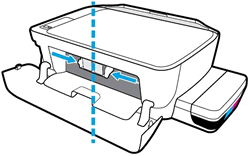
  1. Close the output tray extender, and then rotate the output tray left to stow it in the printer.

  2. Open the exterior door, and then open the printhead access door.

  3. If the carriage is not visible, press and hold the Black Color Copy button for 3 seconds.

    The carriage moves to the center of the printer.

    Access the print carriage

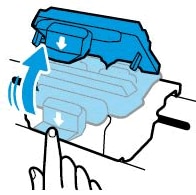
  4. Gently push down on the blue carriage latch.

    The blue carriage latch opens.

    Open the printhead carriage latch

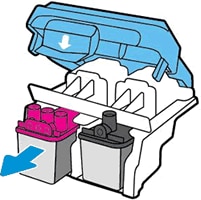
  5. Lightly press down on the printhead to release it, and then pull the printhead out of its slot.

    Removing the printheads

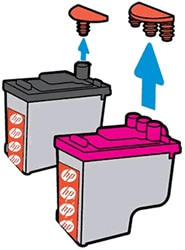
  6. Make sure the plugs on top of the printhead have been removed.

    Pull the orange plugs

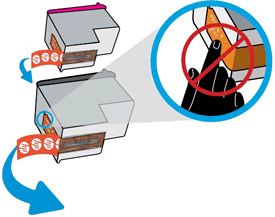
  7. Make sure the tape from the printhead contacts has been removed.

       CAUTION: 

    Do not touch the copper-colored contacts or the ink nozzles. Do not replace the protective tape on the contacts. Handling these parts can result in clogs, ink failure, and bad electrical connections.

    Remove the tape

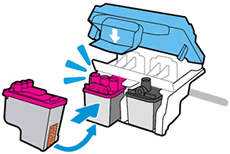
  8. Slide the printhead at a slight upward angle into the empty slot, and then gently push up on the printhead until it snaps into place.

    Insert the printheads

    • Insert the tri-color printhead into the left slot.

    • Insert the black printhead into the right slot.

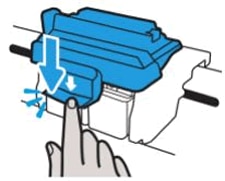
  9. Close the blue carriage latch by pushing down firmly until the latch snaps into place.

    Image: Close the latch

  10. Close the printhead access door.

  11. Close the exterior door.

    The priming process continues.

 Reset the printer

Resetting the printer can sometimes resolve a printhead error.

  1. With the printer turned on, disconnect the power cord from the printer.

  2. Unplug the power cord from the power source.

  3. Wait 60 seconds.

  4. Reconnect the power cord to a wall outlet and to the printer.

    NOTE: 

    HP recommends plugging the printer directly into a wall outlet.

    You may refer to - An 'Incompatible' or 'Ink Cartridges Missing' Error Message Displays

 If the issue persists, I'd suggest you contact HP in your region regarding the service options for your printer


Hope this helps! Keep me posted. 


And, Welcome to the HP Support Community. 


Please click “Accept as Solution” if you feel my post solved your issue, it will help others find the solution.

Click the “Kudos, Thumbs Up" on the bottom right to say “Thanks” for helping

† The opinions expressed above are the personal opinions of the authors, not of HP. By using this site, you accept the <a href="https://www8.hp.com/us/en/terms-of-use.html" class="udrlinesmall">Terms of Use</a> and <a href="/t5/custom/page/page-id/hp.rulespage" class="udrlinesmall"> Rules of Participation</a>.