• ×
    Information
    Need Windows 11 help?
    Check documents on compatibility, FAQs, upgrade information and available fixes.
    Windows 11 Support Center.
  • post a message
  • ×
    Information
    Need Windows 11 help?
    Check documents on compatibility, FAQs, upgrade information and available fixes.
    Windows 11 Support Center.
  • post a message
Guidelines
Seize the moment! nominate yourself or a tech enthusiast you admire & join the HP Community Experts!
Check some of the most frequent questions about Instant Ink: HP INSTANT INK, HP+ PLANS: INK AND TONER.


Check out our Black or Color Ink Not Printing, Other Print Quality Issues info about: Print quality and Cartridge Issues.
HP Recommended
HP OfficeJet Pro 9015 All-in-One Printer
Other

Hello — I saw many people asking, and I found the simplest answered (because i dont know how anyone expected me to do with my IP address honestly). But anyways, for my officejet pro all-in-one,  I wanted my history (page count), and I was able to do that directly on my printer….


Settings > Reports > Usage Report


and THERE YA GO!!!! Hope its that easy for other printers!!

1 REPLY 1
HP Recommended

@DarbyScot69 


Welcome to the HP Community --


Thanks for your post!


Using the printer control panel is a good solution for a printer that provides the settings you need for the information you want.


Details / Examples


Included

  • Printer Control Panel Sample
  • EWS and Example


User Guide 

Page 11

Example / Excerpted

DragonFur_0-1701971330625.png


======================================================


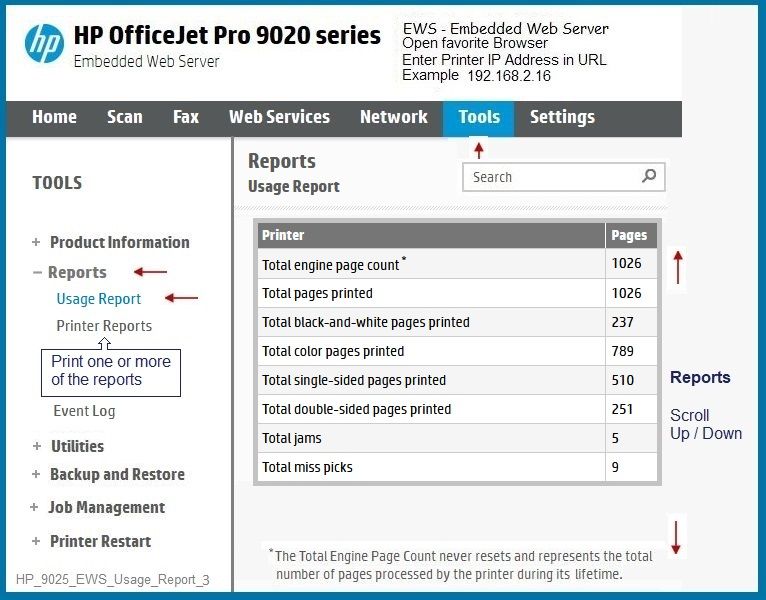
The Embedded Web Server (EWS) - where supported -- is an excellent tool to view and manage your printer's features.


EWS > HP Document / How-to

Use the HP printer Embedded Web Server (EWS)

NOTE:  Find printer IP address

Section Open the EWS over a local network orientation


Example

Open your Browser > Type / enter the Printer IP address into URL / Address bar

Tab Tools > Printer Reports > Select Report to print

Print Printer Status Report

Print Usage Report

Print Network Configuration Page

Print Wireless Test Report

Print Web Access Report

Print Fax Log

Junk Fax List


Open your Browser > Type / enter the Printer IP address into URL / Address bar

Tab Tools > Reports > Usage Report

To Print the Report:  EWS > Tools > Printer Reports > Print Usage Report


HP_9025_EWS_Usage_Report_3HP_9025_EWS_Usage_Report_3


=+=+=+=+=+=+=+=+=+=+=+=+=+=

References / Resources


=+=+=+=+=+=+=+=+=+=+=+=+=+=+=+=+=+=+=+=+=+=

HP Printer Home Page - References and Resources

Learn about your Printer  - Solve Problems

“Things that are your printer”

When the website support page opens, Select (as available) a Category > Topic Subtopic

NOTE:  Content depends on device type and Operating System

Categories Alerts, Access to the Print and Scan Doctor (Windows), Warranty Check, HP Drivers / Software / Firmware Updates, How-to Videos, Bulletins/Notices, Lots of How-to Documents, Troubleshooting, Manuals > User Guides, Product Information (Specifications), Supplies, and more

Open

  HP OfficeJet Pro 9015 All-in-One Printer  


Thank you for participating in the HP Community --

People who own, use, and support HP devices.

Click Yes to say Thank You

Question / Concern Answered, Click my Post "Accept as Solution"


Dragon-Fur

† The opinions expressed above are the personal opinions of the authors, not of HP. By using this site, you accept the <a href="https://www8.hp.com/us/en/terms-of-use.html" class="udrlinesmall">Terms of Use</a> and <a href="/t5/custom/page/page-id/hp.rulespage" class="udrlinesmall"> Rules of Participation</a>.