• ×
    Information
    Need Windows 11 help?
    Check documents on compatibility, FAQs, upgrade information and available fixes.
    Windows 11 Support Center.
  • post a message
  • ×
    Information
    Need Windows 11 help?
    Check documents on compatibility, FAQs, upgrade information and available fixes.
    Windows 11 Support Center.
  • post a message
Guidelines
Seize the moment! nominate yourself or a tech enthusiast you admire & join the HP Community Experts!
Check some of the most frequent questions about Instant Ink: HP INSTANT INK, HP+ PLANS: INK AND TONER.


Check out our Black or Color Ink Not Printing, Other Print Quality Issues info about: Print quality and Cartridge Issues.
HP Recommended
HP Officejet Pro 8600 Plus e-All-in-One Printer - N911g
Microsoft Windows 10 (64-bit)

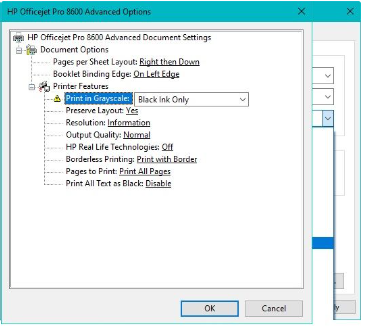
Hello, I have the HP Officejet pro 8600 plus e-all-in-one printer-N911g, I am having issues when trying to set my paper type to any type of photo paper to print in Black Ink only, when I select Black Ink Only option from the advanced options screen, Print In Greyscale Black Ink Only , all my paper options have a yellow triangle next to them, only the Plain Paper , Thick Plain Paper & HP Bright White Paper do not have the yellow triangle next to them , I have used the option to print in Black Ink on photo paper only 4 weeks ago but now when I set the settings to print black ink only I receive an error Page1.jpgPage2.jpgPage3.jpg

3 REPLIES 3
HP Recommended

Hi @PYROT1,


Welcome to the HP Support Community


I understand you are facing an issue with your Paper Settings Issues. HP Officejet pro 8600 Not to worry I will help you to get a resolution to resolve the issue.


Print all text as black: Disable Try to ENABLE


Let's perform a power drain: 

  • With the printer turned on, disconnect the power cord from the rear of the printer and also unplug the power cord from the wall outlet.
  • Remove the USB cable, if present.
  • Wait for 2-3 minutes, press and hold the power button on your printer for about 30 seconds to remove any additional charge.
  • Now plug back the power cable straight to a wall outlet without any surge protector or an extension cord (This is important) and then plug back the power cord to the printer.
  • Turn on the printer and wait till the warm-up period finishes and the printer is idle

Update the printer firmware 


  • Click here to download and install the latest printer firmware from your product
  • Click here to know different methods of updating the printer firmware.


If the issue persists, then please follow the steps mentioned in this document: Adjust the paper settings in the driver


The printer might not pick up a paper if the paper size and type in the paper tray do not match the size and type settings in the print driver. Adjust the paper settings to match the paper loaded in the printer.

Return to the document that you were trying to print when the issue occurred.

Click File, and then click Print. The Print dialog box opens.

Select your printer, and then click Properties. The Print Properties dialog box opens.

Click the Features tab.

From the Paper type drop-down list, select the paper type that is loaded in the printer.

From the Size drop-down list, select the paper size that is loaded in the printer.

Click OK on the Print Properties dialog box, and then click OK on the Print dialog box to print the document.

If these steps resolved the issue, and the document prints, there is no need to continue troubleshooting.

If the document prints on plain white paper, but not a special paper type, there is no need to continue troubleshooting. The issue is probably related to the paper that you are trying to print on or is possibly related to a connectivity problem. Review the Tips for preventing paper feed issues section at the beginning of this document to check for other possibilities.

If the document does not print, continue with the next solution.


If the issue persists: then uninstall and reinstall the printer driver


I hope this helps! Keep me posted. 


Please click “Accepted Solution” if you feel my post solved your issue, it will help others find the solution. Click the “Kudos/Thumbs Up" on the bottom right to say “Thanks” for helping!


A_Gayathri
HP Support Community Administrator.
HP Recommended

Hello Gaya1239,

Thank you for taking your time and effort to have a look at my issues and for providing the information to try and fix my issues with this printer software. Unfortunately none of your suggestions have resolved the issues I have , I could not update the firmware either by the printer control panel as it does not have Web Services or Printer Update function and via HP update web site (windows) it would not install, I did download the firmware update but it will not install, when I try to open the firmware file it opens up a window "Welcome to the HP Printer Update" within this window is a "status" which shows "Not Applicable".

I don't think it is a paper size issue that is causing problems, it is more a software issue, when I choose Black Ink Only [there is no disable or enable] for that function, all my photo paper and any other special paper types have a yellow triangle next to them, if I OK the setting I receive an "incompatible Printer Settings" I have attached an image of this window.

Page3.jpg

HP Recommended

@PYROT1 ,


Thank you for your response, I really appreciate your efforts. As the issue still persists, I'm sending out a private message to assist you with the next course of action. 


Please check your Private message icon on the upper right corner of your HP Community profile Next, to your profile Name, you should see a little blue envelope, please click on it or simply click on this link.


Hope this helps! Keep me posted for further assistance.


Please click “Accept as Solution” if you feel my post solved your issue, it will help others find the solution. Click the “Kudos, Thumbs Up" on the bottom right to say “Thanks” for helping!


A_Gayathri
HP Support Community Administrator.
† The opinions expressed above are the personal opinions of the authors, not of HP. By using this site, you accept the <a href="https://www8.hp.com/us/en/terms-of-use.html" class="udrlinesmall">Terms of Use</a> and <a href="/t5/custom/page/page-id/hp.rulespage" class="udrlinesmall"> Rules of Participation</a>.