-
×InformationNeed Windows 11 help?Check documents on compatibility, FAQs, upgrade information and available fixes.
Windows 11 Support Center. -

-
×InformationNeed Windows 11 help?Check documents on compatibility, FAQs, upgrade information and available fixes.
Windows 11 Support Center. -
- HP Community
- Printers
- Printer Ink Cartridges & Print Quality
- Print quality

Create an account on the HP Community to personalize your profile and ask a question
06-26-2026 05:22 PM
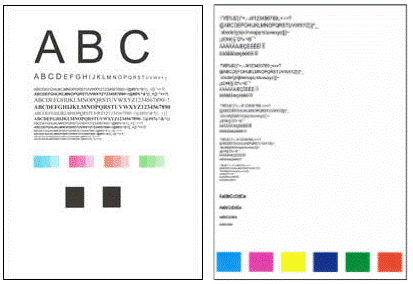
HP OJ Pro 8035 - print quality lead me to clean print head via printer. After little improvement I moved to the solution/injection method which eventually showed much improvement but I had performed this a few times and let sit for 1 or 2 days at a time. I'm still seeing streaking especially in the purple and green on clean printhead report and the black ink writing in different fonts, characters and sizes continues to be horribly bad. After unplugging, waiting for a minute, then plugging back in (supposed to be some kind of reset) I was successful at completing a printhead alignment. This didn't seem to make a difference. When I print a document there are rows poorly printed that you can't read while other rows print okay and this repeats throughout document. I'm undecided to try another clean, attempt to replace printhead (which I understand is not a design plan for this printer) or replace it.
06-28-2026 10:24 AM
Hi @Garyman,
Welcome to the HP Support Community!
Thanks for reaching out!
I get how frustrating this must be with your HP OfficeJet Pro 8035 still showing streaks and unreadable text even after multiple cleanings and resets. Here’s what you can do for now:
Run printhead cleaning again, but limit it to 2–3 cycles; repeated injections or extended soaking can damage the printhead.
CAUTION: Never turn off the printer without ink cartridges installed. To avoid issues that require cleaning the printhead or that can damage the ink system, always replace ink cartridges as soon as possible, and always turn off the printer using the Power button.
On the printer control panel, open the setup
menu, and then touch Printer Maintenance or Tools.
Touch Clean Printhead, and then touch Continue.
After the cleaning is complete, a test page prints.

Examine the Test Page.
If the print quality is unacceptable, touch Clean Again to continue the next level of cleaning. If necessary, repeat these steps for the third cleaning cycle.
Check ink cartridge health: make sure you’re using genuine HP cartridges and that none are clogged or leaking.
Update Firmware
Kindly refer to this link to update your printer firmware.
Inspect Ink System
Look for air bubbles or ink starvation in the printhead.
If one color prints faintly, it’s often a clogged nozzle.
If all colors are faint, it may be a failing printhead.
I hope this helps
Take care and have an amazing day ahead! 🚀
Best regards,
Kuroi_Kenshi
I'm an HP Employee.
If this reply helped resolve your issue, please select the Accept as Solution as it helps others in the community quickly find the answer they’re looking for.
And if you found this reply helpful, clicking Yes below is a great way to let us know we’re providing the support you need, as it encourages us to keep improving and sharing helpful guidance.