• ×
    Information
    Need Windows 11 help?
    Check documents on compatibility, FAQs, upgrade information and available fixes.
    Windows 11 Support Center.
  • post a message
  • ×
    Information
    Need Windows 11 help?
    Check documents on compatibility, FAQs, upgrade information and available fixes.
    Windows 11 Support Center.
  • post a message
Guidelines
Printing Blank Pages via USB OTG? Here’s How to Fix Your OfficeJet! Click here to check it out!
Check some of the most frequent questions about Instant Ink: HP INSTANT INK, HP+ PLANS: INK AND TONER.


Check out our Black or Color Ink Not Printing, Other Print Quality Issues info about: Print quality and Cartridge Issues.
HP Recommended
HP DeskJet 3755 all in one
Android 9.0 Pie

What type of label paper does my printer use i Have The Hp DeskJet 3755 all in one 

1 REPLY 1
HP Recommended

Hi@Thiickbby29Welcome to the HP Support Community I would be happy to help you with your HP Deskjet 3755printer. I understand that you are unable to print photos on the label paper page and you have already done some preliminary troubleshooting. 


Don't worry though as I have a few steps to determine the issue and find a solution as well,

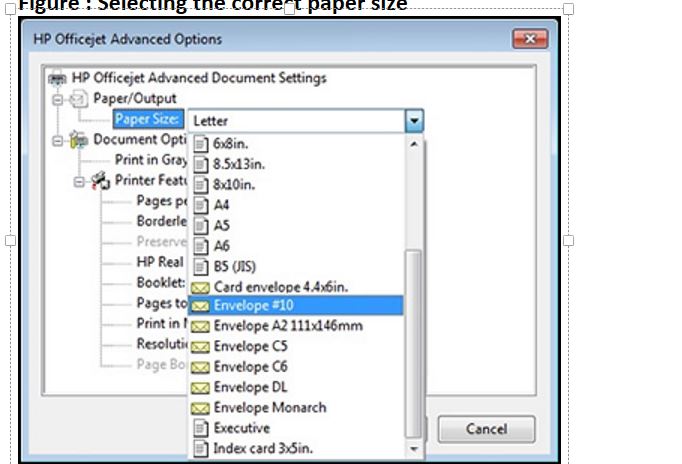
Adjust the paper size setting:

  1. In the program, you want to print from, click File, and then click Print.
  2. Make sure your printer is in the Name or Printers drop-down list box, and then click Properties, Printer Properties, or Preferences.
  3. Click the Paper/Quality tab.
  4. Click Advanced, if necessary, and then click Paper Size.
    Figure : Selecting the correct paper size

  1. Select the paper size that matches the size and type of paper loaded in the printer tray, and then click OK. If there are no matching paper sizes, select the size from the list that is closest to the size of the paper loaded in the tray.
  2. Click OK, and then try to print.

Check the paper source setting:

  1. Remove all the paper from all the printer input trays.
  2. Reload the paper, and then adjust the paper width guides so they gently rest against the edge of the paper stack.
  3. In the program, you want to print from click File and then click Print.
  4. Make sure your printer is in the Name or Printers drop-down list box, and then click Properties, Printer Properties, or Preferences.
  5. Click the Paper/Quality tab, and then click Paper Source to select the correct tray.
  6. Click OK, and then try to print.

Click here and refer to the document to perform the above steps.


Keep me posted. Happy to help!


Please click “Accept as Solution” if you feel my post solved your issue, it will help others find the solution.

Click the “Kudos, Thumbs Up" on the bottom right to say “Thanks” for helping!

Have a great day! 


† The opinions expressed above are the personal opinions of the authors, not of HP. By using this site, you accept the <a href="https://www8.hp.com/us/en/terms-of-use.html" class="udrlinesmall">Terms of Use</a> and <a href="/t5/custom/page/page-id/hp.rulespage" class="udrlinesmall"> Rules of Participation</a>.