• ×
    Information
    Need Windows 11 help?
    Check documents on compatibility, FAQs, upgrade information and available fixes.
    Windows 11 Support Center.
  • post a message
  • ×
    Information
    Need Windows 11 help?
    Check documents on compatibility, FAQs, upgrade information and available fixes.
    Windows 11 Support Center.
  • post a message
Guidelines
Seize the moment! nominate yourself or a tech enthusiast you admire & join the HP Community Experts!
Check some of the most frequent questions about Instant Ink: HP INSTANT INK, HP+ PLANS: INK AND TONER.


Check out our Black or Color Ink Not Printing, Other Print Quality Issues info about: Print quality and Cartridge Issues.
HP Recommended
Deskjet 3055A
Microsoft Windows 10 (64-bit)

My HP Deskjet 3055A Says that my color cartridge is non compatible, after it have be used for many weeks.

The cartridge is a original HP 301XL, and it is half full, I had this problem before, where the only solution was to change the cartridge. This can't be right, I buy the expensive brand and it don't work.

Can someone tell me if there is another solution to the problem.


Br.

Michael

1 REPLY 1
HP Recommended

@msc999


Welcome to the HP support community.


Clean the electrical contacts

  1. Turn the printer on.

  2. Open the door to access the cartridges.

  3. Wait until the carriage stops moving before you continue.

  4. Remove the cartridge indicated in the error message from its slot, holding it by its side.

       CAUTION: 

    Do not touch the copper-colored contacts or the ink nozzles. Touching these parts can result in clogs, ink failure, and bad electrical connections.

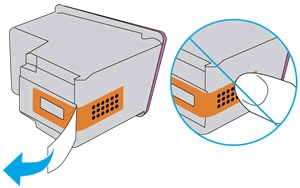
  5. Remove any protective tape that still might be on the contacts.

       CAUTION: 

    Do not touch or try to remove the copper electrical strip.

    Remove the plastic tape and do not touch the contacts or ink nozzles

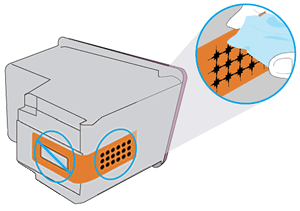
  6. Lightly dampen a lint-free cloth with distilled water, and then clean only the copper-colored contacts on the cartridge.

    Cleaning the copper-colored contacts on the cartridge

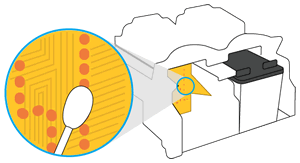
  7. Lightly dampen a lint-free cloth with distilled water, and then clean the electrical contacts in the carriage, located inside the printer.

    The carriage contacts

  8. Wait 10 minutes for the contacts to dry.

  9. Reinsert the cartridge.

    • Insert the black cartridge into the right slot.

    • Insert the tri-color cartridge into the left slot.

  10. Repeat these steps for the other cartridge, if necessary.

  11. Close the cartridge access door.

  12. If the error persists, repeat the previous steps to clean the cartridge and carriage contacts a second time.

  13. Check for the error message.

You can refer this HP document for more assistance:- Click here


I hope that helps.

To thank me for my efforts to help you, please mark my post as an accepted solution so that it benefits several others.

Cheers.

Sandytechy20
I am an HP Employee

† The opinions expressed above are the personal opinions of the authors, not of HP. By using this site, you accept the <a href="https://www8.hp.com/us/en/terms-of-use.html" class="udrlinesmall">Terms of Use</a> and <a href="/t5/custom/page/page-id/hp.rulespage" class="udrlinesmall"> Rules of Participation</a>.