• ×
    Information
    Need Windows 11 help?
    Check documents on compatibility, FAQs, upgrade information and available fixes.
    Windows 11 Support Center.
  • post a message
  • ×
    Information
    Need Windows 11 help?
    Check documents on compatibility, FAQs, upgrade information and available fixes.
    Windows 11 Support Center.
  • post a message
Guidelines
Join the HP Community Solve‑a‑thon | Help Others & Share Your Solutions | Live on Zoom | 2:30 PM to 2:30 AM IST | Every Wednesday Click here to know more
Check some of the most frequent questions about Instant Ink: HP INSTANT INK, HP+ PLANS: INK AND TONER.


Check out our Black or Color Ink Not Printing, Other Print Quality Issues info about: Print quality and Cartridge Issues.
HP Recommended
HP ENVY Laptop - 13-ba0079tx
Microsoft Windows 10 (64-bit)

Hi All. I have a HP Envy laptop and HP OfficeJet 8010 All-in-One Printer. For the past 2 years I have been successfully printing on Avery glossy labels using the paper option "other glossy inkjet paper'. However, this option has now disappeared in my printer preferences. I have tried all the different paper options available (plain, heavyweight, lightweight, glossy and photo) but the ink smudges no matter how long I leave it to dry. Does anyone have any solutions? Many thanks

1 REPLY 1
HP Recommended

@JacDefos 


Welcome to the HP Community Forum.


A couple of ideas

  • Check / Adjust the Paper Size & Type on the printer - Tray and Paper
  • Uninstall the printer software > Restart the computer > Load / Install a new copy for the full driver printer software

and / or

Not related to the missing Printing Preferences

If it has been awhile since you have done so,

Consider cleaning the printer.

The document includes cleaning techniques

Paper jam error


=+=+=+=+=+=+=+=+=+=+=+=+=+=+=+=+=+=+=+=+=+=+

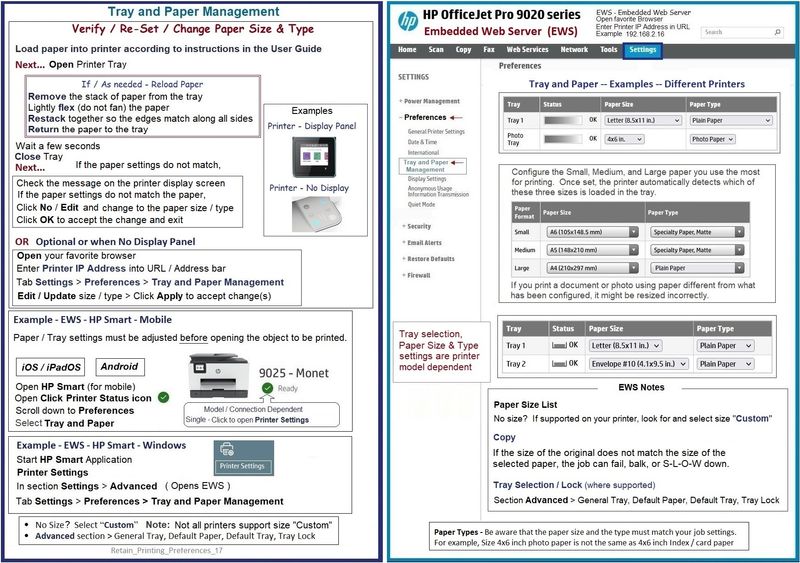
Printer - Tray and Paper


Check / Adjust / Retain the Paper at the Printer Display Panel


Open Printer Tray,

Wait a few seconds

Close Tray

IF applicable for your printer:

On the Printer Control Display Panel,

Click Modify / Change / No-Yes (wording varies), adjust the paper size and type, Click OK


What if?

If you are having trouble with getting the printer to accept (new) paper,

Remove the stack of paper from the tray

Lightly flex (do not fan) the paper to separate the single sheets

Restack together so the edges match along all sides

Return the paper to the tray


and / or


Your Paper Size not in the list?

If the size of the Paper Size is not in the Drop-down list,

Scroll to the end of the list – if found, Select Custom

Note:  Not all printers allow selection of “Custom”


=+=+=+=+=+=+=+=+=+=+=+=+=+=+=+=+=+=+=+=+=+=+

OR

Embedded Web Server (EWS)


If your printer does not have a text-input-capable control panel or if you just dislike typing on the tiny printer screen,

If supported on your printer,

Use the Embedded Web Server (EWS) to check / modify (edit) the Paper Size & Type - Tray and Paper


EWS > HP Document / How-to

Use the HP printer Embedded Web Server (EWS)


EWS – Browser – Tray and Paper Management

Open your favorite browser > type / enter Printer IP address into URL / Address bar

Tab Settings > Preferences > Tray and Paper Management

Model Dependent:  Advanced section

Click Apply to save changes


General Example - Retain / Modify (Edit) / Check Paper Size & Type - Tray and Paper

Retain_Printing_Preferences_17Retain_Printing_Preferences_17


=+=+=+=+=+=+=+=+=+=+=+=+=+=+=+=+=+=+=+=+=+=+

Printer Software


For your printer

Full Feature Software / Printer Installation Package

Download and Save

HP OfficeJet 8010 All-in-One Print and Scan Driver and Accessories 

After the software is installed, Restart the computer and log in.


Details - Read / Use / Ignore as suits your situation - FYI


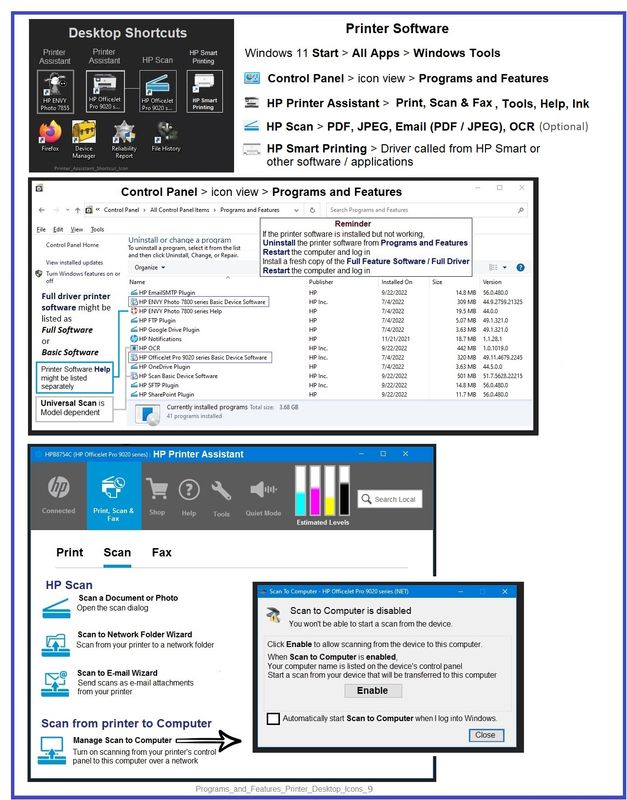
Uninstall any existing printer software from Control Panel > icon view > Programs and Features

Restart the computer and log in


If using a USB printer cable to connect the printer to the computer, disconnect the USB cable between the printer and the computer before you install the printer software.


Next,

Installation

  • Download and Save the Full Feature Software Web Pack installation package
  • Open File Explorer
  • Navigate to the folder in which you saved the installation file  (likely Downloads)
  • Right-Click on the installation package and “Run as Administrator
  • If using a USB printer cable to connect the printer to the computer, connect the cable when instructed to do so, near the end of the installation procedure
  • After the software is installed, Restart the computer and log in


=+=+=+=+=+=+=+=+=+=+=+=+=+=+=+=+=+=+=+=+=

References / Resources


Example - Full Feature Software - Windows - Installed

Programs_and_Features_Printer_Desktop_Icons_9Programs_and_Features_Printer_Desktop_Icons_9


=+=+=+=+=+=+=+=+=+=+=+=+=+=+=+=+=+=+=+=+=

References / Resources


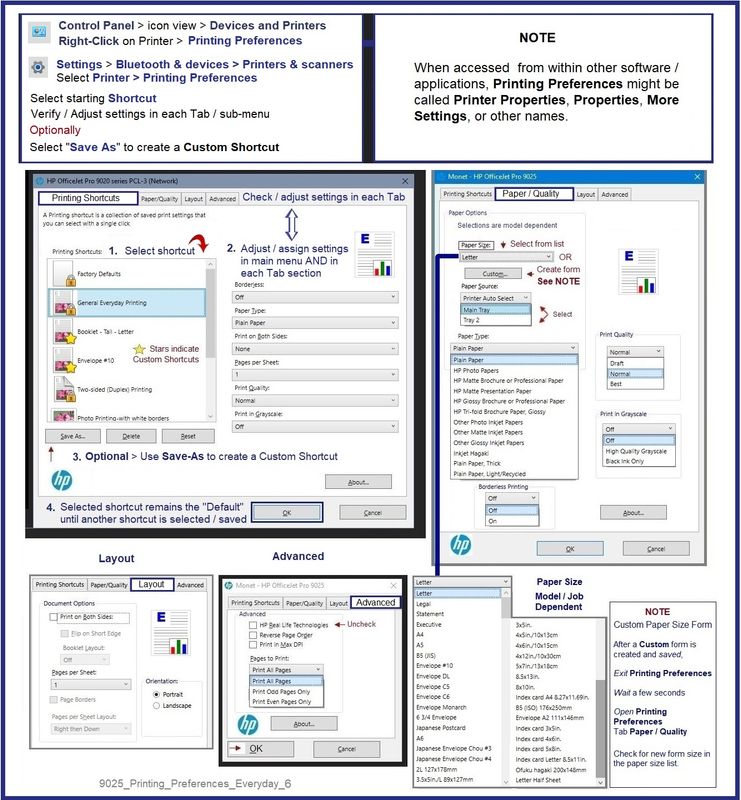
Example - Windows - Full Feature Software - Printing Preferences

9025_Printing_Preferences_Everyday_69025_Printing_Preferences_Everyday_6


=+=+=+=+=+=+=+=+=+=+=+=+=+=+=+=+=+=+=+=+=+=+

HP Printer Home Page - References and Resources

Learn about your Printer  - Solve Problems

“Things that are your printer”

When the website support page opens, Select (as available) a Category > Topic Subtopic

NOTE:  Content depends on device type and Operating System

Categories:  Alerts, Access to the Print and Scan Doctor (Windows), Warranty Check, HP Drivers / Software / Firmware Updates, How-to Videos, Bulletins/Notices, Lots of How-to Documents, Troubleshooting, Manuals > User Guides, Product Information (Specifications), Supplies, and more

Open

HP OfficeJet 8010 All-in-One Printer 


Thank you for participating in the HP Community --

People who own, use, and support HP devices.

Click Yes to say Thank You

Question / Concern Answered, Click "Accept as Solution"


Dragon-Fur

† The opinions expressed above are the personal opinions of the authors, not of HP. By using this site, you accept the <a href="https://www8.hp.com/us/en/terms-of-use.html" class="udrlinesmall">Terms of Use</a> and <a href="/t5/custom/page/page-id/hp.rulespage" class="udrlinesmall"> Rules of Participation</a>.