• ×
    Information
    Need Windows 11 help?
    Check documents on compatibility, FAQs, upgrade information and available fixes.
    Windows 11 Support Center.
  • post a message
  • ×
    Information
    Need Windows 11 help?
    Check documents on compatibility, FAQs, upgrade information and available fixes.
    Windows 11 Support Center.
  • post a message
Guidelines
Seize the moment! nominate yourself or a tech enthusiast you admire & join the HP Community Experts!
Check some of the most frequent questions about Instant Ink: HP INSTANT INK, HP+ PLANS: INK AND TONER.


Check out our Black or Color Ink Not Printing, Other Print Quality Issues info about: Print quality and Cartridge Issues.
HP Recommended
HP OfficeJet Pro 8715 All-in-One Printer

I continue to receive the error, "New, unused cartridges must be used for startup" on my OfficeJet Pro 8715. I have restarted, checked that the firmware is up to date and replaced all cartridges with new ones. The printhead is clean as well as the cartridges. How do I make this error message go away so I can resume printing?

3 REPLIES 3
HP Recommended

Hi @bravespacecoun,

Welcome to the HP support community.


I understand that you are getting Use New Cartridges for Setup error. I'd like to help!


We would have to perform an OOBE reset on the printer to bypass the error


  • The reset instructions are specific for your printer and performing those steps on a different printer may corrupt the device.
  • In order to access your private messages, click the support private message icon on the upper right corner of your HP Support community profile, next to your profile Name or simply click on this link: https://h30434.www3.hp.com/t5/notes/privatenotespage

Hope this helps! Keep me posted. 


Please click “Accept as Solution” if you feel my post solved your issue, it will help others find the solution. Click the “Kudos, Thumbs Up" on the bottom right to say “Thanks” for helping

Nal_NR-
HP Community Moderator


HP Recommended

Hi @bravespacecoun,


As we did not hear from you, 
I'll be closing this case for now. If you need further assistance, feel free to reach out to us. 


Have a great day! 

Nal_NR-
HP Community Moderator


HP Recommended

Hi @bravespacecoun


Thanks for your reply. 


To provide you with an accurate solution, I'll need a few more details:

Are you using a genuine HP ink cartridges?

Any hardware change made in the printer?


Let's follow the below solution that could resolve the issue.


Solution one: Reset the printer


Follow these steps to reset the printing mechanism.

Turn the printer on, if it is not already on.

Wait until the printer is idle and silent before you continue.

With the printer turned on, disconnect the power cord from the rear of the printer.

Unplug the power cord from the wall outlet.

Wait at least 60 seconds.

Plug the power cord back into the wall outlet.

NOTE: 

HP recommends connecting the printer power cord directly to the wall outlet.

Reconnect the power cord to the rear of the printer.

Turn on the printer, if it does not automatically turn on.

Wait until the printer is idle and silent before you proceed.

If these steps resolved the issue, you do not need to continue troubleshooting.

If the issue persists, continue to the next solution.

Solution two: Reseat the printhead


Follow these steps to reseat the printhead.

NOTE: 

You do not need to remove the printhead from the carriage.

Step 1: Unseat the printhead

Slip your fingers into the slot on the left side of the printer, and then pull forward to open the cartridge access door. The carriage moves to the left side of the printer. Wait until the carriage is idle and silent before proceeding.

Figure : Open the cartridge access door

Slot on the left side of the printer

Unplug the power cord from the rear of the printer. Unplugging the printer prevents the carriage from moving.

   WARNING: 

You must disconnect the power cord before reaching inside the printer to avoid risk of injuries or electric shock.

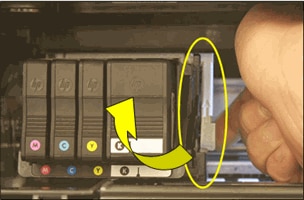
Lift the carriage latch.

Figure : Lift the carriage latch

  1. Image: Lift the carriage latch.

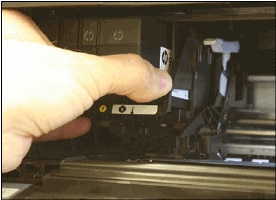
Grasp the sides of the printhead, and then slightly lift the printhead without fully removing it from the carriage.

Figure : Slightly lift the printhead

  1. Image: Slightly lift the printhead.

Step 2: Reseat the printhead, and then lower the carriage latch

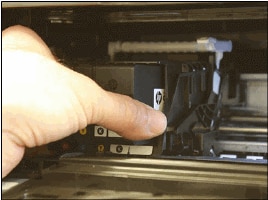
Reinsert the printhead into the carriage to reseat it. As you guide the printhead into the carriage, it settles into the carriage as it seats.

Figure : Reseat the printhead

  1. Image: Reseat the printhead.

Gently rock the printhead to the left and right to make sure that the printhead fully seats in the carriage.

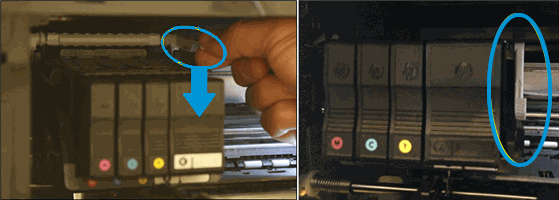
Lower the carriage latch.

Figure : Lower the carriage latch

  1. Image: Lower the carriage latch.

Make sure that the carriage latch is down.

Figure : Carriage latch positions

Carriage latch is up

Carriage latch is down

Close the ink cartridge access door.

Reconnect the power cord to the rear of the printer.

If the printer does not turn on by itself, press the Power button to turn it on.

Wait until the warm-up period finishes and your printer is idle and silent before you proceed.

If these steps resolved the issue, there is no need to continue troubleshooting.

If the issue persists, see the next step.

Step 3: Reseat the printhead up to three times


Sometimes error messages persist after inserting the printhead. To clear any error messages, reseat the printhead by repeating all steps in this solution up to three times.


Keep me posted, how it goes!

If the information I've provided was helpful, give us some reinforcement by clicking the Accepted Solution and Kudos buttons, that'll help us and others see that we've got the answers!

Nal_NR-
HP Community Moderator


† The opinions expressed above are the personal opinions of the authors, not of HP. By using this site, you accept the <a href="https://www8.hp.com/us/en/terms-of-use.html" class="udrlinesmall">Terms of Use</a> and <a href="/t5/custom/page/page-id/hp.rulespage" class="udrlinesmall"> Rules of Participation</a>.