
-
×InformationNeed Windows 11 help?Check documents on compatibility, FAQs, upgrade information and available fixes.
Windows 11 Support Center. -
-
×InformationNeed Windows 11 help?Check documents on compatibility, FAQs, upgrade information and available fixes.
Windows 11 Support Center. -
- HP Community
- Printers
- Printer Ink Cartridges & Print Quality
- Won't print black

Create an account on the HP Community to personalize your profile and ask a question
Your account also allows you to connect with HP support faster, access a personal dashboard to manage all of your devices in one place, view warranty information, case status and more.
Check some of the most frequent questions about Instant Ink: HP INSTANT INK, HP+ PLANS: INK AND TONER.
Check out our Black or Color Ink Not Printing, Other Print Quality Issues info about: Print quality and Cartridge Issues.

It has been a while since anyone has replied. Simply ask a new question if you would like to start the discussion again.

06-02-2021 02:41 PM
 HP Recommended
Product: Photosmart 7520
Operating System: macOS 10.15 Catalina
Photosmart 7520: Installed brand new HP 564XL cartridge. Level of black ink on the panel shows as full. However, when I print out a print quality report, only the color cartridge levels show as having ink in them; the black level is shown as empty on the report, and the printer will not print in black. Running attached to a Mac with the Catalina level operating system .
Solved! Go to Solution.
1 ACCEPTED SOLUTION
Accepted Solutions


06-06-2021 06:02 AM
HP Recommended
I’d recommend you contact HP Phone Support in your region for replacement options
Follow the instructions below to reach them:
1) Click on this link - https://support.hp.com/us-en/contact-hp
2) Select your product type below.
3) Enter the serial of your device.
4) Select the country from the drop-down.
5) Select the chat or get phone number options based on your preferences.
6)Fill the web-form and proceed further.
If you are having trouble navigating through the above options, it's most likely because the device is out of warranty. If yes? please send me a private message with the region you are contacting us from. Check next to your profile name, you should see a little blue envelope, please click on it.
Have a great day!
5 REPLIES 5
06-05-2021 08:45 AM
HP Recommended
Hi @red295,
I'd like to help!
To assist better-
1)Are you able to make a black and white copy using the printer?
2) What's the application you are trying to print from? Have you tried printing from a different application or devices?
Meanwhile, you may try the steps in the document - Print Quality Issues
Also, try updating the printer's firmware - HP Printers - Updating or Upgrading Printer Firmware
Hope this helps! Keep me posted.
And, Welcome to the HP Support Community
Please click “Accept as Solution” if you feel my post solved your issue, it will help others find the solution.
Click the “Kudos, Thumbs Up" on the bottom right to say “Thanks” for helping!
06-05-2021 10:13 AM
HP Recommended
I tried printing from Word for Mac, as well as trying to print out an email. Got a blank page instead. (Before further follow up efforts, I was able to print a word document all in color, though.) When I printed out a print quality check from the front panel, it showed ink levels for the color cartridges, but no ink level at all for the newly installed black cartridge. However, the front panel display indicated a full level for the black cartridge. (Also, since that Print Quality Diagnostic printed headings for the document in B&W, that left me puzzled - how did it print in B&W if the cartridge was empty?) I went to the HP Support page and followed the automated bot's instructions that eventually led me to cleaning the print head. Once I did that, the front panel now reads "Print Failure: There is a problem with the printer or ink system. Turn printer off, then on. If the problem persists, contact HP." I can't get past that error message to try cartridge alignment or head cleaning, so I am permanently stuck.
06-05-2021 10:41 AM - edited 06-05-2021 10:42 AM
HP Recommended
Printers will mix all available color inks to print B&W, that could be the reason why the writings on the report show up.
For the printer failure error, try the below steps -
Step 1: Check for obstructions in the carriage path
Clear obstructions from the carriage area inside the printer.
With the printer on, disconnect the power cord from the rear of the printer.
Open the door to access the carriage inside of the printer.
Look in the carriage path for debris such as crumpled paper or dislodged labels, and then remove any that you find.
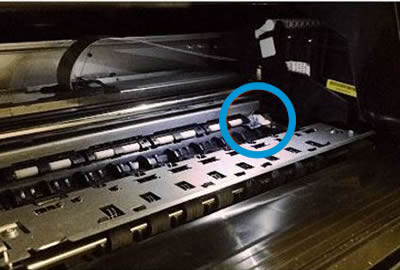
Use your hand to move the carriage to each side, making sure it moves freely. If the carriage is stalled or docked to one side of the printer and you cannot move it, continue with these steps.
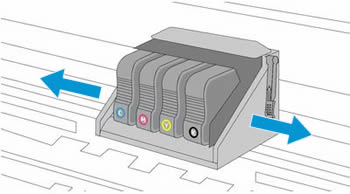
Close the carriage access door.
Reconnect the power cord to the rear of the printer, and then turn the printer on.
If the error persists, continue to the next step.
Step 2: Reset the printer
Reset the printer to recover from printer failures.
With the printer turned on, disconnect the power cord from the printer.
Unplug the power cord from the power source.
Wait 60 seconds.
Reconnect the power cord to a wall outlet and to the printer. NOTE:HP recommends plugging the printer directly into a wall outlet.
Hope this helps, Keep me posted!
06-05-2021 12:08 PM
HP Recommended
Did all of that and the carriage wouldn't move with printer disconnected from power. Resetting the printer did not clear the printer error.
Your previous suggestion of downloading and installing firmware led me to the site, whose suggestion was to download the HP Smart, which I had downloaded previously. When I open the HP Smart app it tells me I have a printhead problem. Since cleaning the printhead per HP's instructions didn't cure the problem, do I need to get a new printhead? If so, does HP sell new ones, or do I have to go the re-manufactured route (which I would be leery of due to potential quality issues)?
06-06-2021 06:02 AM
HP Recommended
I’d recommend you contact HP Phone Support in your region for replacement options
Follow the instructions below to reach them:
1) Click on this link - https://support.hp.com/us-en/contact-hp
2) Select your product type below.
3) Enter the serial of your device.
4) Select the country from the drop-down.
5) Select the chat or get phone number options based on your preferences.
6)Fill the web-form and proceed further.
If you are having trouble navigating through the above options, it's most likely because the device is out of warranty. If yes? please send me a private message with the region you are contacting us from. Check next to your profile name, you should see a little blue envelope, please click on it.
Have a great day!

Be alert for scammers posting fake support phone numbers and/or email addresses on the community.
If you think you have received a fake HP Support message, please report it to us by clicking on "Flag Post".
† The opinions expressed above are the personal opinions of the authors, not of HP. By using this site, you accept the Terms of Use and Rules of Participation.


Didn't find what you were looking for?
Ask the community
† The opinions expressed above are the personal opinions of the authors, not of HP. By using this site, you accept the <a href="https://www8.hp.com/us/en/terms-of-use.html" class="udrlinesmall">Terms of Use</a> and <a href="/t5/custom/page/page-id/hp.rulespage" class="udrlinesmall"> Rules of Participation</a>.