• ×
    Information
    Need Windows 11 help?
    Check documents on compatibility, FAQs, upgrade information and available fixes.
    Windows 11 Support Center.
  • post a message
  • ×
    Information
    Need Windows 11 help?
    Check documents on compatibility, FAQs, upgrade information and available fixes.
    Windows 11 Support Center.
  • post a message
Guidelines
Seize the moment! nominate yourself or a tech enthusiast you admire & join the HP Community Experts!
Check some of the most frequent questions about Instant Ink: HP INSTANT INK, HP+ PLANS: INK AND TONER.


Check out our Black or Color Ink Not Printing, Other Print Quality Issues info about: Print quality and Cartridge Issues.
HP Recommended
HP Deskjet 2542
Microsoft Windows 11

how do i run the head cleaning etc programme, i keep forgetting

1 REPLY 1
HP Recommended

@Rustica1 


Welcome to the HP Community.


Assuming the Full Feature Software / full driver printer software is installed

Then

The cleaning and possibly other options are located in the Toolbox.


For example, Step 12


  1. Search Windows for your printer model name, and then click the printer name in the list of results.
    The printer software opens.
  2. Click Print & Scan, and then click Maintain Your Printer.
    HP Toolbox opens.
  3. Click the Device Services tab.
  4. Click Clean Ink Cartridges, and then follow the on-screen instructions to clean the ink cartridges.
  5. When the printer finishes cleaning the ink cartridges, click Print to print a test page.
  6. Examine the test page.
    • If the print quality is acceptable, you do not need to continue troubleshooting.
    • If the print quality is unacceptable, follow the on-screen instructions to run a Second-level clean.
      note:
      If the print head is badly clogged, it might require another cleaning cycle. If so, wait 30 minutes before you perform the cleaning again.

======================================================================

What else?


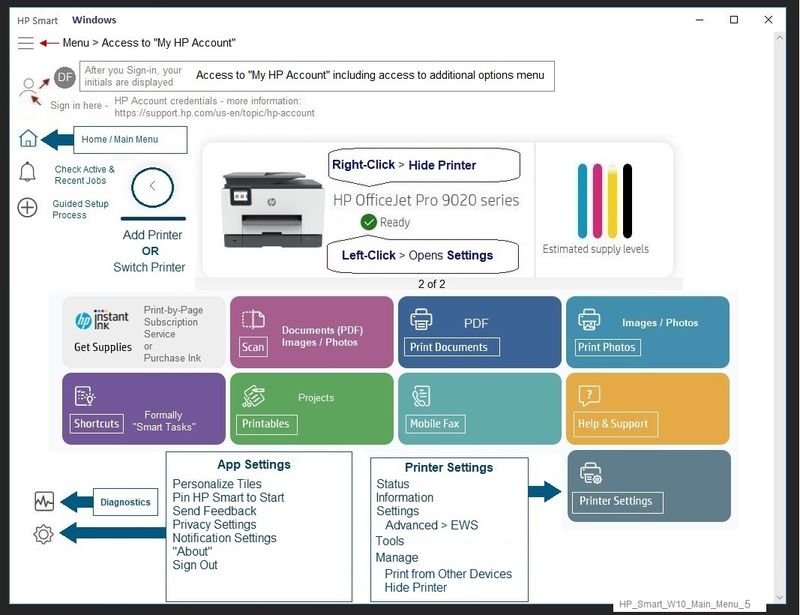
The HP Smart application provides access to the printer tools.


HP Smart > Printer Settings > Tools


======================================================================

References / Resources


Full Feature Software / full driver printer software - Information and Download:

HP Deskjet 2540 All-in-One Printer series Full Feature Software and Drivers 


HP Smart for Windows


HP Smart is an application available in the Microsoft Store

OR

Open the Homepage / Support Website for your printer

Category Software and Drivers > Check the Box Get the App


Open and Read >>> HP printer setup (HP Smart app)


NOTES: 

  • Disconnect from Virtual Private Network (VPN) connection before downloading.
  • Turn on Wi-Fi on your computer or mobile device and connect to your network. If the computer is connected to the network with an Ethernet cable, temporarily disconnect the cable and use the Wi-Fi connection during the setup.


  • HP Smart requires that you sign into the application using your HP Account credentials.


  • Where possible, HP Smart benefits (likes) having the Full Feature Software / full driver printer software installed.  For example, full driver provides access to Shortcuts and Printing Preferences.


  • Document includes the HP Smart application download links for Windows and Mobile devices, plus an FAQ section to assist with questions / issues.
    •  FAQ examples: 
      • What are the requirements to use the HP Smart app?
      • Which printers are compatible with the HP Smart app?
      • Why do I need to sign in or create an account to use the HP Smart app features?
      • Which languages does the HP Smart app support?
    • Older versions of the HP Smart app no longer support the required login feature.
    • Update the application to the latest version to access / use HP Smart


Example - HP Smart - Windows - Home Page / Main Menu

HP_Smart_W10_Main_Menu_5HP_Smart_W10_Main_Menu_5


===================================================


HP Printer Support Home Page - References and Resources – Learn about your Printer  - Solve Problems

 “Things that are your printer”

NOTE:  Content depends on device type and Operating System

Categories:  Alerts, Access to the Print and Scan Doctor (Windows), Warranty Check, HP Drivers / Software / Firmware Updates, How-to Videos, Bulletins/Notices, Lots of How-to Documents, Troubleshooting, Manuals > User Guides, Product Information (Specifications), more

When the website support page opens, Select (as available) a Category > Topic > Subtopic

HP Deskjet 2542 All-in-One Printer 


Thank you for participating in the HP Community.

The Community is a separate wing of the HP website - We are not an HP business group.

Our Community is comprised of volunteers - people who own and use HP devices.

Click Helpful = Yes to say Thank You.

Question / Concern Answered, Click "Accept as Solution"

Dragon-Fur

† The opinions expressed above are the personal opinions of the authors, not of HP. By using this site, you accept the <a href="https://www8.hp.com/us/en/terms-of-use.html" class="udrlinesmall">Terms of Use</a> and <a href="/t5/custom/page/page-id/hp.rulespage" class="udrlinesmall"> Rules of Participation</a>.