
-
×InformationNeed Windows 11 help?Check documents on compatibility, FAQs, upgrade information and available fixes.
Windows 11 Support Center. -
-
×InformationNeed Windows 11 help?Check documents on compatibility, FAQs, upgrade information and available fixes.
Windows 11 Support Center. -
- HP Community
- Printers
- Printer Ink Cartridges & Print Quality
- printer will not recognize alignment page on scanner

Create an account on the HP Community to personalize your profile and ask a question
Your account also allows you to connect with HP support faster, access a personal dashboard to manage all of your devices in one place, view warranty information, case status and more.
Check some of the most frequent questions about Instant Ink: HP INSTANT INK, HP+ PLANS: INK AND TONER.
Check out our Black or Color Ink Not Printing, Other Print Quality Issues info about: Print quality and Cartridge Issues.

It has been a while since anyone has replied. Simply ask a new question if you would like to start the discussion again.

03-04-2025 08:29 AM
 HP Recommended
Operating System: Microsoft Windows 11
Hello,
I am looking for some help with my HP Office Jet 4655 wireless printer. Trying to align printer and when placing the alignment page on the scanner to complete the alignment, I get a message that the printer cannot find the alignment page.
This step was prompted by printing a document that is all squiggly, even though the print quality diagnostic and the alignment page both printed just fine.
What am I doing wrong?
4 REPLIES 4


03-08-2025 02:55 AM
HP Recommended
Hi @awhitworth11,
Welcome to HP Support Community.
Thank you for posting your query, I will be glad to help you.
I understand that you're experiencing an issue with your printer displaying the error 'Printer can't find alignment page.' To resolve this, I recommend checking if you're using setup cartridges. If so, please try replacing them with regular HP ink cartridges and then follow these steps:
Performing an automated cleaning and then re-aligning the printer may resolve the issue. Here is how to do it:
1.) On the printer control panel, swipe the display to the left, and then touch Setup .
.
2.) Touch Tools.
3.) Swipe up on the display, and then touch Clean Page Smears.
4.) On the printer control panel, swipe the display to the left, then touch Setup .
.
5.) Touch Tools, then touch Clean Cartridges. Click Yes when prompted to perform the next level of cleaning.
6.) On the printer control panel, swipe the display to the left, and then touch Setup. Touch Tools.
7.) Swipe up on the display, then touch Align Printer.
8.) Wait for the alignment page to fully eject from the printer.
9.) Lift the scanner lid.
10.) Place the alignment page with the print side down on the scanner glass. Position it according to the engraved guides around the glass.
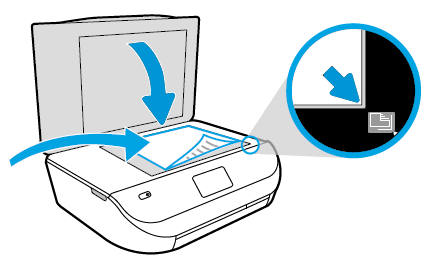
11.) Close the scanner lid, then touch OK. The printer aligns the ink cartridges.
Let me know how it goes!
I hope this helps.
Take care and have a good day.
Please click “Accepted Solution” if you feel my post solved your issue, it will help others find the solution. Click the “Kudos/Thumbs Up" on the bottom right to say “Thanks” for helping!
VikramTheGreat
HP Support
I'm an HP Employee.
If this reply helped resolve your issue, please select the Accept as Solution as it helps others in the community quickly find the answer they’re looking for.
And if you found this reply helpful, clicking Yes below is a great way to let us know we’re providing the support you need, as it encourages us to keep improving and sharing helpful guidance.
03-15-2025 07:32 AM
HP Recommended
Thank you for posting these steps, but I have completed them multiple times up to trying to scan the alignment page. The printer won’t recognize the page and I get the error message I listed in my initial inquiry.
03-20-2025 09:37 AM
HP Recommended
Hi @awhitworth11,
Thank you for letting me know, in this case request you to please try the steps shared below and let me know if this helps.
Please remove the Cartridges from the Printer if possible, and try a Hard Reset, do keep us posted to help you better
** Hard reset :
1. Turn the printer on, if it is not already on.
2. Wait until the printer is idle and silent before you continue.
3. With the printer turned on, disconnect the power cord from the rear of the printer.
4. Unplug the power cord from the wall outlet.
5. Wait at least 60 seconds.
6. Plug the power cord back into the wall outlet.
NOTE: HP recommends connecting the printer power cord directly to the wall outlet.
7. Reconnect the power cord to the rear of the printer.
8. Turn on the printer, if it does not automatically turn on. The printer might go through a warm-up period. The printer lights might flash, and the carriage might move.
9. Wait until the warm-up period finishes and your printer is idle and silent before you proceed.
Please uninstall the HP Smart app --> restart the Device, Wi-Fi router and printer --> install it back and check
Please update the Firmware the link will help on how to update the firmware on the printer or devices
Link: https://support.hp.com/ie-en/document/ish_1776648-1643972-16
I hope this helps.
Take care and have a good day.
Please click “Accepted Solution” if you feel my post solved your issue, it will help others find the solution. Click the “Kudos/Thumbs Up" on the bottom right to say “Thanks” for helping!
VikramTheGreat
HP Support
I'm an HP Employee.
If this reply helped resolve your issue, please select the Accept as Solution as it helps others in the community quickly find the answer they’re looking for.
And if you found this reply helpful, clicking Yes below is a great way to let us know we’re providing the support you need, as it encourages us to keep improving and sharing helpful guidance.
03-22-2025 09:40 AM
HP Recommended
Hi @awhitworth11,
I hope this message finds you well. I wanted to follow up on the technical issue that we discussed earlier and confirm that it has been successfully resolved.
If you encounter any further issues or have any additional questions, please do not hesitate to reach out to us. We are here to assist you and provide any necessary support.
I will be archiving this case for now, however, you can respond to the same thread to continue the conversation.
Please click “Accepted Solution” if you feel my post solved your issue, it will help others find the solution. Click the “Kudos/Thumbs Up" on the bottom right to say “Thanks” for helping!
Take care and have a great day ahead!
VikramTheGreat
HP Support
I'm an HP Employee.
If this reply helped resolve your issue, please select the Accept as Solution as it helps others in the community quickly find the answer they’re looking for.
And if you found this reply helpful, clicking Yes below is a great way to let us know we’re providing the support you need, as it encourages us to keep improving and sharing helpful guidance.

Be alert for scammers posting fake support phone numbers and/or email addresses on the community.
If you think you have received a fake HP Support message, please report it to us by clicking on "Flag Post".
† The opinions expressed above are the personal opinions of the authors, not of HP. By using this site, you accept the Terms of Use and Rules of Participation.


Didn't find what you were looking for?
Ask the community
† The opinions expressed above are the personal opinions of the authors, not of HP. By using this site, you accept the <a href="https://www8.hp.com/us/en/terms-of-use.html" class="udrlinesmall">Terms of Use</a> and <a href="/t5/custom/page/page-id/hp.rulespage" class="udrlinesmall"> Rules of Participation</a>.