• ×
    Information
    Need Windows 11 help?
    Check documents on compatibility, FAQs, upgrade information and available fixes.
    Windows 11 Support Center.
  • post a message
  • ×
    Information
    Need Windows 11 help?
    Check documents on compatibility, FAQs, upgrade information and available fixes.
    Windows 11 Support Center.
  • post a message
Guidelines
Seize the moment! nominate yourself or a tech enthusiast you admire & join the HP Community Experts!
Check some of the most frequent questions about Instant Ink: HP INSTANT INK, HP+ PLANS: INK AND TONER.


Check out our Black or Color Ink Not Printing, Other Print Quality Issues info about: Print quality and Cartridge Issues.
HP Recommended
Officejet Pro 8600 Plus
macOS 10.15 Catalina

I purchased new "official" HP 950XL & 951XL cartridges, installed them & received an "Incompatible Ink Cartridges" error message. I learned in a separate thread that HP did some sort of regionalization reset of their cartridges at some point. The old cartridges are z20, while the new ones are z10. The thread said to contact HP Support for assistance with the reset. I called 5 times. 3 times I was transferred to a robo-representative directing me to the HP Support website's Virtual Assistant. I got through to a real person twice, but they hung up on me after I tried to explain the situation to them. This has been the worst customer service experience I have had in at least 10 years.  I don't know how HP can condone such behavior. Does anyone know how to resolve this problem, or should I trash the printer (which is only 2 yrs old) & buy a new non-HP printer?

2 REPLIES 2
HP Recommended

@SRMangum Welcome to HP Community!


I understand that you are getting Incompatible Ink Cartridges error message.


Did you shift the printer to a different region?


Meanwhile:

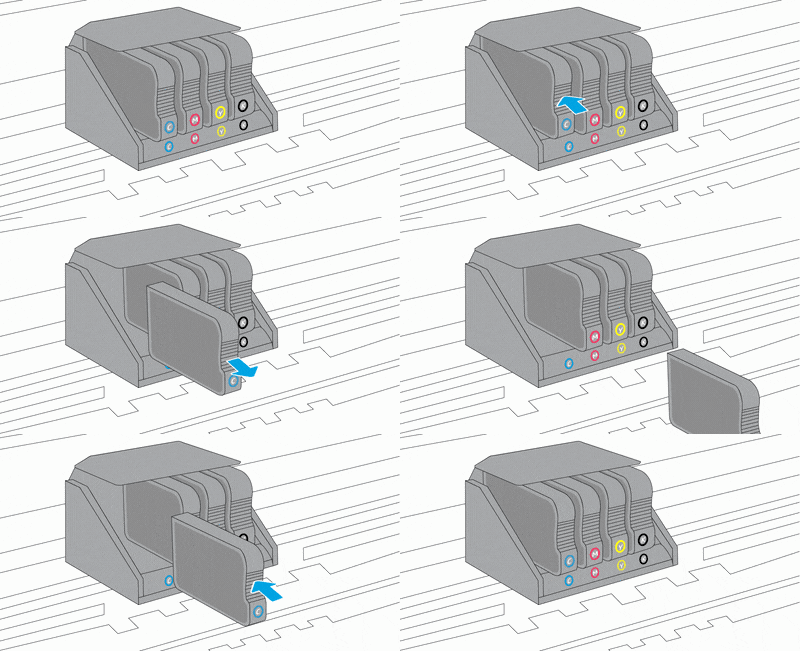
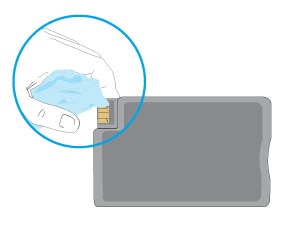
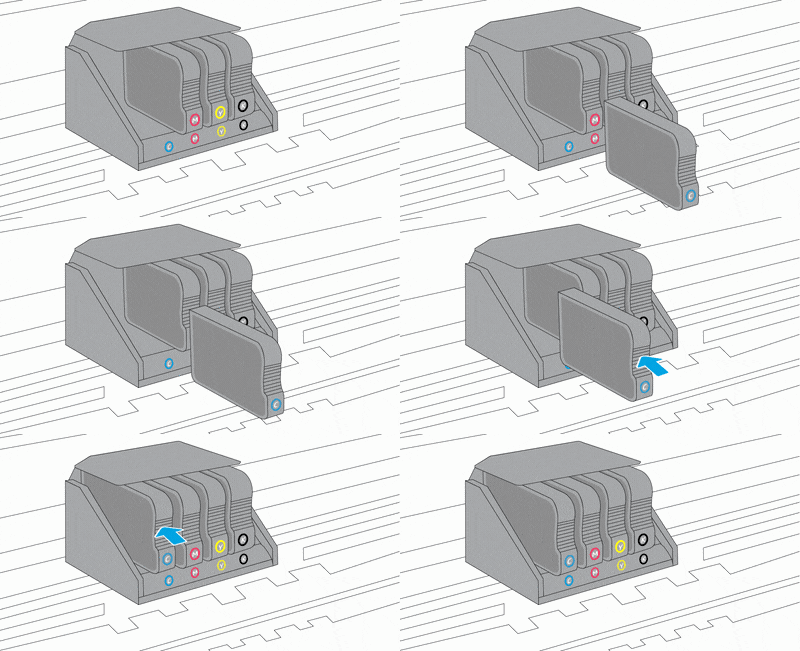
Clean the ink cartridge contacts

  1. Turn the printer on.

  2. Open the door to access to the ink cartridges.

  3. Wait until the carriage stops moving before you continue.

  4. Push in on the front of the ink cartridge indicated in the error message, and then remove it.

    Animation of replacing the ink cartridges

  5. Wipe the electrical contact on the ink cartridge with a lint-free cloth.

  6. Insert the ink cartridge into its color-coded slot until it snaps into place.

  7. Repeat these steps for any other ink cartridges indicated in the error message.

  8. Close the ink cartridge access door.

You can refer this HP document for more assistance:- Click here


Keep us posted,

If you would like to thank us for our efforts to help you, 


Give us a virtual high-five by clicking the 'Thumbs Up' icon below, followed by clicking on the "Accept as solution" on this post, 


Have a great day!

HP Recommended

Customer service is terrible. Cannot get past virtual assistant.  How do you get to telephone help?

identical issue and apparently dry common.

any help?

† The opinions expressed above are the personal opinions of the authors, not of HP. By using this site, you accept the <a href="https://www8.hp.com/us/en/terms-of-use.html" class="udrlinesmall">Terms of Use</a> and <a href="/t5/custom/page/page-id/hp.rulespage" class="udrlinesmall"> Rules of Participation</a>.