
-
×InformationNeed Windows 11 help?Check documents on compatibility, FAQs, upgrade information and available fixes.
Windows 11 Support Center. -
-
×InformationNeed Windows 11 help?Check documents on compatibility, FAQs, upgrade information and available fixes.
Windows 11 Support Center. -
- HP Community
- Printers
- Printer Setup, Software & Drivers
- Re: Borderless Tabloid Printing on OfficeJet Pro 7740

Create an account on the HP Community to personalize your profile and ask a question
Your account also allows you to connect with HP support faster, access a personal dashboard to manage all of your devices in one place, view warranty information, case status and more.
Check some of the most frequent questions about Instant Ink: HP INSTANT INK, HP+ PLANS: INK AND TONER.
Check out our WINDOWS 11 Support Center info about: OPTIMIZATION, KNOWN ISSUES, FAQs AND MORE.

It has been a while since anyone has replied. Simply ask a new question if you would like to start the discussion again.

07-15-2018 03:44 PM
 HP Recommended
Product: OfficeJet Pro 7740
Operating System: macOS 10.13 High Sierra
"Tabloid" printing works as expected (though I have to change the print size percentage to 100% to maintain appropriate scale), but "Tabloid Borderless" printing fails with this message:

FYI ... These are the settings I had selected:

5 REPLIES 5


07-16-2018 01:59 PM
HP Recommended
Welcome to the HP Forums 🙂
I would like to take a moment and thank you for using this forum, it is a great place to find answers & meet like minded tech enthusiasts!
As I understand you need information on borderless tabloid printing,
Don't worry as I'll be glad to help, however, to provide an accurate resolution, I need a few more details:
- Have you ensure the paper size in use for tabloid printing is 11in x 16in?
- Anything bigger may not work.
While you respond to that, here's what you need to do:
Step 1: Adjust the paper size setting
Check the paper size setting to make sure it matches the paper you want to print.
NOTE:
Some printers have an option to ignore the error and continue printing. If you choose to ignore the error, the margins on your printout might not be proportional to the edges of the paper.
-
In the application you want to print from, click File, and then click Print.
-
Select your printer from the Printer drop-down list.
-
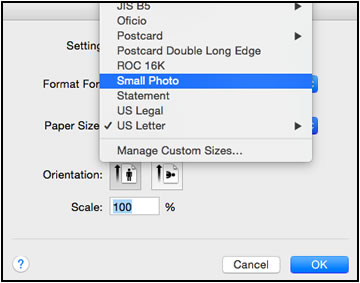
Click Paper Size.
-
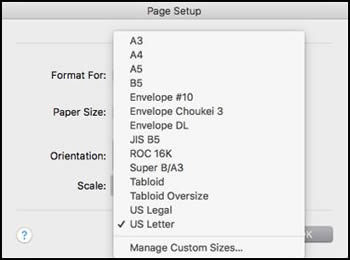
Select the paper size that matches the size and type of paper loaded in the printer tray, and then click OK. If there are no matching paper sizes, select the size from the list that is closest to the size of the paper loaded in the tray.
NOTE:
Depending on the software application, Paper Size might not display in the Print options. Click File, and then select Page Setup from the menu.
-
Try to print.
If the issue persists, continue to the next step.
FOR DETAILS & FURTHER INSTRUCTIONS, USE THIS LINK: CLICK HERE
(By the end of this article all the issues should be resolved)
Do get back to us as we have a few more tricks up our sleeves,
Besides, we will follow up to ensure your concern is resolved,
That said, If we have helped you resolve the issue,
feel free to give us a virtual high-five by clicking the 'Thumbs Up' icon
followed by clicking on 'Accepted as Solution'
And Have a great day Ahead!
Riddle_Decipher
I am an HP Employee
Learning is a journey, not a destination.
Let's keep asking questions and growing together.
07-18-2018 07:51 PM
HP Recommended
Can we try again please? In the US, “tabloid” print size is 11 x 17 so, by definition, the paper will be bigger than 11 x 16. Also, I didn’t ask anything about print sizes ... I asked about borderless printing. Any other ideas?
07-19-2018 12:43 PM
HP Recommended
Thank you for responding,
This is the Riddle_Decipher, again!
It's great to have you back 😉
I understand what you need, that said, the steps provided are to resolve specific issues related to the error - Paper Mismatch, once you follow all the suggestions listed on the article link I had shared, the issues you have should be resolved.
Please try them out and here's the link again, in case you missed it: Click here
Keep us posted,
(We shall troubleshoot as a team, fight till the end and emerge victorious)
If you would like to thank us for our efforts to help you,
feel free to give us a virtual high-five by clicking the 'Thumbs Up' icon below,
Followed by clicking on the "Accept as solution" button.
Have a great day!
Riddle_Decipher
I am an HP Employee
Learning is a journey, not a destination.
Let's keep asking questions and growing together.
07-19-2018 11:13 PM
HP Recommended
I appreciate your optimism, but before I jump through hoops to do what I wholeheartedly believe is going to do nothing to resolve the issue I'm having, I need a suggestion that addresses my specific post. I do see that the error dialog box says "paper mismatch", but clearly there is no mismatch since the printer correctly recognizes the loaded tabloid paper size until I try to use the "tabloid borderless" option. What that absolutely must mean, then, is (1) "Tabloid Borderless" does not work correctly, (2) "Tabloid" incorrectly works, and (3) the error "title" is either incorrectly flagging or missing a paper mismatch in one of the two cases. Either way, there is a problem with the software, as the hardware is detecting and printing to the loaded Tabloid paper properly until I specify "Borderless". So, would you rather take a shot at why the drivers fail when I try to print "Tabloid Borderless", or why they "incorrectly" succeed when I specify only "Tabloid"? After we solve that riddle, I'll begin hoop-jumping.


07-20-2018 11:43 AM
HP Recommended
It is great to have you back and your patience is greatly appreciated.
I am the The_Fossette. It looks like you were interacting with @Riddle_Decipher, but he is out of the office today so I'll take over from here.
I understand that you are facing issues borderless tabloid printing. Don’t worry, I assure you I will try my best to get this sorted.
I recommend you update the printer firmware following the steps in the below article and check if it resolves the issue.
https://support.hp.com/us-en/product/hp-officejet-pro-8210-printer-series/7902063/document/c02919168
If you continue to face the issue, I recommend you remove the printer from your computer and follow the below steps to add it as an AirPrint printer and test.
Here is how it is done.
-
Search the Mac for Print, and then click Print & Fax, Print & Scan, or Printers & Scanners in the list of results.
-
Find the printer names that match your printer from the list of devices.
Figure : Printers and Scanner window with multiple names of a printer in the list

-
If you see multiple printer queues for the same printer, remove all extra printers by selecting them one at a time, and then clicking the minus button
 at the bottom of the list. Leave one 'idle' printer in the list that matches your printer if available and use this printer as the Default printer.
 -
Try printing again.
-
If the printer prints, you can stop troubleshooting.
-
If the printer remains offline or displays an error, continue to the next step.
-
Step 4: Delete the existing print queue and add the printer
Remove the printer queue from the list of printers, and then add it again. Doing so creates a new printing session.
-
Make sure your Mac is connected to the Internet.
-
In the Printers list, click your HP printer, and then click the Minus button
to delete it. -
Click the Add button
 .
. -
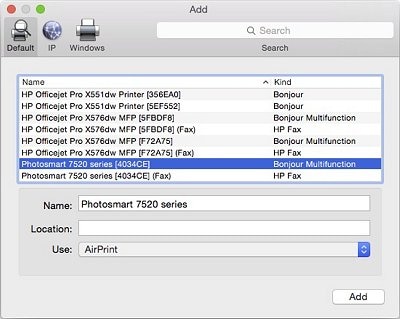
Find and select the name of your printer from the Printer list, and then click Add to add your printer. Do not select an HP Fax driver.
NOTE:
If your printer does not display in the list, make sure the printer is connected, turned on, has power, and is ready to print.
Figure : Example of the printer selection list
-
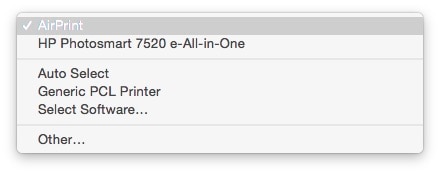
Click Print Using or Use.
-
Select the name of your printer (if available) or AirPrint.
Figure : Menu showing AirPrint selected
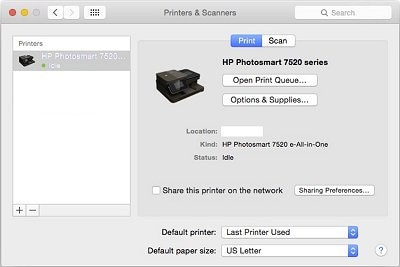
Your new printer queue displays in the Printers list in an Idle status
 .
.Figure : Example of a newly added printer in the Printers & Scanners list
-
Try printing again.
Let me know how it goes and you have a great day!
If you wish to show appreciation for my efforts, mark my post as Accept as Solution. Your feedback counts!
Cheers!
The_Fossette
I am an HP Employee

Be alert for scammers posting fake support phone numbers and/or email addresses on the community.
If you think you have received a fake HP Support message, please report it to us by clicking on "Flag Post".
† The opinions expressed above are the personal opinions of the authors, not of HP. By using this site, you accept the Terms of Use and Rules of Participation.


Didn't find what you were looking for?
Ask the community
† The opinions expressed above are the personal opinions of the authors, not of HP. By using this site, you accept the <a href="https://www8.hp.com/us/en/terms-of-use.html" class="udrlinesmall">Terms of Use</a> and <a href="/t5/custom/page/page-id/hp.rulespage" class="udrlinesmall"> Rules of Participation</a>.