
-
×InformationNeed Windows 11 help?Check documents on compatibility, FAQs, upgrade information and available fixes.
Windows 11 Support Center. -
-
×InformationNeed Windows 11 help?Check documents on compatibility, FAQs, upgrade information and available fixes.
Windows 11 Support Center. -
- HP Community
- Printers
- Printer Setup, Software & Drivers
- Re: Can't accessPrinter HP PRO8600

Create an account on the HP Community to personalize your profile and ask a question
Your account also allows you to connect with HP support faster, access a personal dashboard to manage all of your devices in one place, view warranty information, case status and more.
Check some of the most frequent questions about Instant Ink: HP INSTANT INK, HP+ PLANS: INK AND TONER.
Check out our WINDOWS 11 Support Center info about: OPTIMIZATION, KNOWN ISSUES, FAQs AND MORE.

It has been a while since anyone has replied. Simply ask a new question if you would like to start the discussion again.

01-09-2019 06:24 PM
 HP Recommended
Product: HP PRO 8600
Operating System: Microsoft Windows 8.1 (32-bit)
Hello,
I have tried for several weeks now to open my HP PRO 8600 icon shown on my computer screen but it is impossible.
After I click the icon a circle comes out and then 5 seconds later it desappears and does nothing. I have also tried opening the program directly from the folder without any respond. The only way for me to scan or print is using the scanner screen. I do not know how to solve the problem. I even thought unistalling the software but not even that works.
Hope there is omeone out there with a solution, thanks
Solved! Go to Solution.
1 ACCEPTED SOLUTION
Accepted Solutions


01-10-2019 03:39 PM
HP Recommended
Thank you for joining HP Forums.
It's a pleasure assisting you in finding answers to your technical queries.
I see that the printer function is working fine, as the printer can make a copy.
This could be a driver issue with the printer.
Download and run HP Print and Scan Doctor
Install HP Print and Scan Doctor on the computer connected to your printer.
-
Make sure your printer is turned on and connected to the computer.
-
Download HP Print and Scan Doctor, and then follow the on-screen prompts to install and open the tool.
-
On the Welcome screen, click Start to view a list of available printers.
-
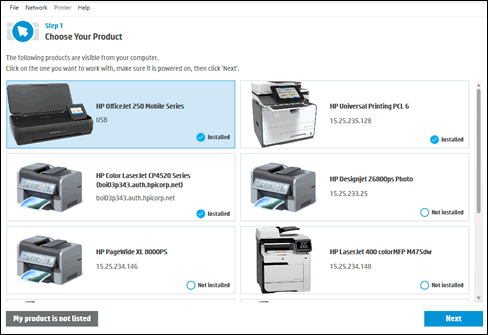
Select your printer in the list, and then click Next.
If your printer is not listed or a connection problem is detected, click My product is not listed or select your connection type, follow the on-screen instructions, and then click Retry.
-
Click either Fix Printing or Fix Scanning.
If you are prompted to install the printer software, follow the on-screen instructions. The software can resolve many printer issues.

-
Review the list of test results, and then resolve any issues found.
-
If you see a checkmark
 , the printer passed the test.
 -
If you see a wrench
 , HP Print and Scan Doctor found an issue and repaired it.
 -
If you see an exclamation point
 , the test failed and required user action, but the step was skipped.
 -
If you see an X
 , follow the on-screen instructions to resolve the issue.

-
Check if the issue is fixed.
If the issue persists, I recommend you delete the driver at the root level and Install the drivers, follow the steps below:
1.) In Windows, search for and open Programs and features
2.) Select your HP Printer
3.) Select Uninstall
4.) In Windows, search for and open Devices and printers
5.) In the Devices and Printers windows look for your HP printer. If you see it listed right-click on it and choose `Delete' or `Remove Device'
6.) Open up the run command with the "Windows key + R" key combo.
7.) Type printui.exe /s and click Ok. (Note: there is a space in between "printui.exe" and "/s")
8.) Click on the "Drivers" tab
9.) Look for HP Printer driver. If you see it Click on it and click Remove at the bottom
10.) Select Ok
11.) Select Apply and Ok on the Print Server Properties windows
12.) Close Devices and Printers
Then, Click on this link: https://support.hp.com/us-en/drivers/selfservice/swdetails/hp-officejet-pro-8600-plus-e-all-in-one-p... to download and install the HP Officejet Pro 8600 Plus/Premium e-All-in-One Printer series - N911a-n Full Feature Software and Driver.
Try to print.
Keep me posted, how it goes!
If the information I've provided was helpful, give us some reinforcement by clicking the Accepted Solution and Kudos buttons, that'll help us and others see that we've got the answers!
Have a great day!
Cheers:)
Raj1788
I am an HP Employee
3 REPLIES 3
01-10-2019 03:39 PM
HP Recommended
Thank you for joining HP Forums.
It's a pleasure assisting you in finding answers to your technical queries.
I see that the printer function is working fine, as the printer can make a copy.
This could be a driver issue with the printer.
Download and run HP Print and Scan Doctor
Install HP Print and Scan Doctor on the computer connected to your printer.
-
Make sure your printer is turned on and connected to the computer.
-
Download HP Print and Scan Doctor, and then follow the on-screen prompts to install and open the tool.
-
On the Welcome screen, click Start to view a list of available printers.
-
Select your printer in the list, and then click Next.
If your printer is not listed or a connection problem is detected, click My product is not listed or select your connection type, follow the on-screen instructions, and then click Retry.
-
Click either Fix Printing or Fix Scanning.
If you are prompted to install the printer software, follow the on-screen instructions. The software can resolve many printer issues.
-
Review the list of test results, and then resolve any issues found.
-
If you see a checkmark
, the printer passed the test. -
If you see a wrench
, HP Print and Scan Doctor found an issue and repaired it. -
If you see an exclamation point
, the test failed and required user action, but the step was skipped. -
If you see an X
, follow the on-screen instructions to resolve the issue.
-
Check if the issue is fixed.
If the issue persists, I recommend you delete the driver at the root level and Install the drivers, follow the steps below:
1.) In Windows, search for and open Programs and features
2.) Select your HP Printer
3.) Select Uninstall
4.) In Windows, search for and open Devices and printers
5.) In the Devices and Printers windows look for your HP printer. If you see it listed right-click on it and choose `Delete' or `Remove Device'
6.) Open up the run command with the "Windows key + R" key combo.
7.) Type printui.exe /s and click Ok. (Note: there is a space in between "printui.exe" and "/s")
8.) Click on the "Drivers" tab
9.) Look for HP Printer driver. If you see it Click on it and click Remove at the bottom
10.) Select Ok
11.) Select Apply and Ok on the Print Server Properties windows
12.) Close Devices and Printers
Then, Click on this link: https://support.hp.com/us-en/drivers/selfservice/swdetails/hp-officejet-pro-8600-plus-e-all-in-one-p... to download and install the HP Officejet Pro 8600 Plus/Premium e-All-in-One Printer series - N911a-n Full Feature Software and Driver.
Try to print.
Keep me posted, how it goes!
If the information I've provided was helpful, give us some reinforcement by clicking the Accepted Solution and Kudos buttons, that'll help us and others see that we've got the answers!
Have a great day!
Cheers:)
Raj1788
I am an HP Employee
 Have a great day and thanks again for all your help.
01-10-2019 06:23 PM
HP Recommended
I'm glad to hear you found the solution you were looking for.
Thanks for taking the time to let the community know about the solution!
Take care now and do have a great week ahead.
:)Cheers:)
Raj1788
I am an HP Employee

Be alert for scammers posting fake support phone numbers and/or email addresses on the community.
If you think you have received a fake HP Support message, please report it to us by clicking on "Flag Post".
† The opinions expressed above are the personal opinions of the authors, not of HP. By using this site, you accept the Terms of Use and Rules of Participation.


Didn't find what you were looking for?
Ask the community
† The opinions expressed above are the personal opinions of the authors, not of HP. By using this site, you accept the <a href="https://www8.hp.com/us/en/terms-of-use.html" class="udrlinesmall">Terms of Use</a> and <a href="/t5/custom/page/page-id/hp.rulespage" class="udrlinesmall"> Rules of Participation</a>.