• ×
    Information
    Need Windows 11 help?
    Check documents on compatibility, FAQs, upgrade information and available fixes.
    Windows 11 Support Center.
  • post a message
  • ×
    Information
    Need Windows 11 help?
    Check documents on compatibility, FAQs, upgrade information and available fixes.
    Windows 11 Support Center.
  • post a message
Guidelines
Join the HP Community Solve‑a‑thon | Help Others & Share Your Solutions | Live on Zoom | 2:30 PM to 2:30 AM IST | Every Wednesday Click here to know more
Check some of the most frequent questions about Instant Ink: HP INSTANT INK, HP+ PLANS: INK AND TONER.


Check out our WINDOWS 11 Support Center info about: OPTIMIZATION, KNOWN ISSUES, FAQs AND MORE.
HP Recommended
HP photosmart printer B209a

The alignment will not print any black ink-I have tried twice, and I have cleaned the printer heads twice. I have unplugged the printer and plugged it back in from the back. I took the ink cartridge holder out of the printer and cleaned it with warm water under the sink to get rid of any clogs – I did this twice. I can now barely print gray and barely-visible printing, but I cannot copy anything. The yellow, cyan, and magenta colors will print, but not the black ink. Any help would be greatly appreciated and A very Happy Holidays to all of you early.

1 REPLY 1
HP Recommended

@DRein1


Welcome to HP support community.


Make sure the ink cartridges are properly vented and seated correctly

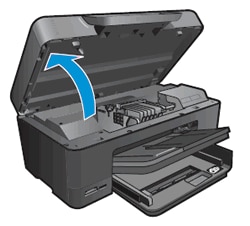
  1. Lift to open the ink cartridge access door.

    The carriage moves into the carriage access area.

    Figure : Opening the ink cartridge access door

    Image: Open the ink cartridge access door
  2. Wait until the carriage is idle and silent before you continue.

  3. Press the tab on the front of the ink cartridge inward to release it, and then pull up on the ink cartridge to remove it from the slot.

    Figure : Remove the ink cartridge from the slot

    Image: Remove the ink cartridge from the slot
       CAUTION: 

    Do not lift the latch to the side of the carriage to remove the ink cartridge. Lifting the latch might result in incorrectly seated ink cartridges.

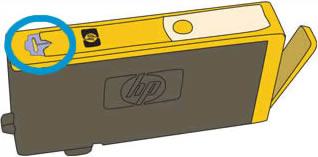
  4. Locate and then examine the vent area on the top of the ink cartridge.

    Figure : Vent area on the top of the ink cartridge

    Image: Vent area on the top of the ink cartridge
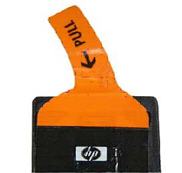
  5. If the ink cartridge still has the orange pull-tab attached, pull to remove it.

    Figure : Orange pull tab

    Image: Orange pull tab.
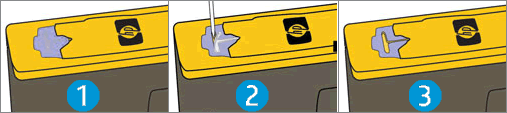
  6. If the vent is clogged, use a straight pin to gently remove excess adhesive from the vent.

    Figure : Clean the clogged vent with a pin

    1.  

      Image: Clean the clogged vent with a pin.

      Clogged vent
    2. With a straight pin, gently remove excess adhesive from the vent

    3. Unclogged vent

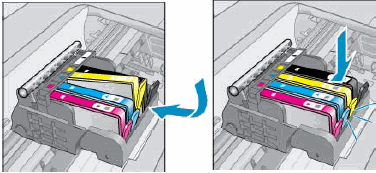
  7. Face the nozzle and contacts down, and then slide the ink cartridge into its slot. Press down on the ink cartridge until it snaps into place.

    NOTE: 

    Make sure each ink cartridge is installed in the correct slot. Match the shape of the icon and the color of the ink cartridge with the slot that has the same shaped icon and color.

    Figure : Reinserting the ink cartridge

    Image: Reinsert the ink cartridge
  8. Repeat these steps to inspect the vents on each of the ink cartridges.

  9. Make sure each ink cartridge is firmly in place in its slot. Run your finger along the top of the ink cartridges to feel for any that are protruding, and if any are, press down firmly until each ink cartridge snaps into place.

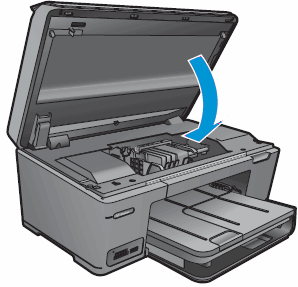
  10. Close the ink cartridge access door.

    Figure : Closing the ink cartridge access door

    Image: Close the ink cartridge access door

You can refer this HP document for more assistance:- Click here


I hope that helps.

To thank me for my efforts to help you, please mark my post as an accepted solution so that it benefits several others.

Cheers.

Sandytechy20
I am an HP Employee

† The opinions expressed above are the personal opinions of the authors, not of HP. By using this site, you accept the <a href="https://www8.hp.com/us/en/terms-of-use.html" class="udrlinesmall">Terms of Use</a> and <a href="/t5/custom/page/page-id/hp.rulespage" class="udrlinesmall"> Rules of Participation</a>.