Guidelines
Join the HP Community Solve‑a‑thon | Help Others & Share Your Solutions | Live on Zoom | 2:30 PM to 2:30 AM IST | Every Wednesday Click here to know more
Check some of the most frequent questions about Instant Ink: HP INSTANT INK, HP+ PLANS: INK AND TONER.


Check out our WINDOWS 11 Support Center info about: OPTIMIZATION, KNOWN ISSUES, FAQs AND MORE.
HP Recommended
ENVY 5032
Mac OS X 10.11 El Capitan

I'm registered on the Instant Ink plan and they sent me a new ink, which I've put into the printer, but I keep getting the above message and when I do try and print it's a right mess.  I've checked and my printer says that all updates are up to date.


I only bought the printer a few weeks ago.  I can't believe the trouble I'm having simply trying to change an ink cartridge.


What does it want me to do?  


Thanks

1 REPLY 1
HP Recommended

Hi @BeckyK1


Welcome to HP Forums! ðŸ™‚

I would like to take a moment and thank you for using this forum, it is a great place to find answers.


I understand you have some error message showing up on your Instant Ink subscribed printer.


Step 1: Make sure your printer is connected to the internet.


Connect the printer to your network with the Wireless Setup Wizard so the HP installer can find the printer during the installation.

  1. From the home screen on the printer control panel, touch the Wireless icon

  2. Touch the Setup icon.

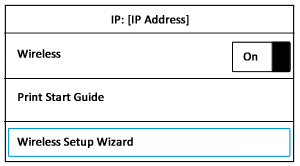
  3. Touch Wireless Setup Wizard.

    Wireless Settings display

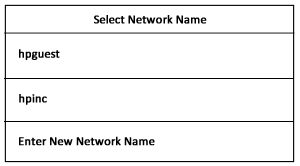
  4. Touch the name of your network in the list of available networks, and then touch OK.

    Example of network names

  5. If the list does not contain your network name, touch Enter New Network Name, and then follow the on-screen instructions to enter your network name.

  6. If prompted, type the WEP or WPA key (network password), and then touch Done.

    A summary screen displays.

  7. Touch OK to return to the home screen.


Step 2: Reset your Printer


  1. Turn the printer on, if it is not already on.

  2. Wait until the printer is idle and silent before you continue.

  3. With the printer turned on, disconnect the power cord from the rear of the printer.

  4. Unplug the power cord from the wall outlet.

  5. Wait at least 60 seconds.

  6. Plug the power cord back into the wall outlet.

    NOTE: 

    HP recommends connecting the printer power cord directly to the wall outlet.

  7. Reconnect the power cord to the rear of the printer.

  8. Turn on the printer, if it does not automatically turn on.

  9. Wait until the printer is idle and silent before you proceed.


Let me know if this helps you fix the issue.

If you feel I was helpful, simply click on Accept as Solution to help the community grow.


If not, I am sending you a private message with the information required. Please check the mailbox icon at the top-right corner of this screen.


Please check your Private message icon on the upper right corner of your HP Forums profile,

Next, to your profile Name, you should see a little blue envelope, please click on it.


Cheers

MathewT
I am an HP Employee 

† The opinions expressed above are the personal opinions of the authors, not of HP. By using this site, you accept the <a href="https://www8.hp.com/us/en/terms-of-use.html" class="udrlinesmall">Terms of Use</a> and <a href="/t5/custom/page/page-id/hp.rulespage" class="udrlinesmall"> Rules of Participation</a>.