• ×
    Information
    Need Windows 11 help?
    Check documents on compatibility, FAQs, upgrade information and available fixes.
    Windows 11 Support Center.
  • post a message
  • ×
    Information
    Need Windows 11 help?
    Check documents on compatibility, FAQs, upgrade information and available fixes.
    Windows 11 Support Center.
  • post a message
Guidelines
Join the HP Community Solve‑a‑thon | Help Others & Share Your Solutions | Live on Zoom | 2:30 PM to 2:30 AM IST | Every Wednesday Click here to know more
Check some of the most frequent questions about Instant Ink: HP INSTANT INK, HP+ PLANS: INK AND TONER.


Check out our WINDOWS 11 Support Center info about: OPTIMIZATION, KNOWN ISSUES, FAQs AND MORE.
HP Recommended
OfficeJet 7612
Microsoft Windows 10 (64-bit)

Whenever I try to print a Word document, the printer defaults to letter size.  The normal template is set to A4 and I have ensured that the printer properties under the computer settings are all showing A4 but, if I go to print and check the printer properties, it is once again showing letter.  This does not happen with my HP 8600 printer!  How can I make the 7610 default permanently to A4 please?  

1 REPLY 1
HP Recommended

@JanGsy, Welcome to HP Support Community!


I understand you'd want to save A4 as your default paper size while printing, follow the steps below-

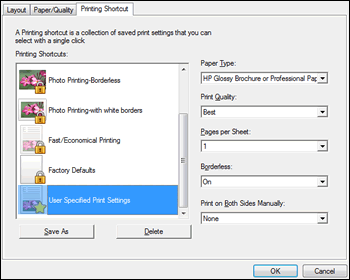
  1. In the print settings window, click the Printing Shortcut tab, then click one of the shortcut names on the list.

  2. Change any settings using the menus in the right side of the window.

    A User Specified Print Settings shortcut displays at the bottom of the shortcuts list.

    Figure : User Specified Print Settings shortcut in Printing Shortcuts window

    User Specified Print Settings shortcut in Printing Shortcuts window
  3. Click the shortcut to highlight it, then click Save As to rename it.

Refer to the document HP Printers - Print Driver Settings Guide (Windows)  for additional assistance.


Hope this helps! Keep me posted. 


Please click “Accept as Solution” if you feel my post solved your issue, it will help others find the solution. Click the “Kudos/Thumbs Up" on the bottom right to say “Thanks” for helping!

TEJ1602
I am an HP Employee

† The opinions expressed above are the personal opinions of the authors, not of HP. By using this site, you accept the <a href="https://www8.hp.com/us/en/terms-of-use.html" class="udrlinesmall">Terms of Use</a> and <a href="/t5/custom/page/page-id/hp.rulespage" class="udrlinesmall"> Rules of Participation</a>.