
-
×InformationNeed Windows 11 help?Check documents on compatibility, FAQs, upgrade information and available fixes.
Windows 11 Support Center. -
-
×InformationNeed Windows 11 help?Check documents on compatibility, FAQs, upgrade information and available fixes.
Windows 11 Support Center. -
- HP Community
- Printers
- Printer Setup, Software & Drivers
- Re: HP Smart suddenly stopped working. All I get is a blank ...

Create an account on the HP Community to personalize your profile and ask a question
Your account also allows you to connect with HP support faster, access a personal dashboard to manage all of your devices in one place, view warranty information, case status and more.
Check some of the most frequent questions about Instant Ink: HP INSTANT INK, HP+ PLANS: INK AND TONER.
Check out our WINDOWS 11 Support Center info about: OPTIMIZATION, KNOWN ISSUES, FAQs AND MORE.

It has been a while since anyone has replied. Simply ask a new question if you would like to start the discussion again.

06-27-2024 10:44 AM
 HP Recommended
Product: HP Color LaserJet Pro MFP M283cdw
HP Smart suddenly stopped working. It will open, but all I get is a blank box. I have tried reloading the software, deleting and re-adding the printer, running diagnostics, nothing helps.
Solved! Go to Solution.
1 ACCEPTED SOLUTION
Accepted Solutions

06-29-2024
04:14 AM
- last edited on
11-01-2025
11:34 AM
by
 Raj_05
HP Recommended
Hi @csbtb,
Welcome to the HP Support Community.
I'd be happy to help you!
When HP App suddenly stops working or shows a blank box while trying to use it with your HP Color LaserJet Pro MFP M283cdw, it can be frustrating. Here are some steps you can take to troubleshoot and resolve this issue:
1. Restart HP App:
Close and Reopen: Completely close HP App and reopen it. Sometimes, a simple restart can resolve temporary glitches.
Restart Computer: Restart your computer to refresh system processes that may be affecting HP App.
2. Update HP App:
- Check for Updates: Ensure you have the latest version of HP App installed. Go to your device's app store (Microsoft Store for Windows or App Store for Mac) and check for updates.
3. Clear App Cache (Windows):
- Clear Cache: In Windows, you can clear the cache for HP App to resolve issues:
- Close HP App.
- Press Windows Key + R to open the Run dialog box.
- Type WSReset.exe and press Enter. This will clear the cache for the Microsoft Store apps, including HP App.
- Restart your computer and reopen HP App.
4. Reinstall HP App:
- Uninstall and Reinstall: Completely uninstall HP App from your computer.
- On Windows: Go to Settings > Apps > Apps & features. Find HP App in the list, click on it, and select Uninstall.
- On Mac: Open Finder, go to Applications, find HP App, and move it to the Trash.
- Download and Reinstall: After uninstalling, download the latest version of HP App from the Microsoft Store (Windows) or App Store (Mac) and reinstall it.
Kindly find the next set of steps in the next post.
Hope this helps! Keep me posted for further assistance.
Please mark this post as “Accepted Solution” if the issue is resolved and if you feel this reply was helpful click “Yes”.
Nal_NR-
HP Community Moderator
8 REPLIES 8
06-29-2024
04:14 AM
- last edited on
11-01-2025
11:34 AM
by
Raj_05
HP Recommended
Hi @csbtb,
Welcome to the HP Support Community.
I'd be happy to help you!
When HP App suddenly stops working or shows a blank box while trying to use it with your HP Color LaserJet Pro MFP M283cdw, it can be frustrating. Here are some steps you can take to troubleshoot and resolve this issue:
1. Restart HP App:
Close and Reopen: Completely close HP App and reopen it. Sometimes, a simple restart can resolve temporary glitches.
Restart Computer: Restart your computer to refresh system processes that may be affecting HP App.
2. Update HP App:
- Check for Updates: Ensure you have the latest version of HP App installed. Go to your device's app store (Microsoft Store for Windows or App Store for Mac) and check for updates.
3. Clear App Cache (Windows):
- Clear Cache: In Windows, you can clear the cache for HP App to resolve issues:
- Close HP App.
- Press Windows Key + R to open the Run dialog box.
- Type WSReset.exe and press Enter. This will clear the cache for the Microsoft Store apps, including HP App.
- Restart your computer and reopen HP App.
4. Reinstall HP App:
- Uninstall and Reinstall: Completely uninstall HP App from your computer.
- On Windows: Go to Settings > Apps > Apps & features. Find HP App in the list, click on it, and select Uninstall.
- On Mac: Open Finder, go to Applications, find HP App, and move it to the Trash.
- Download and Reinstall: After uninstalling, download the latest version of HP App from the Microsoft Store (Windows) or App Store (Mac) and reinstall it.
Kindly find the next set of steps in the next post.
Hope this helps! Keep me posted for further assistance.
Please mark this post as “Accepted Solution” if the issue is resolved and if you feel this reply was helpful click “Yes”.
Nal_NR-
HP Community Moderator
06-29-2024 04:15 AM
HP Recommended
Hi @csbtb,
Please find the next set of steps below.
5. Check Printer Connection:
Printer Connection: Ensure your HP Color LaserJet Pro MFP M283cdw is properly connected to your computer and turned on.
Network Connection: If using the printer over a network, check the network connection and ensure the printer is connected to the same network as your computer.
6. Update Printer Firmware:
- Firmware Update: Visit HP’s official website, enter your printer model (Color LaserJet Pro MFP M283cdw), and check if there are any firmware updates available. Install them if updates are available.
If the issue persists after trying the above steps, contact HP Support for further assistance.
Hope this helps! Keep me posted for further assistance.
Please mark this post as “Accepted Solution” if the issue is resolved and if you feel this reply was helpful click “Yes”.
Nal_NR-
HP Community Moderator
07-03-2024 02:08 AM
HP Recommended
Hi @csbtb,
Fantastic 🙂 I truly appreciate your time and patience in getting this issue resolved.
If you need further assistance, feel free to reach out to us.
Elohi_NR
I am an HP Employee
Nal_NR-
HP Community Moderator
07-18-2024 11:46 AM
HP Recommended
Using the HP Smart app for a Envy 4520 AIO series. Connection on. Printing works. Scanning does not. Smart App shows empty box. Followed all instructions. Closing, restarting, uninstalling, reinstalling, clearing cache. Still blank box remains. What else is there to do? Thank you.
08-08-2024
10:41 AM
- last edited on
11-06-2025
12:30 PM
by
Raj_05
HP Recommended
Followed all instructions, like Irca, and still get HP App at the top left, minimize icon, maximize icon, and X at top right with a horizontal line about 1 inch below the top and all white in the rest of the window. I keep hoping a new version of HP App will correct it, but not yet.
10-14-2024
10:56 PM
- last edited on
12-05-2025
10:35 AM
by
Raj_05
HP Recommended
Today, 10/14/2024, I updated Windows 11 Pro Version 23H2 to Version 24H2 using www.microsoft.com/en-us/software-download/windows11 Windows 11 Installation Assistant Download (Windows11InstallationAssistant.exe.). It took 4 hours 50 minutes to install before wanting a restart (on a Microsoft Surface Laptop 3 15" Intel(R) Core(TM) i7-1065G7 with 32 GB RAM). But fortunately after all that time, the HP app now opens successfully. So, I assume something in the Windows Feature Update must have replaced/corrected Windows file(s) that HP App needs to open successfully.
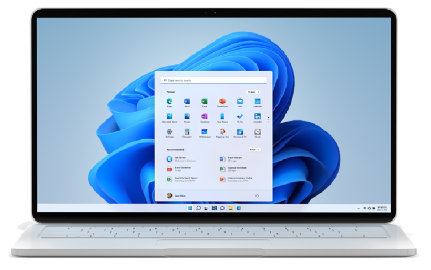
(Current release: Windows 11 2025 Update l Version 25H2) There are 3 options below for installing or creating Windows 11 media. Check out each one to determine the best option for you. Before installing, check theWindows release information status for known issues that may affect your device. If ...

Be alert for scammers posting fake support phone numbers and/or email addresses on the community.
If you think you have received a fake HP Support message, please report it to us by clicking on "Flag Post".
† The opinions expressed above are the personal opinions of the authors, not of HP. By using this site, you accept the Terms of Use and Rules of Participation.


Didn't find what you were looking for?
Ask the community
† The opinions expressed above are the personal opinions of the authors, not of HP. By using this site, you accept the <a href="https://www8.hp.com/us/en/terms-of-use.html" class="udrlinesmall">Terms of Use</a> and <a href="/t5/custom/page/page-id/hp.rulespage" class="udrlinesmall"> Rules of Participation</a>.