
-
×InformationNeed Windows 11 help?Check documents on compatibility, FAQs, upgrade information and available fixes.
Windows 11 Support Center. -
-
×InformationNeed Windows 11 help?Check documents on compatibility, FAQs, upgrade information and available fixes.
Windows 11 Support Center. -
- HP Community
- Printers
- Printer Setup, Software & Drivers
- HP software options won't save on my app.

Create an account on the HP Community to personalize your profile and ask a question
Your account also allows you to connect with HP support faster, access a personal dashboard to manage all of your devices in one place, view warranty information, case status and more.
Check some of the most frequent questions about Instant Ink: HP INSTANT INK, HP+ PLANS: INK AND TONER.
Check out our WINDOWS 11 Support Center info about: OPTIMIZATION, KNOWN ISSUES, FAQs AND MORE.

It has been a while since anyone has replied. Simply ask a new question if you would like to start the discussion again.

07-01-2023 01:15 PM
 HP Recommended
I have a HP LaserJet Pro M454dw. It prints well when it does what I ask.
I have recently had the need to print out some photos on standard 5x7 photo paper. The app lets me select the printer to use with my mobile phone and I select a photo from the Google Photos app. I then select the printer and go into the More Options because only two paper sizes are available on the first printer settings page. I select the 5x7 paper size but, when I return to the initial screen it has not saved my selection. There is no option to save the selection when I do it so how can I make the printer app print on my 5x7 photo paper. This is crazy.
Solved! Go to Solution.
1 ACCEPTED SOLUTION
Accepted Solutions


07-02-2023 11:00 AM
HP Recommended
You are welcome.
I shall strive to be more concise.
Smiling.
The short version:
I don't know -
I don't use the Google Photos app.
I don't know your printer product.
Advice given from this perspective might be suspect.
Good Luck!
Thank you for participating in the HP Community --
People who own, use, and support HP devices.
Click Yes to say Thank You
Question / Concern Answered, Click my Post "Accept as Solution"
Dragon-Fur

3 REPLIES 3
07-01-2023 02:04 PM
HP Recommended
Welcome to the HP Community --
I would guess that the HP Smart Mobile application and the Google Photos app for Mobile both share the requirement that the Paper Size & Type be selected / set before the content is opened to be printed.
Whether you can accurately adjust the paper size and type you need in the Embedded Web Server (EWS) is not something I can test for you.
Reference
HP Color LaserJet Pro M454 - User Guide
Page 75
EWS > HP Document / How-to
Use the HP printer Embedded Web Server (EWS)
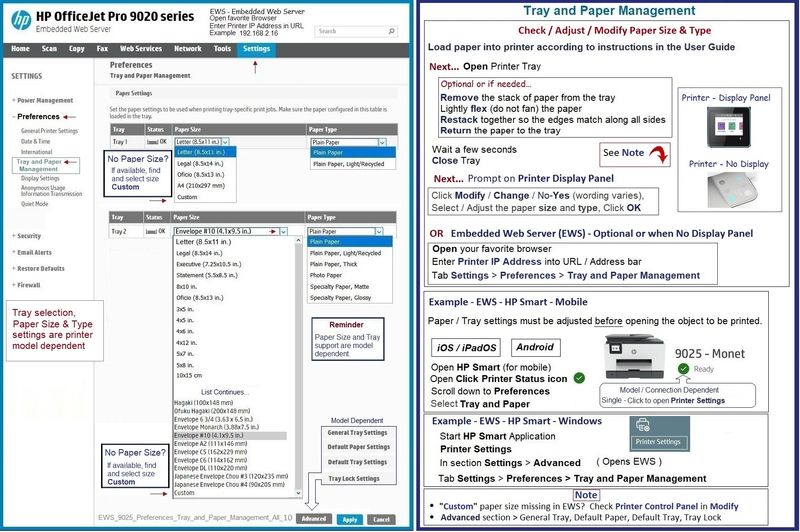
EWS – Browser – Tray and Paper Management
Open your favorite browser > type / enter Printer IP address into URL / Address bar
Tab Settings > Preferences > Tray and Paper (Management)
Select / Adjust settings for Paper Size / Type
Model Dependent: Advanced section
Click Apply to save changes
If the paper size is listed in EWS > Settings > Preferences >Tray and Paper for the Tray that supports the paper size (Tray 1), select the paper size.
If the paper size is not listed, but the list includes paper size "Custom", select paper size "Custom".
If the paper type is also listed as a companion setting, select that. If not, select the paper type from the available list as best can be done.
For example,
If Paper Type (photo paper) is not listed,
If your photo paper does not much exceed the weight specifications of paper type Brochure, select that paper type.
If the size is considered "Custom" and if there is a Custom size listed in the Tray and Paper setup, use that.
HP Color LaserJet Pro M454dw
| Media Size | Letter; A4; Legal; B5 |
| Media Size, Tray 1 (metric) | A4; A5; A6; B5 (JIS); B6 (JIS); 16K (195 x 270 mm, 184 x 260 mm, 197 x 273 mm); 10 x 15 cm; Oficio (216 x 340 mm); postcards (JIS single, JIS double); envelopes (DL, C5, B5) |
| Media Size, Tray 2 (metric) | A4; A5; A6; B5 (JIS); B6 (JIS); 16K (195 x 270 mm, 184 x 260 mm, 197 x 273 mm); 10 x 15 cm; Oficio (216 x 340 mm); postcards (JIS single, JIS double); envelopes (DL, C5, B5) |
| Media Size, Tray 3 (metric) | A4; A5; A6; B5 (JIS); B6 (JIS); 16K (195 x 270 mm, 184 x 260 mm, 197 x 273 mm); 10 x 15 cm; Oficio (216 x 340 mm); postcards (JIS single, JIS double) |
| Media Sizes Custom (imperial) | Tray 1: 3 x 5 to 8.5 x 14 in; Tray 2, optional Tray 3: 3.94 x 5.83 to 8.5 x 14 in |
| Media Sizes Custom (metric) | Tray 1: 76 x 127 to 216 x 356 mm; Tray 2, optional Tray 3: 100 x 148 to 216 x 356 mm |
| Media Type and Capacity Tray 1 | Sheets: 50; envelopes: 5 |
| Media Type and Capacity Tray 2 | Sheets: 250; envelopes: 10 |
| Media Type and Capacity Tray 3 | Sheets: 550 |
| Media Types | Paper (bond, brochure, colored, glossy, letterhead, photo, plain, preprinted, prepunched, recycled, rough), postcards, labels, envelopes |
| Media Weights Supported, By Paper Path (Imperial) | Tray 1: 16 to 47 lb bond (up to 52 lb with HP Color laser glossy photo papers); Tray 2: 16 to 43 lb bond (up to 47 lb with postcards, up to 52 lb with HP Color laser glossy photo papers); optional Tray 3: 16 to 43 lb bond (up to 47 lb with postcards, up to 40 lb with HP Color laser glossy photo papers); Automatic duplexer: 16 to 43 lb |
| Media Weights Supported, By Paper Path (metric) | Tray 1: 60 to 176 g/m² (up to 200 g/m² with postcards and HP Color laser glossy photo papers); Tray 2: 60 to 163 g/m² (up to 176 g/m² with postcards, up to 200 g/m² HP Color laser glossy photo papers): optional Tray 3: 60 to 163 g/m² (up to 176 g/m² with postcards, up to 150 g/m² Glossy media); Automatic duplexer: 60 to 163 g/m² |
| Media Weights Supported, Tray 1 (metric) | Tray 1: 60 to 176 g/m² (up to 200 g/m² with postcards and HP Color laser glossy photo papers) |
| Media Weights Supported, Tray 2 (metric) | 60 to 163 g/m² (up to 176 g/m² with postcards, up to 200 g/m² HP Color laser glossy photo papers) |
| Media Weights Supported, Tray 3 (metric) | Optional Tray 3: 60 to 163 g/m² (up to 176 g/m² with postcards, up to 150 g/m² Glossy media) |
| Mobile Printing Capability | HP ePrint; Apple AirPrint™; Mopria™ Certified; Google Cloud Print™; HP Smart App and other mobile Apps |
General Example - OfficeJet Pro 9025 - EWS > Settings > Preferences > Tray and Paper
NOTE >> Sample provided FYI only -- Laser printers are not Ink Jet printers
References / Resources
Mobile Printing – Mobile Options for Printers
Start here
Print from your Android, iOS, or Amazon Fire device with the HP Mobile printing app.
Open the section for your printer series > Find your printer and supported applications.
HP Printers - Mobile Printing Solutions Compatible with HP Printers
HP Smart (Mobile) >>> Download / Install - How-to - and FAQ
HP printer setup (HP Smart app)
Read the FAQs
For example: What is the HP Smart app and its requirements?
>>> Terms of Use >>> HP Smart – formally HP Connected – Services Terms of Use
=+=+=+=+=+=+=+=+=+=+=+=+=+=+=+=+=+=+=+=+=+=
HP Printer Home Page - References and Resources
Learn about your Printer - Solve Problems
“Things that are your printer”
When the website support page opens, Select (as available) a Category > Topic > Subtopic
NOTE: Content depends on device type and Operating System
Categories: Alerts, Access to the Print and Scan Doctor (Windows), Warranty Check, HP Drivers / Software / Firmware Updates, How-to Videos, Bulletins/Notices, Lots of How-to Documents, Troubleshooting, Manuals > User Guides, Product Information (Specifications), Supplies, and more
Open
Thank you for participating in the HP Community --
People who own, use, and support HP devices.
Click Yes to say Thank You
Question / Concern Answered, Click my Post "Accept as Solution"
Dragon-Fur
07-01-2023 02:31 PM
HP Recommended
Thank you. I understand what you have explained. Very long winded but understandable. It's crazy really because documented print almost instantly. I can't believe we are in the year 2023 and manufacturers still have this kind of fuss. It's the kind of situation that was around in the nineties. It's very disappointing. I got rid of an iMac because it seemed too restrictive but wish I'd kept it now. Ah well. I've just a little testing to do with it in Linux. Perhaps that will be more straightforward.
Thanks again for your suggestion.
07-02-2023 11:00 AM
HP Recommended
You are welcome.
I shall strive to be more concise.
Smiling.
The short version:
I don't know -
I don't use the Google Photos app.
I don't know your printer product.
Advice given from this perspective might be suspect.
Good Luck!
Thank you for participating in the HP Community --
People who own, use, and support HP devices.
Click Yes to say Thank You
Question / Concern Answered, Click my Post "Accept as Solution"
Dragon-Fur

Be alert for scammers posting fake support phone numbers and/or email addresses on the community.
If you think you have received a fake HP Support message, please report it to us by clicking on "Flag Post".
† The opinions expressed above are the personal opinions of the authors, not of HP. By using this site, you accept the Terms of Use and Rules of Participation.


Didn't find what you were looking for?
Ask the community
† The opinions expressed above are the personal opinions of the authors, not of HP. By using this site, you accept the <a href="https://www8.hp.com/us/en/terms-of-use.html" class="udrlinesmall">Terms of Use</a> and <a href="/t5/custom/page/page-id/hp.rulespage" class="udrlinesmall"> Rules of Participation</a>.