-
×InformationNeed Windows 11 help?Check documents on compatibility, FAQs, upgrade information and available fixes.
Windows 11 Support Center. -

-
×InformationNeed Windows 11 help?Check documents on compatibility, FAQs, upgrade information and available fixes.
Windows 11 Support Center. -
- HP Community
- Printers
- Printer Setup, Software & Drivers
- HP6830 won't install on Windows 10

Create an account on the HP Community to personalize your profile and ask a question
04-27-2020 10:23 AM
Hi !
.
I have a small network with 2 PCs sharing the printer via the router. All the items have fix IPs. I installed the HP6830 on the first computer (Win 10) without any issues and I can print from there. I On the second Win 10 computer, I use the same program downloaded from HP website (OJ6830_74.exe), and the process starts OK, and it detects the right printer with the right IP address and the right MAC address with wired network during the network check. However the next step never reaches a successfull end. I always get the message the installation is being performed but in the end it said it couldn't made it. I tried disabling the firewall, using print and scan doctor, and all the other tricks I knew about without any success. How can I solve this ?
Thanks in advance
Solved! Go to Solution.
Accepted Solutions
05-07-2020 06:16 AM
Thanks @Asmita6658 for coming back to me. I finaly managed to make it working but I suspect the issue is slightly different. I have a 3rd Win10 PC that is occasionnaly connected to this network. On this 3rd PC I had started installing the printer but for a reason I don't remember I didn't finish the process. Two days ago I realised this 3rd PC was in an odd configuration and I finished the install of the SW on it, it went OK. Then I tried back on my 2nd computer (without downloading anything new) and the process went OK. Seems like the printer was expecting some kind of confirmation of the 3rd PC before allowing a new PC to connect. Anyway this is now solved, thanks for your support
05-02-2020 11:04 AM
Hi @guy67
Welcome to the HP Support Community. I'd be happy to assist you with the printer installation.
Try installing the printer using a TCP/ IP port -
1.) Turn on the printer, if it is not already on.
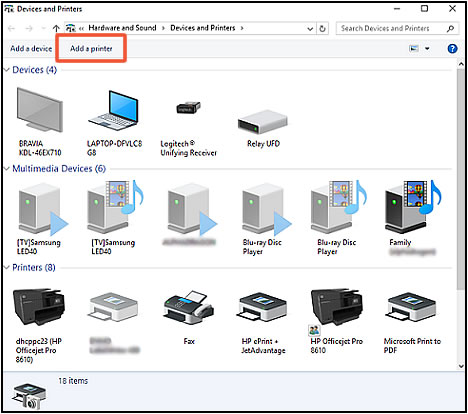
2.) Search Windows for devices and printers, and then select Devices and Printers from the list of results.
3.) Click Add a printer.

4.) If necessary, click Add a network, wireless or Bluetooth printer.
5.) Click The printer that I want isn't listed.
6.) Select Add a printer using TCP/IP address or hostname, and then click Next.
7.) Select TCP/IP Device in the Device type drop-down menu.
8.) Type the printer IP address in the Hostname or IP address box. For more information about obtaining the IP address, see the documentation that came with your printer.
9.) Deselect the Query the printer and automatically select the driver to use box, and then click Next.

10.) On the Install the printer driver window, click Windows Update.
11.) After the update completes, select HP in the Manufacturer list, select your printer in the Printers list, and then click Next.
You may also refer to this document - HP Printers - 'Unsuccessful Network Installation' Error (Windows)
Hope this helps! Keep me posted.
Please click “Accept as Solution” if you feel my post solved your issue, it will help others find the solution.
Click the “Kudos, Thumbs Up" on the bottom right to say “Thanks” for helping!
Have a great day!
Asmita
I am an HP Employee
05-07-2020 06:16 AM
Thanks @Asmita6658 for coming back to me. I finaly managed to make it working but I suspect the issue is slightly different. I have a 3rd Win10 PC that is occasionnaly connected to this network. On this 3rd PC I had started installing the printer but for a reason I don't remember I didn't finish the process. Two days ago I realised this 3rd PC was in an odd configuration and I finished the install of the SW on it, it went OK. Then I tried back on my 2nd computer (without downloading anything new) and the process went OK. Seems like the printer was expecting some kind of confirmation of the 3rd PC before allowing a new PC to connect. Anyway this is now solved, thanks for your support