• ×
    Information
    Need Windows 11 help?
    Check documents on compatibility, FAQs, upgrade information and available fixes.
    Windows 11 Support Center.
  • post a message
  • ×
    Information
    Need Windows 11 help?
    Check documents on compatibility, FAQs, upgrade information and available fixes.
    Windows 11 Support Center.
  • post a message
Guidelines
Join the HP Community Solve‑a‑thon | Help Others & Share Your Solutions | Live on Zoom | 2:30 PM to 2:30 AM IST | Every Wednesday Click here to know more
Check some of the most frequent questions about Instant Ink: HP INSTANT INK, HP+ PLANS: INK AND TONER.


Check out our Black or Color Ink Not Printing, Other Print Quality Issues info about: Print quality and Cartridge Issues.
HP Recommended
HP Smart Tank 7602 All-in-One
Microsoft Windows 11

When I installed the Smart Tank Printer the computer kept asking me what to do in the bottom right corner of the monitor (open files or nothing) and I said (clicked) open files I was having issues during install.


So now every time the printer is turned on the files window opens.


Is there a way to stop this?

1 ACCEPTED SOLUTION

Accepted Solutions
HP Recommended

Hi @Kswan149,


Welcome to the HP Support Community!


Thanks for reaching out!


That “Files window opening every time the printer powers on” happens because Windows is treating the printer’s internal storage (setup files or driver package) like a USB drive. Since you once clicked Open files, Windows now remembers that preference and repeats it. You can stop this behavior by changing AutoPlay settings:

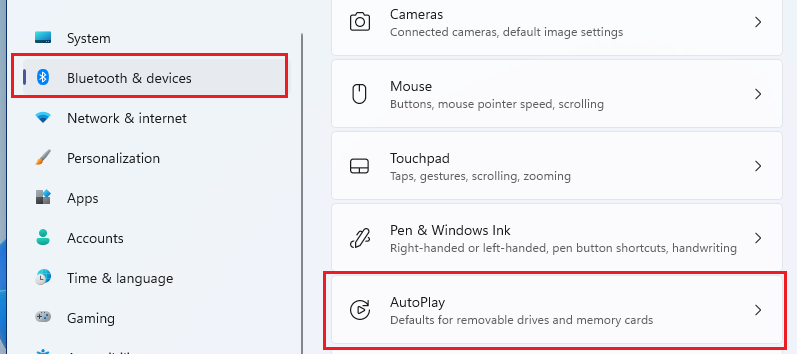
how-to-disable-enable-autoplay-on-windows-11


1. Launch the Windows Settings app.
 

2. When Settings App appears, on the sidebar, select "Bluetooth & Devices."

3. Choose "AutoPlay."

4. Toggle the switch under "Use AutoPlay for all media and devices" to turn auto-play off.


Locate Printer Storage Device

Your Smart Tank printer appears as a removable drive when connected.

Look under Removable drive or Memory card options

Identify the entry that corresponds to your printer


Change Action to 'Take No Action'

Most Common Fix

This prevents Windows from opening the files window automatically.

From the dropdown menu, select "Take no action."

Alternatively, choose "Ask me every time" if you prefer manual control

Confirm the setting change works.

Turn off your printer and switch it back on

Verify that the files window no longer opens automatically


I hope this helps


Take care and have an amazing day ahead! 🚀


Best regards,

Kuroi_Kenshi

I'm an HP Employee.


If this reply helped resolve your issue, please select the Accept as Solution as it helps others in the community quickly find the answer they’re looking for.


And if you found this reply helpful, clicking Yes below is a great way to let us know we’re providing the support you need, as it encourages us to keep improving and sharing helpful guidance.

View solution in original post

3 REPLIES 3
HP Recommended

Hi @Kswan149,


Welcome to the HP Support Community!


Thanks for reaching out!


That “Files window opening every time the printer powers on” happens because Windows is treating the printer’s internal storage (setup files or driver package) like a USB drive. Since you once clicked Open files, Windows now remembers that preference and repeats it. You can stop this behavior by changing AutoPlay settings:

how-to-disable-enable-autoplay-on-windows-11


1. Launch the Windows Settings app.
 

2. When Settings App appears, on the sidebar, select "Bluetooth & Devices."

3. Choose "AutoPlay."

4. Toggle the switch under "Use AutoPlay for all media and devices" to turn auto-play off.


Locate Printer Storage Device

Your Smart Tank printer appears as a removable drive when connected.

Look under Removable drive or Memory card options

Identify the entry that corresponds to your printer


Change Action to 'Take No Action'

Most Common Fix

This prevents Windows from opening the files window automatically.

From the dropdown menu, select "Take no action."

Alternatively, choose "Ask me every time" if you prefer manual control

Confirm the setting change works.

Turn off your printer and switch it back on

Verify that the files window no longer opens automatically


I hope this helps


Take care and have an amazing day ahead! 🚀


Best regards,

Kuroi_Kenshi

I'm an HP Employee.


If this reply helped resolve your issue, please select the Accept as Solution as it helps others in the community quickly find the answer they’re looking for.


And if you found this reply helpful, clicking Yes below is a great way to let us know we’re providing the support you need, as it encourages us to keep improving and sharing helpful guidance.

HP Recommended

That stopped it!!!

Thank you very much!

HP Recommended

Hi @Kswan149,


A huge thank you for marking this post as the 'Accepted Solution'! We're thrilled that we could help resolve your issue. 


If you have any more questions or need further assistance, please don't hesitate to ask. We're here to help! 


Thanks again for your confirmation, and we wish you an amazing day ahead! 


Kuroi_Kenshi

Best Regards,

I'm an HP Employee.


If this reply helped resolve your issue, please select the Accept as Solution as it helps others in the community quickly find the answer they’re looking for.


And if you found this reply helpful, clicking Yes below is a great way to let us know we’re providing the support you need, as it encourages us to keep improving and sharing helpful guidance.

† The opinions expressed above are the personal opinions of the authors, not of HP. By using this site, you accept the <a href="https://www8.hp.com/us/en/terms-of-use.html" class="udrlinesmall">Terms of Use</a> and <a href="/t5/custom/page/page-id/hp.rulespage" class="udrlinesmall"> Rules of Participation</a>.