• ×
    Information
    Need Windows 11 help?
    Check documents on compatibility, FAQs, upgrade information and available fixes.
    Windows 11 Support Center.
  • post a message
  • ×
    Information
    Need Windows 11 help?
    Check documents on compatibility, FAQs, upgrade information and available fixes.
    Windows 11 Support Center.
  • post a message
Guidelines
Join the HP Community Solve‑a‑thon | Help Others & Share Your Solutions | Live on Zoom | 2:30 PM to 2:30 AM IST | Every Wednesday Click here to know more
Check some of the most frequent questions about Instant Ink: HP INSTANT INK, HP+ PLANS: INK AND TONER.


Check out our WINDOWS 11 Support Center info about: OPTIMIZATION, KNOWN ISSUES, FAQs AND MORE.
HP Recommended

JUST BOUGHT THIS HP7255E PRINTER TODAY AND IKEEP GETTING A ERROR MESSAGE THAT THE PHOTO TRAY IS BLOCKED DURING MY ATTEMPT TO SET THIS PRINTER UP

1 REPLY 1
HP Recommended

Hi @DAVID2035,


Welcome to the HP Support Community


I understand you are getting an error message PHOTO TRAY IS BLOCKED on your HP ENVY Inspire 7255e All-in-One Printer. Not to worry I will help you to get a resolution to resolve the issue.


Let's perform a power drain: 

  • With the printer turned on, disconnect the power cord from the rear of the printer and also unplug the power cord from the wall outlet.
  • Remove USB cable, if present.
  • Wait for 2-3 minutes, press and hold the power button on your printer for about 30 seconds to remove any additional charge.
  • Now plug back the power cable straight to a wall outlet without any surge protector or an extension cord (This is important) and then plug back the power cord to the printer.
  • Turn on the printer and wait till warm-up period finishes and the printer is idle

Update the printer firmware 


  • Click here to download and install the latest printer firmware from your product
  • Click here to know different methods of updating printer firmware.


If the issue persists, then please follow the below steps: (Printer may look different but the steps are similar)


Restart the printer

Press the Power button to turn off the printer. If the printer does not turn off, disconnect the power cord from the rear of the printer.

Wait 60 seconds.

Reconnect the power cord to the rear of the printer.

Press the Power button to turn on the printer.

Make sure that the input tray is completely closed

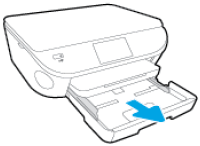
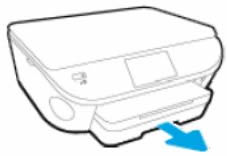
Grasp the handle on the input tray, and then pull the tray toward you to open it.

Figure : Pull out the input tray

  1. Image: Pull out the input tray

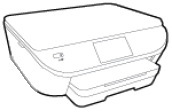
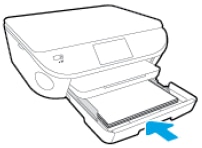
Close the input tray by pushing it into the printer until it locks into place.

Figure : Push in the input tray

  1. Image: Push in the input tray

Check for obstructions that prevent the input tray from closing

Press the Power button to turn off the printer.

Grasp the handle on the input tray, and then pull the tray toward you to open it.

Figure : Pull to open the paper tray

  1. Image: Pull to open the paper tray

Remove any loose sheets of paper from the input tray or any paper that blocks the photo tray.

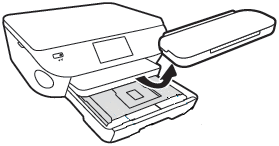
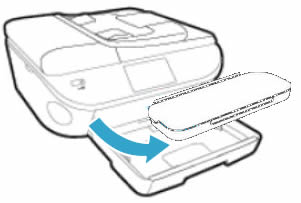
Remove the output tray, and then set it aside.

Figure : Remove the output tray

  1. Image: Remove the output tray

Turn the printer onto its right side so you can access its underside.

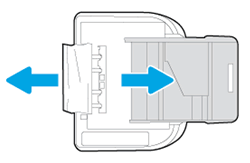
Check the gap where the input tray was. Remove any loose paper or other obstructions in the gap. If any paper is jammed inside the gap, grasp the paper with both hands, and then pull the paper slowly but firmly toward you to remove it. Gently remove any jammed paper and bits of torn paper.

Figure : Turn the printer onto its right side, and then remove any obstructions

  1. Image: Turn the printer onto its right side,  and then remove any obstructions

   CAUTION:

Remove paper from the gap as carefully as possible. If any torn pieces of paper remain inside the printer, a paper jam is likely to occur, which could damage the print mechanism.

Turn the printer back over to its normal position, and then reinsert the input tray, pushing it into the printer until it locks into place.

Figure : Push in the paper tray

  1. Image: Push in the paper tray

   NOTE:

The tray clicks into place when it is completely closed, and the printer makes noise.

Grasp the output tray by the sides, and then replace the output tray onto the input tray.

Press the Power button to turn on the printer.

Wait until the printer finishes warming up, and then check the control panel to see if the error message has cleared.

 Make sure the photo tray is seated correctly

Make sure the printer is positioned on a flat surface.

Push in the output tray extender.

Pull out the input tray, but do not remove it.

Image: Pull out input tray

Remove the output tray.

Image: Remove the output tray

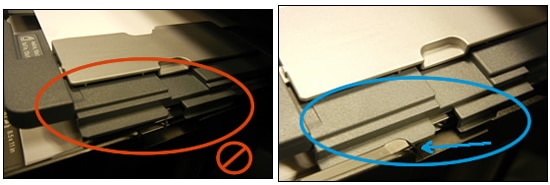
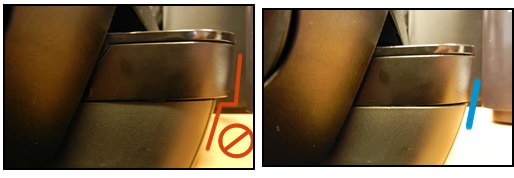
Make sure the photo tray is seated correctly, and that the photo tray guide tabs (grey) are sliding beneath the main tray guides (black) on both the left and right side of the input tray.

Image: Photo tray properly functioning

Image: Tabs outside and inside guide rails

If they are not in the correct position, gently move the photo tray to align the tab gaps, and then gently press the tabs back into position.

The photo tray should move freely with no resistance.

Reinstall the output tray, and then make sure the edges line up with the input tray.

Image: Line up the edges

Try to print.


Here is the HP document for your reference:- Click here (Printer may be different but the steps are similar)


Hope this helps! Keep me posted. 


Please click “Accepted Solution” if you feel my post solved your issue, it will help others find the solution. Click the “Kudos/Thumbs Up" on the bottom right to say “Thanks” for helping!


ANAND_ANDY
I am an HP Employee

† The opinions expressed above are the personal opinions of the authors, not of HP. By using this site, you accept the <a href="https://www8.hp.com/us/en/terms-of-use.html" class="udrlinesmall">Terms of Use</a> and <a href="/t5/custom/page/page-id/hp.rulespage" class="udrlinesmall"> Rules of Participation</a>.