
-
×InformationNeed Windows 11 help?Check documents on compatibility, FAQs, upgrade information and available fixes.
Windows 11 Support Center. -
-
×InformationNeed Windows 11 help?Check documents on compatibility, FAQs, upgrade information and available fixes.
Windows 11 Support Center. -
- HP Community
- Printers
- Printer Setup, Software & Drivers
- Lost Scan on 7520 All in One Printer after upgrade

Create an account on the HP Community to personalize your profile and ask a question
Your account also allows you to connect with HP support faster, access a personal dashboard to manage all of your devices in one place, view warranty information, case status and more.
Check some of the most frequent questions about Instant Ink: HP INSTANT INK, HP+ PLANS: INK AND TONER.
Check out our WINDOWS 11 Support Center info about: OPTIMIZATION, KNOWN ISSUES, FAQs AND MORE.

It has been a while since anyone has replied. Simply ask a new question if you would like to start the discussion again.

02-06-2018 07:12 AM - edited 02-06-2018 07:48 AM
 HP Recommended
Product: Photosmart 7520
Operating System: macOS 10.13 High Sierra
Just updated &520 drivers from HP site using Feb 2018 Version and HP Easy Start.
Easy Start did the job, but although it said it installed the Scanner software, no scanner options appear on preferences or any of the management windows.
Checked the webpage for the printer and it says "Webscan has been disabled". Not dsure if this is related as I am using the printer over a LAN!
Followed instructions to ENABLE WEBSCAN, but the Admin menu under Security shows a BLANK.
Is this a BUG or a NEW FEATURE HP have not told us about?
Frustrared Mac user,
Paul
UPDATE: Just installed the software using HP Easy Start. Seemed to behave almost the same way as the first time. Closed HP Easy Scan, opened Printer preferences and VOILA! The SCAN icon had retuned with all the old functionalilty. Will I have to do this INSTALL TWICE for my other MAC I wonder?
Solved! Go to Solution.
1 ACCEPTED SOLUTION
Accepted Solutions


02-08-2018 06:36 AM
HP Recommended
Hey there! @PaulCunnington, Thanks for stopping by the HP Support Forums!
I understand you have scanning issues with your printer after upgrading your MAC.
Don't worry I'll try to help you out.
Did you make any changes to your printer?
Are you able to make a copy from your printer?
Do you see the scanner blub glowing while scanning from your printer?
As you mentioned you have scanning issues with your printer after upgrading your MAC.
Try the steps recommended below.
Remove and re-add the printer
Remove the printer from the print queue, and then re-add it to clear any error states with the printer setup.
-
Search the Mac for Print, then click Print & Fax, Print & Scan, or Printers & Scanners in the list of results.
-
Check if the name of your printer displays in the Printers list. Do one of the following steps, depending on if the printer is listed or not.
-
If your printer is listed, remove and re-add the printer to confirm communication and that the correct driver is used. Click the name of your printer, click the minus sign
 , then delete the printer. Once the printer is removed, click the plus sign
  , click Add Printer or Scanner, click the name of your printer, then continue with the remaining steps.
 -
If your printer is not listed, click the plus sign
, click Add Printer or Scanner, click the name of your printer, then continue with the remaining steps. -
If your printer is not listed in the Add Printer or Scanner window, confirm that the printer is connected to the same wired or wireless network as your Mac. See the Frequently asked questions in this document to try resolving connection issues, then try to add the printer again.
-
-
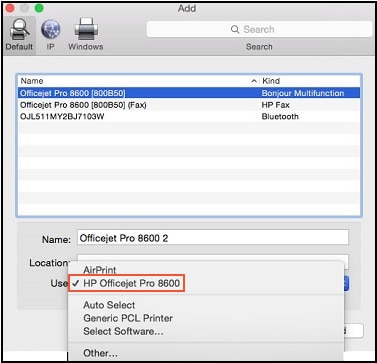
Click the Use or Print Using box, and then select the name of your printer in the pop-up menu.
NOTE:
Selecting another driver option might limit your printer functionality.
Figure : Select the name of your printer in the Use menu
-
Click Add to add the printer to the list.
-
Close the System Preferences window.
-
Try to scan.
Refer this article to further troubleshoot scanning issues with your printer.
Refer this article to know more information about scanning from MAC.
If the issue still persists after trying out the steps. It is a hardware issue with your printer.
Please contact HP support for service options.
Link to contact HP.
If the solution provided worked for you, please mark accepted solution for this post.
Let me know if this helps!
Have a pleasant day ahead! 🙂
Please click “Accept as Solution” if you feel my post solved your issue, it will help others find the solution.
Click the “Kudos, Thumbs Up" on the bottom right to say “Thanks” for helping!
A4Apollo
I am an HP Employee
3 REPLIES 3
02-08-2018 06:36 AM
HP Recommended
Hey there! @PaulCunnington, Thanks for stopping by the HP Support Forums!
I understand you have scanning issues with your printer after upgrading your MAC.
Don't worry I'll try to help you out.
Did you make any changes to your printer?
Are you able to make a copy from your printer?
Do you see the scanner blub glowing while scanning from your printer?
As you mentioned you have scanning issues with your printer after upgrading your MAC.
Try the steps recommended below.
Remove and re-add the printer
Remove the printer from the print queue, and then re-add it to clear any error states with the printer setup.
-
Search the Mac for Print, then click Print & Fax, Print & Scan, or Printers & Scanners in the list of results.
-
Check if the name of your printer displays in the Printers list. Do one of the following steps, depending on if the printer is listed or not.
-
If your printer is listed, remove and re-add the printer to confirm communication and that the correct driver is used. Click the name of your printer, click the minus sign
, then delete the printer. Once the printer is removed, click the plus sign , click Add Printer or Scanner, click the name of your printer, then continue with the remaining steps. -
If your printer is not listed, click the plus sign
, click Add Printer or Scanner, click the name of your printer, then continue with the remaining steps. -
If your printer is not listed in the Add Printer or Scanner window, confirm that the printer is connected to the same wired or wireless network as your Mac. See the Frequently asked questions in this document to try resolving connection issues, then try to add the printer again.
-
-
Click the Use or Print Using box, and then select the name of your printer in the pop-up menu.
NOTE:
Selecting another driver option might limit your printer functionality.
Figure : Select the name of your printer in the Use menu
-
Click Add to add the printer to the list.
-
Close the System Preferences window.
-
Try to scan.
Refer this article to further troubleshoot scanning issues with your printer.
Refer this article to know more information about scanning from MAC.
If the issue still persists after trying out the steps. It is a hardware issue with your printer.
Please contact HP support for service options.
Link to contact HP.
If the solution provided worked for you, please mark accepted solution for this post.
Let me know if this helps!
Have a pleasant day ahead! 🙂
Please click “Accept as Solution” if you feel my post solved your issue, it will help others find the solution.
Click the “Kudos, Thumbs Up" on the bottom right to say “Thanks” for helping!
A4Apollo
I am an HP Employee
02-08-2018 06:41 AM
HP Recommended
Many thanks or the reply Mr Robot. I thought I had updated the status so forgive me due to inexperience. I fixed it by re-installing the driver and after some fiddling about I was able to get Scan operating as before, ie as a button on the printer window will all the advanced options for format etc..
Thanks again,
Paul
02-08-2018 02:17 PM
HP Recommended
@PaulCunnington, Thanks for your quick response and time.
I appriciate your efforts for writing back to us.
As you mentioned after uninstalling and reinstalling the drivers solved your problem
I am happy to hear that your issue got resolved.
If you have any queries in future related to any HP products, you can always reach out to us.
We will try our best to help you out.
If the solution provided worked for you, please mark accepted solution for this post.
Take care,
Have a great day!
Please click “Accept as Solution” if you feel my post solved your issue, it will help others find the solution.
Click the “Kudos, Thumbs Up" on the bottom right to say “Thanks” for helping!
A4Apollo
I am an HP Employee

Be alert for scammers posting fake support phone numbers and/or email addresses on the community.
If you think you have received a fake HP Support message, please report it to us by clicking on "Flag Post".
† The opinions expressed above are the personal opinions of the authors, not of HP. By using this site, you accept the Terms of Use and Rules of Participation.


Didn't find what you were looking for?
Ask the community
† The opinions expressed above are the personal opinions of the authors, not of HP. By using this site, you accept the <a href="https://www8.hp.com/us/en/terms-of-use.html" class="udrlinesmall">Terms of Use</a> and <a href="/t5/custom/page/page-id/hp.rulespage" class="udrlinesmall"> Rules of Participation</a>.