• ×
    Information
    Need Windows 11 help?
    Check documents on compatibility, FAQs, upgrade information and available fixes.
    Windows 11 Support Center.
  • post a message
  • ×
    Information
    Need Windows 11 help?
    Check documents on compatibility, FAQs, upgrade information and available fixes.
    Windows 11 Support Center.
  • post a message
Guidelines
Join the HP Community Solve‑a‑thon | Help Others & Share Your Solutions | Live on Zoom | 2:30 PM to 2:30 AM IST | Every Wednesday Click here to know more
Check some of the most frequent questions about Instant Ink: HP INSTANT INK, HP+ PLANS: INK AND TONER.


Check out our WINDOWS 11 Support Center info about: OPTIMIZATION, KNOWN ISSUES, FAQs AND MORE.
HP Recommended
LaserJet 1536mfp
macOS 10.13 High Sierra

Tried to install the latest drivers for MacOS 10.13.6.  During the installation I got an alert box with the message:


System Extension cannot be used

The system extension “/Library/Extensions/hp_fax_io.kext” was installed improperly and cannot be used. Please try reinstalling it, or contact the product’s vendor for an update.


followed by 


System Extension cannot be used

The system extension “/Library/Extensions/hp_io_printerclassdriver_enabler.kext” was installed improperly and cannot be used. Please try reinstalling it, or contact the product’s vendor for an update.

2 REPLIES 2
HP Recommended

@essicdo


Welcome to the HP Support Community!


Updating the printer firmware, checking for Mac software update and installing the printer with AirPrint Drivers may resolve this issue.


Step 1: Update the printer firmware

Click here to download and install the latest firmware from your computer.

Click here to know different methods of updating printer firmware.


Step 2: Click here to know how to Update software on Mac 

Restart your MAC


Step 3: Use AirPrint Driver

  1. Click the Apple menu, click System Preferences, and then click Print & Scan or Printers & Scanners.
  2. Check if your printer name displays in the Printers list, If your printer is listed, click the printer name, click the minus sign to delete the printer.
  3. If you see multiple printer queues for the same printer, remove all extra printers by selecting them one at a time, and then clicking the minus button  at the bottom of the list.
  4. Click the plus sign , click Add Printer or Scanner, click the printer name.
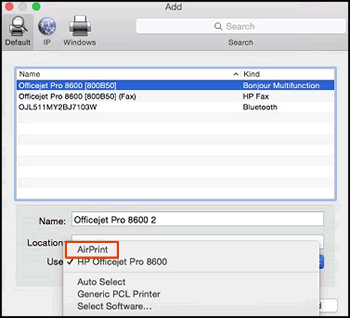

  5. Click the Use or Print Using menu, select AirPrint in the pop-up menu. Then click Add.
  6. Select AirPrint from the Use menu
  7. Try to print.

Let me know how this goes.


Please click “Accept as Solution” if you feel my post solved your issue, it will help others find the solution. Click the “Kudos/Thumbs Up" on the bottom right to say “Thanks” for helping!

KUMAR0307
I am an HP Employee

HP Recommended

The original poster was asking about warning they got during the install of the printer drivers. Upgrading the Printer's firmware has nothing to do with that. And using AirPrint drivers is a work around, if youre admitting your native drivers arent up to snuff.

† The opinions expressed above are the personal opinions of the authors, not of HP. By using this site, you accept the <a href="https://www8.hp.com/us/en/terms-of-use.html" class="udrlinesmall">Terms of Use</a> and <a href="/t5/custom/page/page-id/hp.rulespage" class="udrlinesmall"> Rules of Participation</a>.