
-
×InformationNeed Windows 11 help?Check documents on compatibility, FAQs, upgrade information and available fixes.
Windows 11 Support Center. -
-
×InformationNeed Windows 11 help?Check documents on compatibility, FAQs, upgrade information and available fixes.
Windows 11 Support Center. -
- HP Community
- Printers
- Printer Setup, Software & Drivers
- Re: Print quality default.

Create an account on the HP Community to personalize your profile and ask a question
Your account also allows you to connect with HP support faster, access a personal dashboard to manage all of your devices in one place, view warranty information, case status and more.
Check some of the most frequent questions about Instant Ink: HP INSTANT INK, HP+ PLANS: INK AND TONER.
Check out our WINDOWS 11 Support Center info about: OPTIMIZATION, KNOWN ISSUES, FAQs AND MORE.

It has been a while since anyone has replied. Simply ask a new question if you would like to start the discussion again.

06-23-2022 08:48 PM
 HP Recommended
Product: HP ENVY Photo 7855 All-in-One Printer
Operating System: Microsoft Windows 10 (64-bit)
How might I set up my HP 7855 printer to default to NORMAL or DRAFT print quality? It defaults to BEST, which I seldom use. Any help would be appreciated. Thank you.
Solved! Go to Solution.
1 ACCEPTED SOLUTION
Accepted Solutions


06-24-2022 09:22 AM
HP Recommended
Welcome to the HP User Community.
There are two parts to this:
- HP Smart application - supports printing and scanning PDF and Photos / Images. HP Smart is supported in many regions and on many newer networked printers - The app is available from the Microsoft Store . HP Smart requires that you sign in using your HP Account credentials.
- HP Full Feature Software / Full Driver printer software - supports printing and scanning from the web, printing in programs (for example, Word), and access to the full range of Printing Preferences / Shortcuts. The full driver printer software includes HP Scan. No Sign-in required.
When installed,
HP Smart is listed in Settings > Apps > Apps and Features
HP Smart is never listed in Programs and Features
When installed,
The Full Driver printer software is listed in Control Panel > icon view > Programs and Features
And
The Full Driver printer software can also show up in Settings > Apps > Apps and Features
Example - HP Full Feature Software / full driver printer software - Installed
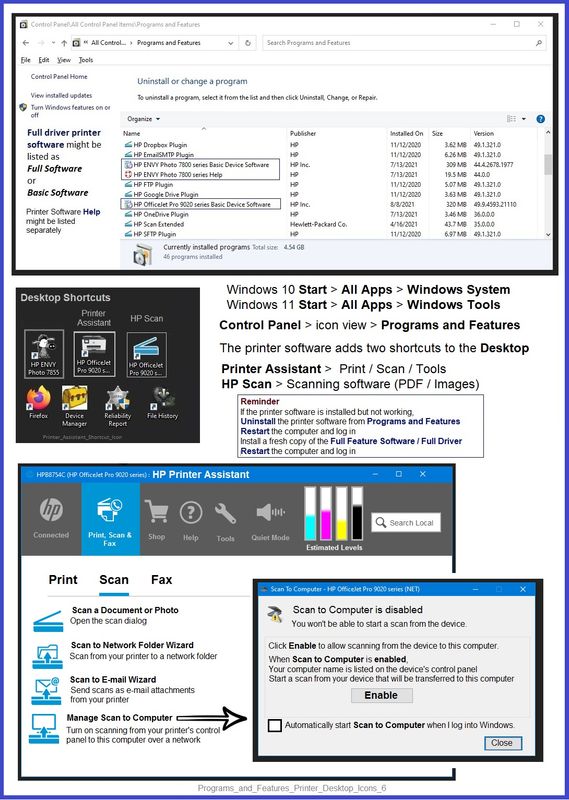
If you have not done so,
Install the Full Feature Software / full driver printer software.
Full Feature Software / full driver printer software - Installation Package - Information and Download
HP ENVY Photo 7800 All-in-One Print and Scan Driver and Accessories
Basic Instructions - Install the Full Feature Software / Full Driver printer software
Preparation
- If using VPN, shut it off to install software. NOTE >> If you don’t know what this is, you are not using a VPN – ignore this part.
- If the printer software is still / already installed, Uninstall the printer software from Control Panel > icon view > Programs and Features > Restart the computer and log in – Reference Uninstall HP printer software and drivers
After the printer software is uninstalled, check that the printer is not still lurking in Devices and Printers.
If the printer is listed, Right-Click on the printer and "Remove" > Restart the computer and sign in.
- Reminder: If using USB cable between printer and computer, disconnect the cable before installing software. Later... Connect the cable when instructed (near the end of the installation procedure).
Installation
- Download and Save the Full Feature Software installation package or the Easy Start Software
- Open File Explorer
- Navigate to the folder in which you saved the installation file (likely Downloads)
- Right-Click on the installation package and “Run as Administrator”
- If using Easy Start > When asked, opt for "Full Driver" (exact wording might vary).
- If using Easy Start > Skip any extra software / offers you do not want (wording varies).
- After the software is installed, Restart the computer and log in
NOTES
- - - - - - - - - - - - - - - - - - - - - - - - - - - - - - - - - - - - - - - - - - - - - - - - - - - - - - - - - -
Preparation > Check / enable the printer as the “Default Printer”
Settings > Devices > Printers and scanners
UNCHECK (clear box) Let Windows manage my default printer
Select (Left-Click) your printer from the list of printers > Manage > Set as Default
- - - - - - - - - - - - - - - - - - - - - - - - - - - - - - - - - - - - - - - - - - - - - - - - - - - - - - - - - -
Next,
Printing Preferences
Control Panel > icon view > Devices and Printers
Right-Click Printer > Printing Preferences
Open Printing Preferences
Select a Shortcut that includes the settings you need / want
and / or
Create a Custom Shortcut
Leave that shortcut selected when you close Printing Preferences
The selected shortcut / custom shortcut will normally remain "chosen" until you select a different shortcut in its place then save and exit Printing Preferences.
Example - Printing Preferences - Shortcut "Everyday Printing"
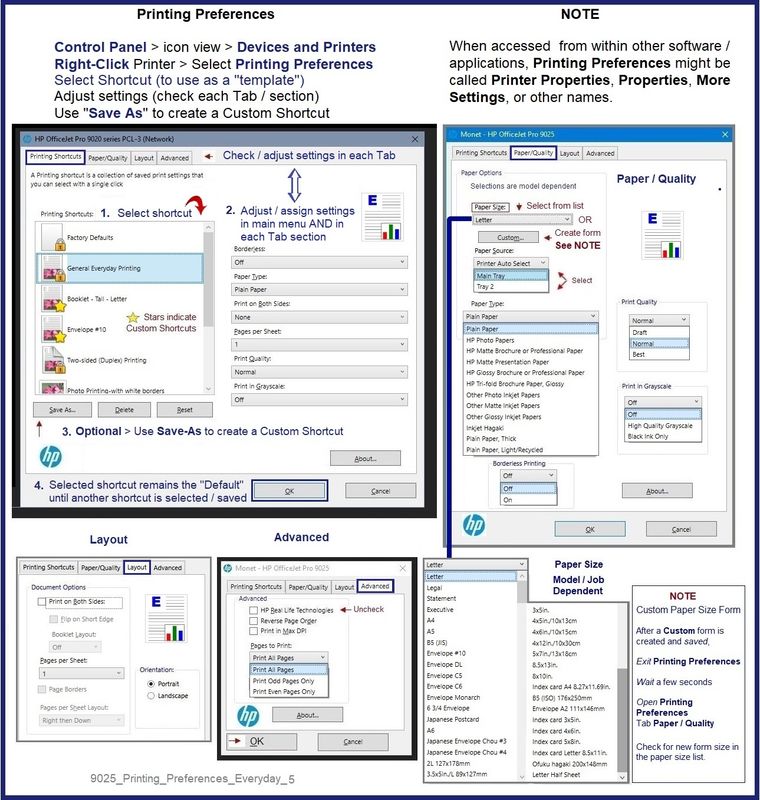
Next,
Create your Print job - check / adjust settings - Print
When called from within printing software / applications, Printing Preferences might be called "Printer Properties" / "Shortcuts" / “More Settings” / “Properties” / "Printer Setup" or similar.
Select / Adjust the settings in the software / application you are using to open, view, and submit the content to the printer.
For example,
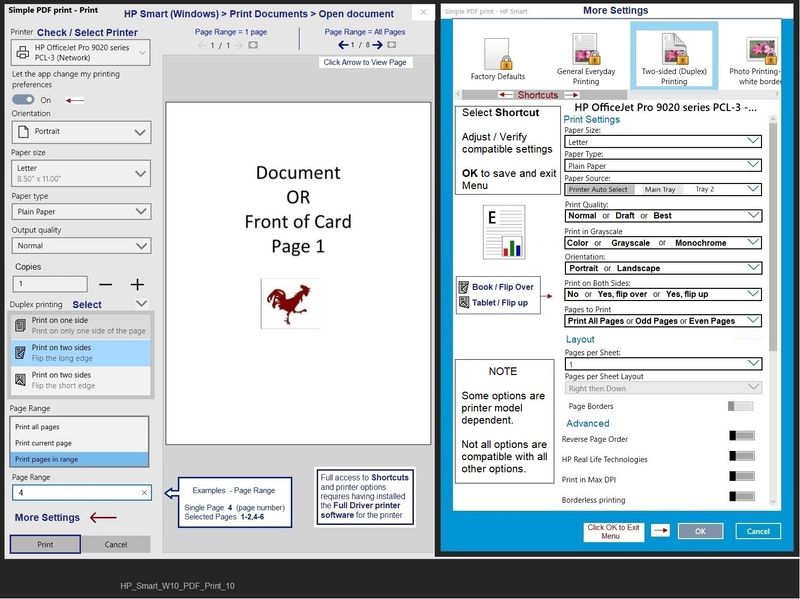
Open HP Smart - Windows - application
Select Print Documents
Set / Adjust the settings on the main printing menu
Open More Settings
If the Shortcut you want is not already highlighted / selected, > Select a Shortcut
If any of the settings need to be adjusted for the current job, change one or more of the settings
Click OK to save the current job setup and exit the More Settings menu
Back on the main print menu, verify setup > when ready, click Print
General Example - HP Smart - Windows - Print Documents
This example, includes More Settings > selected Shortcut as "Duplex"
Depending on the needs for the current job, your selected shortcut might be different.
Even having selected a Standard or Custom shortcut, you can change settings for the current job (if necessary).
HP Printer Home Page - References and Resources – Learn about your Printer - Solve Problems
“Things that are your printer”
When the website support page opens, Select (as available) a Category > Topic > Subtopic
NOTE: Content depends on device type and Operating System
Categories: Alerts, Access to the Print and Scan Doctor (Windows), Warranty Check, HP Drivers / Software / Firmware Updates, How-to Videos, Bulletins/Notices, Lots of How-to Documents, Troubleshooting, Manuals > User Guides, Product Information (Specifications), more
Open
HP ENVY Photo 7855 All-in-One Printer
Thank you for participating in the HP Community.
Our Community is comprised of volunteers - people who own and use HP devices.
Click Helpful = Yes to say Thank You
Question / Concern Answered, Click "Accept as Solution"
Dragon-Fur

1 REPLY 1
06-24-2022 09:22 AM
HP Recommended
Welcome to the HP User Community.
There are two parts to this:
- HP Smart application - supports printing and scanning PDF and Photos / Images. HP Smart is supported in many regions and on many newer networked printers - The app is available from the Microsoft Store . HP Smart requires that you sign in using your HP Account credentials.
- HP Full Feature Software / Full Driver printer software - supports printing and scanning from the web, printing in programs (for example, Word), and access to the full range of Printing Preferences / Shortcuts. The full driver printer software includes HP Scan. No Sign-in required.
When installed,
HP Smart is listed in Settings > Apps > Apps and Features
HP Smart is never listed in Programs and Features
When installed,
The Full Driver printer software is listed in Control Panel > icon view > Programs and Features
And
The Full Driver printer software can also show up in Settings > Apps > Apps and Features
Example - HP Full Feature Software / full driver printer software - Installed
If you have not done so,
Install the Full Feature Software / full driver printer software.
Full Feature Software / full driver printer software - Installation Package - Information and Download
HP ENVY Photo 7800 All-in-One Print and Scan Driver and Accessories
Basic Instructions - Install the Full Feature Software / Full Driver printer software
Preparation
- If using VPN, shut it off to install software. NOTE >> If you don’t know what this is, you are not using a VPN – ignore this part.
- If the printer software is still / already installed, Uninstall the printer software from Control Panel > icon view > Programs and Features > Restart the computer and log in – Reference Uninstall HP printer software and drivers
After the printer software is uninstalled, check that the printer is not still lurking in Devices and Printers.
If the printer is listed, Right-Click on the printer and "Remove" > Restart the computer and sign in.
- Reminder: If using USB cable between printer and computer, disconnect the cable before installing software. Later... Connect the cable when instructed (near the end of the installation procedure).
Installation
- Download and Save the Full Feature Software installation package or the Easy Start Software
- Open File Explorer
- Navigate to the folder in which you saved the installation file (likely Downloads)
- Right-Click on the installation package and “Run as Administrator”
- If using Easy Start > When asked, opt for "Full Driver" (exact wording might vary).
- If using Easy Start > Skip any extra software / offers you do not want (wording varies).
- After the software is installed, Restart the computer and log in
NOTES
- - - - - - - - - - - - - - - - - - - - - - - - - - - - - - - - - - - - - - - - - - - - - - - - - - - - - - - - - -
Preparation > Check / enable the printer as the “Default Printer”
Settings > Devices > Printers and scanners
UNCHECK (clear box) Let Windows manage my default printer
Select (Left-Click) your printer from the list of printers > Manage > Set as Default
- - - - - - - - - - - - - - - - - - - - - - - - - - - - - - - - - - - - - - - - - - - - - - - - - - - - - - - - - -
Next,
Printing Preferences
Control Panel > icon view > Devices and Printers
Right-Click Printer > Printing Preferences
Open Printing Preferences
Select a Shortcut that includes the settings you need / want
and / or
Create a Custom Shortcut
Leave that shortcut selected when you close Printing Preferences
The selected shortcut / custom shortcut will normally remain "chosen" until you select a different shortcut in its place then save and exit Printing Preferences.
Example - Printing Preferences - Shortcut "Everyday Printing"
Next,
Create your Print job - check / adjust settings - Print
When called from within printing software / applications, Printing Preferences might be called "Printer Properties" / "Shortcuts" / “More Settings” / “Properties” / "Printer Setup" or similar.
Select / Adjust the settings in the software / application you are using to open, view, and submit the content to the printer.
For example,
Open HP Smart - Windows - application
Select Print Documents
Set / Adjust the settings on the main printing menu
Open More Settings
If the Shortcut you want is not already highlighted / selected, > Select a Shortcut
If any of the settings need to be adjusted for the current job, change one or more of the settings
Click OK to save the current job setup and exit the More Settings menu
Back on the main print menu, verify setup > when ready, click Print
General Example - HP Smart - Windows - Print Documents
This example, includes More Settings > selected Shortcut as "Duplex"
Depending on the needs for the current job, your selected shortcut might be different.
Even having selected a Standard or Custom shortcut, you can change settings for the current job (if necessary).
HP Printer Home Page - References and Resources – Learn about your Printer - Solve Problems
“Things that are your printer”
When the website support page opens, Select (as available) a Category > Topic > Subtopic
NOTE: Content depends on device type and Operating System
Categories: Alerts, Access to the Print and Scan Doctor (Windows), Warranty Check, HP Drivers / Software / Firmware Updates, How-to Videos, Bulletins/Notices, Lots of How-to Documents, Troubleshooting, Manuals > User Guides, Product Information (Specifications), more
Open
HP ENVY Photo 7855 All-in-One Printer
Thank you for participating in the HP Community.
Our Community is comprised of volunteers - people who own and use HP devices.
Click Helpful = Yes to say Thank You
Question / Concern Answered, Click "Accept as Solution"
Dragon-Fur

Be alert for scammers posting fake support phone numbers and/or email addresses on the community.
If you think you have received a fake HP Support message, please report it to us by clicking on "Flag Post".
† The opinions expressed above are the personal opinions of the authors, not of HP. By using this site, you accept the Terms of Use and Rules of Participation.


Didn't find what you were looking for?
Ask the community
† The opinions expressed above are the personal opinions of the authors, not of HP. By using this site, you accept the <a href="https://www8.hp.com/us/en/terms-of-use.html" class="udrlinesmall">Terms of Use</a> and <a href="/t5/custom/page/page-id/hp.rulespage" class="udrlinesmall"> Rules of Participation</a>.