
-
×InformationNeed Windows 11 help?Check documents on compatibility, FAQs, upgrade information and available fixes.
Windows 11 Support Center. -
-
×InformationNeed Windows 11 help?Check documents on compatibility, FAQs, upgrade information and available fixes.
Windows 11 Support Center. -
- HP Community
- Printers
- Printer Setup, Software & Drivers
- Printer Accuracy

Create an account on the HP Community to personalize your profile and ask a question
Your account also allows you to connect with HP support faster, access a personal dashboard to manage all of your devices in one place, view warranty information, case status and more.
Check some of the most frequent questions about Instant Ink: HP INSTANT INK, HP+ PLANS: INK AND TONER.
Check out our WINDOWS 11 Support Center info about: OPTIMIZATION, KNOWN ISSUES, FAQs AND MORE.

It has been a while since anyone has replied. Simply ask a new question if you would like to start the discussion again.

12-26-2021 10:33 AM
 HP Recommended
Product: Envy Photo 6230
Operating System: Microsoft Windows 10 (64-bit)
I have several photos cropped to fit an A4 page when copied into Microsoft Word with no margins, no space after, no headers or footers and fully centred. In normal mode, the printer gives the picture a border. In borderless mode, the image is cropped further and not by the same amount all round. If I down-scale the image, the printer still cuts some off and leaves a left or right border. Is there any solution to this? This is a new printer and has been updated.
2 REPLIES 2


12-26-2021 03:04 PM
HP Recommended
Places to check and possibly adjust the setup
If you have not done so, consider updating the printer Firmware.
HP ENVY Photo 6200 All-in-One Printer series Firmware Update
==================================================
For the purpose of adding image files to Word document:
Always use Insert as opposed to copy/paste to add images to your Word documents.
After the image is inserted into the document, Right-Click on the image and select Size and Position
Adjust as needed.
=================================================
Trouble with labels and possibly with other documents that include mixed content types:
Document Scale
There is a setting in Word that will "scale" a document for Letter / A4 paper.
If you are having alignment issues with your document (for example, labels, bottom of page chopped), UNCHECK this setting.
When printing directly from within Word
Setup:
Word > File > Options > Advanced
In Section Print (about 2/3 of the way down)
UNCHECK "Scale content for A4 or 8.5 x 11" paper sizes
Click OK to save changes
=================================================
If you have not done so,
- Install the Full Feature Software / full driver printer software.
- Install HP Smart (Windows)
- Print your photo / image file using HP Smart
Details / How-to / Examples
===========================================================
>>> Check / Install the Full Feature Software / full driver printer software
The full driver provides the foundation on which other programs and printing software depend.
Preparation - Install Full Driver Printer Software
If you have not done so,
In addition to the HP Smart application,
Install the Full Feature Software / full driver printer software for the printer.
HP Smart and other print software / applications benefit from having the full driver installed.
Make sure your VPN is switched Off when installing software.
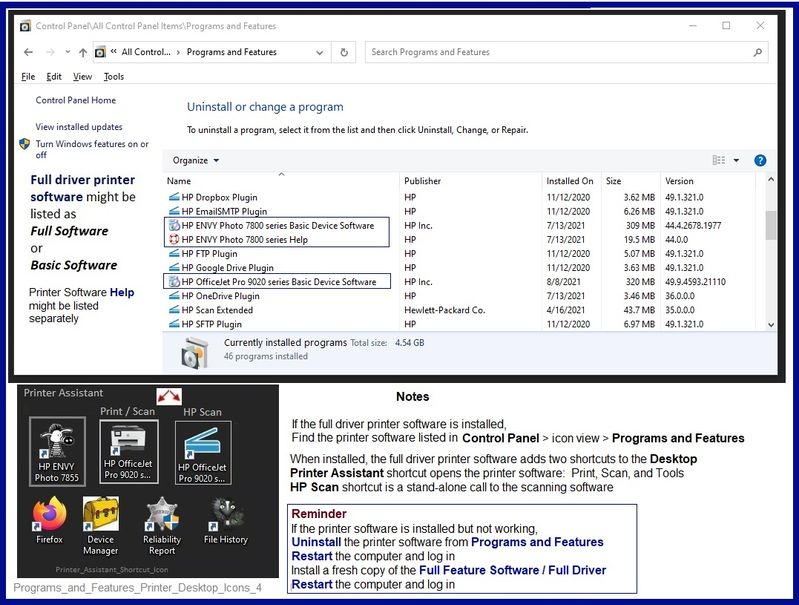
Printer Software Check - Is the printer software installed?
Notes
When the full driver printer software is installed,
Find the printer software listed in Control Panel > icon view > Programs and Features.
The installation of the full printer software adds two shortcut icons to the Desktop.
The Printer Assistant is named for the printer and provides access to Print , Scan , and Tools
HP Scan is named for itself and provides a direct call to the HP Scan software.
Next...
Printer software installed but not working?
NOTE: If the printer software shows installed but is not working as expected,
Uninstall the printer software from Control Panel > icon view > Programs and Features
Restart the computer and log in
What if?
If software will not uninstall, appears to be removed and is “still hanging around” after you uninstall / Restart...
Microsoft: Fix problems that block programs from being installed or removed
OR
Revo Uninstaller (Free version)
then
Restart the computer and log in
Reminder: If using USB, disconnect the USB printer cable between the printer and the computer before installing software. (Re)Connect the USB cable when instructed to do so near the end of the installation procedure.
Install a fresh copy of the Full Feature Software / Full Driver printer software
Restart the computer and log in
===============================================================
Next...
Method - Use the Easy Start Software to Install the Full Feature / Full Driver Software
For printers that support the option,
Use the Easy Start Software wrapper to install and configure the printer software.
- Home Page - HP Easy Start
- Open Category Software and Drivers
- Open Topic: Software-Utility
- Download-and-Save the current version of the Easy Start Software to install your print software
- If using USB: Disconnect the USB cable between the printer and computer before installing the software.
- Right-Click on the downloaded package and "Run as Administrator" to start the installation
- Select to install the “Full Driver” / “Full Feature Software” / "Basic" software
- If using USB: Connect the cable when instructed to do so (near the end of the installation process).
- After the software is installed, Restart the computer and log in.
Optional Notes >> Easy Start... The Journey
- Full Administrator Rights are required to complete the HP Software installation.
- About 2/3 of the way through the setup, you will be given the opportunity to select the software - select the "Full Driver" set (as opposed to the Smart application). If necessary, select the "Basic" Software.
- Skip / Ignore suggestion(s) that you add anything you do not want / need at the moment. For example, you do not (at the time of installation) need an HP Account and you do not need or want to sign up for Instant Ink just because you are loading the printer software.
- Full driver provides access to the printer features on which other applications / software might depend.
- - - - - - - - - - - - - - - - - - - - - - - - - - - - - - - - - - - - - - - - - - - - - - - - - - - - - - - - - -
Preparation > Check / enable the printer as the “Default Printer”
Settings > Devices > Printers and scanners
UNCHECK (clear box) Let Windows manage my default printer
Select (Left-Click) your printer from the list of printers > Manage > Set as Default
- - - - - - - - - - - - - - - - - - - - - - - - - - - - - - - - - - - - - - - - - - - - - - - - - - - - - - - - - -
========================================================================
If you have not done so,
Install the HP Smart applications for Windows
HP Smart for Windows
HP Smart is an application available in the Microsoft Store
OR
Open the Homepage / Support Website for your printer
Category Software and Drivers > Check the Box Get the App
Open and Read >>> HP printer setup (HP Smart app)
NOTES:
- Disconnect from Virtual Private Network (VPN) connection before downloading.
- Turn on Wi-Fi on your computer or mobile device and connect to your network. If the computer is connected to the network with an Ethernet cable, temporarily disconnect the cable and use the Wi-Fi connection during the setup.
- HP Smart requires that you sign into the application using your HP Account credentials.
- Where possible, HP Smart benefits (likes) having the Full Feature Software / full driver printer software installed. For example, full driver provides access to Shortcuts and Printing Preferences.
- Document includes the HP Smart application download links for Windows and Mobile devices, plus an FAQ section to assist with questions / issues.
- FAQ examples:
- What are the requirements to use the HP Smart app?
- Which printers are compatible with the HP Smart app?
- Why do I need to sign in or create an account to use the HP Smart app features?
- Which languages does the HP Smart app support?
- Older versions of the HP Smart app no longer support the required login feature.
- Update the application to the latest version to access / use HP Smart
- FAQ examples:
===================================================
Try / Consider
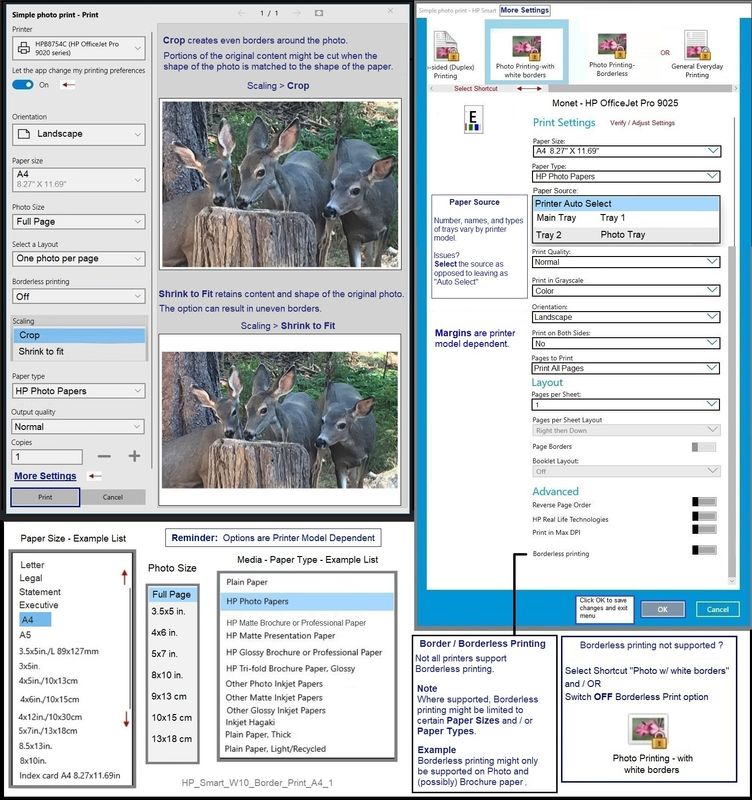
Use HP Smart to print your photo on your A4 paper
Example - HP Smart - Windows - Simple Photo Print - A4 - Border
HP Printer Support Home Page - References and Resources – Learn about your Printer - Solve Problems
“Things that are your printer”
NOTE: Content depends on device type and Operating System
Categories: Alerts, Access to the Print and Scan Doctor (Windows), Warranty Check, HP Drivers / Software / Firmware Updates, How-to Videos, Bulletins/Notices, Lots of How-to Documents, Troubleshooting, Manuals > User Guides, Product Information (Specifications), more
When the website support page opens, Select (as available) a Category > Topic > Subtopic
HP ENVY Photo 6230 All-in-One Printer
Thank you for participating in the HP Community.
The Community is a separate wing of the HP website - We are not an HP business group.
Our Community is comprised of volunteers - people who own and use HP devices.
Click Helpful = Yes to say Thank You.
Question / Concern Answered, Click "Accept as Solution"
Dragon-Fur
12-29-2021 11:02 AM
HP Recommended
Many thanks for the detailed reply.
Having a fair bit of experience, I was aware of these things and had already implemented them. It wasn't easy, because having followed the setup instructions and being told the HP Smart app would take me through the setup, it steadfastly refused to do so, being satisfied that my old printer was good to go even though it was powered off and disconnected. I was also offered the update, but it wouldn't download. To do that, I had to set up my Wi-Fi connection through the printer touch panel. From the HP web site, I downloaded the full setup package to the computer and installed it without problems, or so it seemed.
My test A4 landscape photo print using HP smart came out cropped top and bottom and cropped with a replacement 3mm border on the right. Now after just three full-size test prints, I can only print in pink and grey until my next cartridge arrives in ten days time. At the risk of going off-topic, |nstant Ink's banner "Never run out" is a falsehood. HP do not send out a replacement cartridge when a new one is inserted which they need to do if there is any hope, at least partially, of living up to this claim.
At this stage, I should point out that my old HP5532 has been successfully printing my A4 photos correctly from MS Word with small tweeks to scale and margins (and the printer's mechanical properties to keep the paper straight) but these have not carried over to the 6230.
My next thought was to have look at the settings in the photo print option of HP Smart. On "Paper size", the box showed A4 but the drop-down showed only US paper sizes in inches which made me suspect that this may be what the printer is using.
Just to be sure, I have checked my Windows regional settings, which confirmed that my PC is set, as it should be, for UK use. I then looked at the link on the right of the Windows settings' Region page: "Additional date, time and regional settings". This takes you to Windows Control Panel. There, selecting "Region" then selecting the "Administrative "tab is a button to" Copy international settings to ... new user accounts". On clicking this there is a check box for "New user accounts". I checked this and exited. Now, when I went back to HP Smart photo print, the drop-down shows a full list of metric paper sizes in cm.
Hopefully, this will solve the problem, but I won't know until the replacement ink eventually arrives.

Be alert for scammers posting fake support phone numbers and/or email addresses on the community.
If you think you have received a fake HP Support message, please report it to us by clicking on "Flag Post".
† The opinions expressed above are the personal opinions of the authors, not of HP. By using this site, you accept the Terms of Use and Rules of Participation.


Didn't find what you were looking for?
Ask the community
† The opinions expressed above are the personal opinions of the authors, not of HP. By using this site, you accept the <a href="https://www8.hp.com/us/en/terms-of-use.html" class="udrlinesmall">Terms of Use</a> and <a href="/t5/custom/page/page-id/hp.rulespage" class="udrlinesmall"> Rules of Participation</a>.