• ×
    Information
    Need Windows 11 help?
    Check documents on compatibility, FAQs, upgrade information and available fixes.
    Windows 11 Support Center.
  • post a message
  • ×
    Information
    Need Windows 11 help?
    Check documents on compatibility, FAQs, upgrade information and available fixes.
    Windows 11 Support Center.
  • post a message
Guidelines
Join the HP Community Solve‑a‑thon | Help Others & Share Your Solutions | Live on Zoom | 2:30 PM to 2:30 AM IST | Every Wednesday Click here to know more
Check some of the most frequent questions about Instant Ink: HP INSTANT INK, HP+ PLANS: INK AND TONER.


Check out our WINDOWS 11 Support Center info about: OPTIMIZATION, KNOWN ISSUES, FAQs AND MORE.
HP Recommended
HP Officejet Pro 8610
Microsoft Windows 10 (64-bit)

I am trying to print envelopes on my HP Officejet Pro 8610 using Microsoft Word Mail Merge, but I keep getting the message that i have the wrong size paper in the printer. if I select a standard size envelope (i.e. #10) it prints correctly, but if I select a custom size and put in the actual dimensions of the envelope, it gives me the error.

3 REPLIES 3
HP Recommended

@Pipendude 


The 8610 is the little brother to the HP Officejet Pro 8630 (and 8620).


I believe the problem is that the 8610, unlike the smarter printers in the series, really does not support custom sizes except in MacOS (which is useless unless you happen to have a Mac computer).


If the option were available, then you could set the Embedded Web Server (EWS) Preferences to Paper Size Custom and you could create a usable Custom Size Paper form.


So, Rats.  🐀


We need a different driver.


The following suggestion is contributed by 

in Thread 


As a workaround you may set an alternate driver and check if that works:

  1. Under Devices and Printers, right-click your printer and select Printer Properties.
  2. Within the Ports tab, take note of the port used by your printer and close the window,
  3. Click Add Printer.
  4. Click The printer that I want isn't listed.
  5. Select the last option to add a local printer or a network printer with manual configuration.
  6. Select the same port as used by the printer.
  7. Select HP from the Manufacturer list.
  8. Select the HP Deskjet 6940 model from the list and complete the wizard, you may name the print queue as you like.
    Note: if it is not listed, click the Windows Update button and allow your computer to complete the update, it may take up to 10 minutes, then select the HP Deskjet 6940 printer.

Now try selecting the created custom size using the alternate driver and check if that works.


Note:

As an alternative to the alternate, look for and use the HP Deskjet 5550

=======================================================================


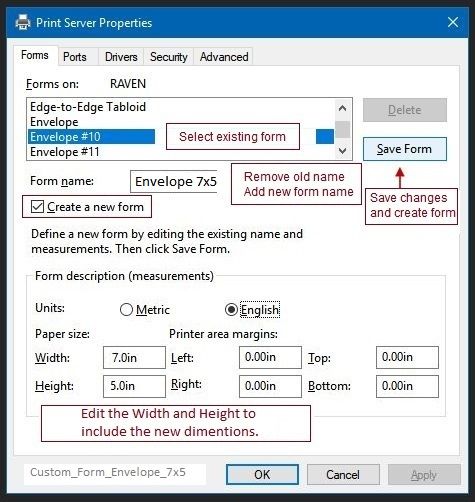
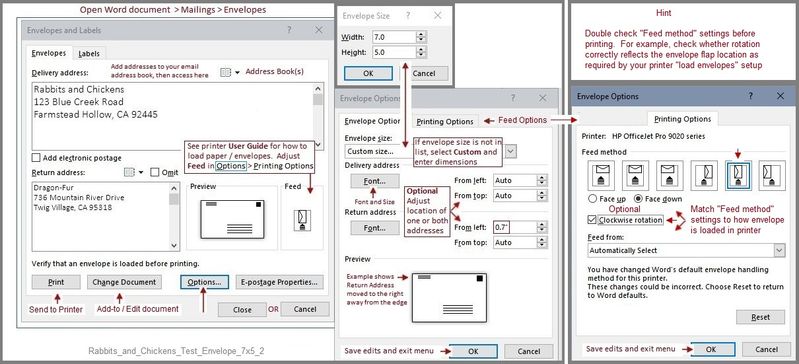
With the ability to use a Custom Paper form, the following examples might be more than pretty pictures...

Examples


EWS_8630_Settings_Preferences_Paper-Settings_Custom_1EWS_8630_Settings_Preferences_Paper-Settings_Custom_1


Custom Paper Size form

HP Document:

HP Printers - Creating Custom Paper Sizes


Custom_Form_Envelope_7x5Custom_Form_Envelope_7x5


Rabbits_and_Chickens_Test_Envelope_7x5_2Rabbits_and_Chickens_Test_Envelope_7x5_2


Reference and Resources – Places to find (more) help and learn about your Printer

Clarification of terms and "what the printer can do" (Specifications)

Printer Homepage – “Things that are your printer”

NOTE:  Content depends on device type and Operating System

HP Drivers / Software / Firmware Updates, How-to Videos, Bulletins/Notices, Lots of How-to Documents, Troubleshooting, Access to the Print and Scan Doctor (Windows), User Guides, Product Information, more

When the website support page opens, Select (as available) a Category > Topic > Subtopic

HP Officejet Pro 8610 e-All-in-One Printer series


Thank you for participating in the HP Community Forum.

We are a world community of HP enthusiasts dedicated to supporting HP technology.


Dragon-Fur

HP Recommended

Thanks for the help Dragon-Fur(Level 15).  It turns out that I did have a Mac with Office for Mac loaded and it worked perfectly and all Christmas cards were printed tonight.

HP Recommended

@Pipendude 


Well, there you go.


Perfect.  Glad it is fixed.


Happy Printing -

and

Happy New Year 2020!


Thank you for participating in the HP Community Forum.

We are a world community of HP enthusiasts dedicated to supporting HP technology.

Dragon-Fur

† The opinions expressed above are the personal opinions of the authors, not of HP. By using this site, you accept the <a href="https://www8.hp.com/us/en/terms-of-use.html" class="udrlinesmall">Terms of Use</a> and <a href="/t5/custom/page/page-id/hp.rulespage" class="udrlinesmall"> Rules of Participation</a>.