• ×
    Information
    Need Windows 11 help?
    Check documents on compatibility, FAQs, upgrade information and available fixes.
    Windows 11 Support Center.
  • post a message
  • ×
    Information
    Need Windows 11 help?
    Check documents on compatibility, FAQs, upgrade information and available fixes.
    Windows 11 Support Center.
  • post a message
Guidelines
Join the HP Community Solve‑a‑thon | Help Others & Share Your Solutions | Live on Zoom | 2:30 PM to 2:30 AM IST | Every Wednesday Click here to know more
Check some of the most frequent questions about Instant Ink: HP INSTANT INK, HP+ PLANS: INK AND TONER.


Check out our WINDOWS 11 Support Center info about: OPTIMIZATION, KNOWN ISSUES, FAQs AND MORE.
HP Recommended
HP 2600
Microsoft Windows 7 (64-bit)

I have a newly installed HP 2600 (wireless).


On my old HP printer that was just replaced, it had a feature that allowed me to Preview a Scan. With that preview, I could adjust the size of the picture that was to be printed. But, I can not do that with the HP2600. 


Does anyone know why that is?


More importantly, does anyone have a fix for that problem?


Any assistance would be greatly appreciated.


1 REPLY 1
HP Recommended

@LRS1851

Thank you for joining the HP Community


Follow the below Scan and edit to edit the scanned document.


Scan and edit


Load your documents, complete the scan, and then edit, if necessary.

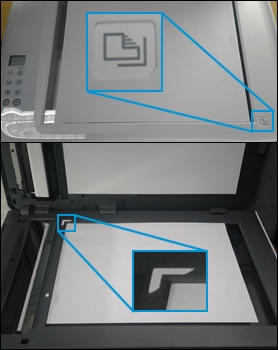
  1. Place the first item you want to scan face-down on the scanner glass, aligning it with the guide at the edge of the glass.

    Aligning a document with the guides at the edges of the scanner glass

  2. In HP Scan, click Scan.

    The printer scans your document or photo, and then HP Scan displays a preview.

  3. To add pages or scan the other side, click the Add pages icon  on the bottom bar, place the next item face-down on the scanner glass, and then click Scan.

  4. Double-click individual pages to rotate, crop, or change brightness and contrast, or click More for advanced options.

  5. When you finish editing your scan, click Save or Send.

Refer to this document: https://support.hp.com/ph-en/product/hp-deskjet-2600-all-in-one-printer-series/12319824/document/c03... for How to Scan (Windows)


Keep me posted, how it goes!

If the information I've provided was helpful, give us some reinforcement by clicking the Accepted Solution and Kudos buttons, that'll help us and others see that we've got the answers!

Have a great day!

Cheers:)


Raj1788
I am an HP Employee 

† The opinions expressed above are the personal opinions of the authors, not of HP. By using this site, you accept the <a href="https://www8.hp.com/us/en/terms-of-use.html" class="udrlinesmall">Terms of Use</a> and <a href="/t5/custom/page/page-id/hp.rulespage" class="udrlinesmall"> Rules of Participation</a>.