-
×InformationNeed Windows 11 help?Check documents on compatibility, FAQs, upgrade information and available fixes.
Windows 11 Support Center. -

-
×InformationNeed Windows 11 help?Check documents on compatibility, FAQs, upgrade information and available fixes.
Windows 11 Support Center. -
- HP Community
- Printers
- Printer Setup, Software & Drivers
- Re: Problem

Create an account on the HP Community to personalize your profile and ask a question
05-20-2023 10:32 AM
Dear,
The HP support website has no driver for my Photosmart C5180 MFP (windows 10 - 64 bit). Download links in other posts in this community are no longer active. Anyone who can help?
Thank you so much,
Solved! Go to Solution.
Accepted Solutions
05-23-2023 08:11 AM
Hi @Pacemaker8,
Welcome to HP Support Community.
Thank you for posting your query, I will be glad to help you.
I see that you are facing driver issues with your HP Photosmart C5180 all-in-one printer.
As this is an obsolete unit, the drivers are not available. You may follow the steps listed below to install the windows built-in drivers.
Install the built-in print driver for a USB connection with Windows 10 or Windows 8.
- In Windows, search for and open Control Panel.
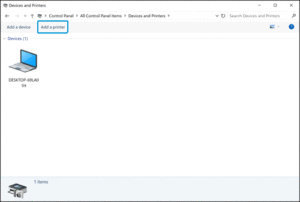
- Click Devices and Printers, and then click Add a printer.

Install the print driver with the Add a Printer wizard
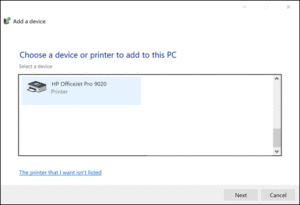
- On the Choose a device or printer to add to this PC window, select your printer, click Next, and then follow the on-screen instructions to install the driver. If your printer is not in the list, continue with these steps.
On the Choose a device or printer to add to this PC Window
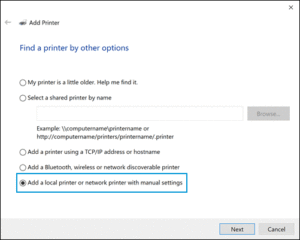
- Click The printer I want isn’t listed, and then select Add a local printer or network printer with manual settings.

Click The printer I want isn’t listed
- Click Next.
- Select Use an existing port (USB001: Virtual printer port for USB), and then click Next.
- Click Windows Update, and then wait for the print drivers to update.
- Click HP, Hewlett-Packard, or Hewlett Packard in the Manufacturer pane, and then click the name of your printer in the Printers pane.
- Click Next, and then follow the on-screen instructions to install the driver.
- Disconnect the printer USB cable from the computer, and then reconnect the cable.
Let me know if this helps and have a nice day ahead.
Please click “Accepted Solution” if you feel my post solved your issue, it will help others find the solution. Click the “Kudos/Thumbs Up” on the bottom right to say “Thanks” for helping!
05-23-2023 08:11 AM
Hi @Pacemaker8,
Welcome to HP Support Community.
Thank you for posting your query, I will be glad to help you.
I see that you are facing driver issues with your HP Photosmart C5180 all-in-one printer.
As this is an obsolete unit, the drivers are not available. You may follow the steps listed below to install the windows built-in drivers.
Install the built-in print driver for a USB connection with Windows 10 or Windows 8.
- In Windows, search for and open Control Panel.
- Click Devices and Printers, and then click Add a printer.

Install the print driver with the Add a Printer wizard
- On the Choose a device or printer to add to this PC window, select your printer, click Next, and then follow the on-screen instructions to install the driver. If your printer is not in the list, continue with these steps.
On the Choose a device or printer to add to this PC Window
- Click The printer I want isn’t listed, and then select Add a local printer or network printer with manual settings.

Click The printer I want isn’t listed
- Click Next.
- Select Use an existing port (USB001: Virtual printer port for USB), and then click Next.
- Click Windows Update, and then wait for the print drivers to update.
- Click HP, Hewlett-Packard, or Hewlett Packard in the Manufacturer pane, and then click the name of your printer in the Printers pane.
- Click Next, and then follow the on-screen instructions to install the driver.
- Disconnect the printer USB cable from the computer, and then reconnect the cable.
Let me know if this helps and have a nice day ahead.
Please click “Accepted Solution” if you feel my post solved your issue, it will help others find the solution. Click the “Kudos/Thumbs Up” on the bottom right to say “Thanks” for helping!