-
×InformationNeed Windows 11 help?Check documents on compatibility, FAQs, upgrade information and available fixes.
Windows 11 Support Center. -

-
×InformationNeed Windows 11 help?Check documents on compatibility, FAQs, upgrade information and available fixes.
Windows 11 Support Center. -
- HP Community
- Printers
- Printer Setup, Software & Drivers
- Re: SMART TANK 551 NOT PRINTING WORD DOCS

Create an account on the HP Community to personalize your profile and ask a question
12-31-2021 06:06 PM
HAVING ISSUES WITH NEW SMART TANK 551 SET UP AND USE.
1. WORD AND OTHER TEXT DOCUMENTS WILL NOT PRINT
2. CONVERTED WORD DOC TO PDF AND IT PRINTED BUT VERY SLOWLY
IS THIS NORMAL?
01-01-2022 08:01 AM
HP Smart does not supporting printing from Word (or other Office software).
- If you have not done so, install the Full Feature Software / full driver printer software.
- Alert the printer when the tray is opened or the paper size / type is changed.
- Adjust the Printing Preferences > Shortcut and options for the current job
Details / How-to / Examples
Different printer - similar process:
HP DeskJet 2700 series printer : Download Offline Copy of Software and Install on Win 10 computer
===========================================================
>>> Check / Install the Full Feature Software / full driver printer software
The full driver provides the foundation on which other programs and printing software depend.
Preparation - Install Full Driver Printer Software
If you have not done so,
In addition to the HP Smart application,
Install the Full Feature Software / full driver printer software for the printer.
HP Smart and other print software / applications benefit from having the full driver installed.
Make sure your VPN is switched Off when installing software.
Printer Software Check - Is the printer software installed?
Notes
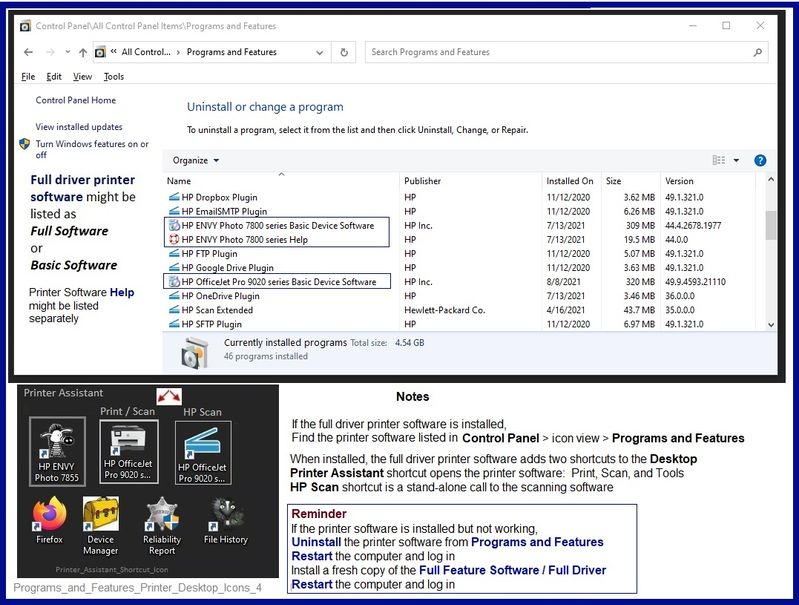
When the full driver printer software is installed,
Find the printer software listed in Control Panel > icon view > Programs and Features.
The installation of the full printer software adds two shortcut icons to the Desktop.
The Printer Assistant is named for the printer and provides access to Print , Scan , and Tools
HP Scan is named for itself and provides a direct call to the HP Scan software.
Programs_and_Features_Printer_Desktop_Icons_4
Next...
Printer software installed but not working?
NOTE: If the printer software shows installed but is not working as expected,
Uninstall the printer software from Control Panel > icon view > Programs and Features
Restart the computer and log in
What if?
If software will not uninstall, appears to be removed and is “still hanging around” after you uninstall / Restart...
Microsoft: Fix problems that block programs from being installed or removed
OR
Revo Uninstaller (Free version)
then
Restart the computer and log in
Reminder: If using USB, disconnect the USB printer cable between the printer and the computer before installing software. (Re)Connect the USB cable when instructed to do so near the end of the installation procedure.
Install a fresh copy of the Full Feature Software / Full Driver printer software
Restart the computer and log in
===============================================================
Next...
Method - Use the Easy Start Software to Install the Full Feature / Full Driver Software
For printers that support the option,
Use the Easy Start Software wrapper to install and configure the printer software.
- Home Page - HP Easy Start
- Open Category Software and Drivers
- Open Topic: Software-Utility
- Download-and-Save the current version of the Easy Start Software to install your print software
- If using USB: Disconnect the USB cable between the printer and computer before installing the software.
- Right-Click on the downloaded package and "Run as Administrator" to start the installation
- Select to install the “Full Driver” / “Full Feature Software” / "Basic" software
- If using USB: Connect the cable when instructed to do so (near the end of the installation process).
- After the software is installed, Restart the computer and log in.
Optional Notes >> Easy Start... The Journey
- Full Administrator Rights are required to complete the HP Software installation.
- About 2/3 of the way through the setup, you will be given the opportunity to select the software - select the "Full Driver" set (as opposed to the Smart application). If necessary, select the "Basic" Software.
- Skip / Ignore suggestion(s) that you add anything you do not want / need at the moment. For example, you do not (at the time of installation) need an HP Account and you do not need or want to sign up for Instant Ink just because you are loading the printer software.
- Full driver provides access to the printer features on which other applications / software might depend.
- - - - - - - - - - - - - - - - - - - - - - - - - - - - - - - - - - - - - - - - - - - - - - - - - - - - - - - - - -
Preparation > Check / enable the printer as the “Default Printer”
Settings > Devices > Printers and scanners
UNCHECK (clear box) Let Windows manage my default printer
Select (Left-Click) your printer from the list of printers > Manage > Set as Default
- - - - - - - - - - - - - - - - - - - - - - - - - - - - - - - - - - - - - - - - - - - - - - - - - - - - - - - - - -
========================================================================
Anytime the tray is opened or the paper is changed, alert the printer ...
Example - Retain / Modify (Edit) / Check Paper Size & Type - Tray and Paper Management
Retain_Printing_Preferences_10
========================================================================
Set the Preferences – Windows
NOTES
- This section is not applicable to Mobile Printing.
- Access to the complete Printer Preferences requires having installed the Full Driver printer software.
- The printer should be selected as the default and current printing device.
- Printing Preferences are available directly from the driver.
- Printing Envelopes? See NOTE
Control Panel > icon view > Devices and Printers
Right-Click on your printer > Printing Preferences
- When called from within printing software / applications, Printing Preferences might be called "Printer Properties" / "Shortcuts" / “More Settings” / “Properties” / "Printer Setup" or similar.
- No Size? If the size of the Paper Size is not included in the Drop-down list, consider / try: Create a Custom Paper Size Form. Reference: HP Printers - Creating Custom Paper Sizes
NOTE >> Word > Mailings > Envelopes :: Preferences and Envelopes
Select / leave Printing Preferences Shortcut to "Everyday Printing" or something equally benign.
========================================================================
References / Resources
HP Smart for Windows
HP Smart is an application available in the Microsoft Store
OR
Open the Homepage / Support Website for your printer
Category Software and Drivers > Check the Box Get the App
Open and Read >>> HP printer setup (HP Smart app)
NOTES:
- Disconnect from Virtual Private Network (VPN) connection before downloading.
- Turn on Wi-Fi on your computer or mobile device and connect to your network. If the computer is connected to the network with an Ethernet cable, temporarily disconnect the cable and use the Wi-Fi connection during the setup.
- HP Smart requires that you sign into the application using your HP Account credentials.
- Where possible, HP Smart benefits (likes) having the Full Feature Software / full driver printer software installed. For example, full driver provides access to Shortcuts and Printing Preferences.
- Document includes the HP Smart application download links for Windows and Mobile devices, plus an FAQ section to assist with questions / issues.
- FAQ examples:
- What are the requirements to use the HP Smart app?
- Which printers are compatible with the HP Smart app?
- Why do I need to sign in or create an account to use the HP Smart app features?
- Which languages does the HP Smart app support?
- Older versions of the HP Smart app no longer support the required login feature.
- Update the application to the latest version to access / use HP Smart
- FAQ examples:
===================================================
Adobe Reader DC – Install Whether You Use It or Not
If you have not done so,
Reinstall / Update your PDF Reader (Adobe Reader DC /Optional Foxit Reader)
HINT: Watch out for and UNCHECK unwanted extra software
NOTE: Adobe Reader DC software can be installed even if you do not normally open / view / print PDF files directly from the Adobe Reader DC software.
=================================================
HP Printer Support Home Page - References and Resources – Learn about your Printer - Solve Problems
“Things that are your printer”
NOTE: Content depends on device type and Operating System
Categories: Alerts, Access to the Print and Scan Doctor (Windows), Warranty Check, HP Drivers / Software / Firmware Updates, How-to Videos, Bulletins/Notices, Lots of How-to Documents, Troubleshooting, Manuals > User Guides, Product Information (Specifications), more
When the website support page opens, Select (as available) a Category > Topic > Subtopic
HP Smart Tank Plus 551 Wireless All-in-One
Thank you for participating in the HP Community.
The Community is a separate wing of the HP website - We are not an HP business group.
Our Community is comprised of volunteers - people who own and use HP devices.
Click Helpful = Yes to say Thank You.
Question / Concern Answered, Click "Accept as Solution"