• ×
    Information
    Need Windows 11 help?
    Check documents on compatibility, FAQs, upgrade information and available fixes.
    Windows 11 Support Center.
  • post a message
  • ×
    Information
    Need Windows 11 help?
    Check documents on compatibility, FAQs, upgrade information and available fixes.
    Windows 11 Support Center.
  • post a message
Guidelines
Seize the moment! nominate yourself or a tech enthusiast you admire & join the HP Community Experts!
Check some of the most frequent questions about Instant Ink: HP INSTANT INK, HP+ PLANS: INK AND TONER.


Check out our WINDOWS 11 Support Center info about: OPTIMIZATION, KNOWN ISSUES, FAQs AND MORE.
HP Recommended
HP Envy 5646
Microsoft Windows 10 (64-bit)

After a few days, and specially if I haven't used it for some time my scan will not work and after running HP diagnostics the result is the WIA has not worked (printing still works). The only solution after trying switching off both HP Pavilion 23q 111na Laptop and printer, disconnecting router and printer cable etc. is to reinstall the software and printer. I note the when choosing which connection to use it shows USB and 13 network connections! This is probably due to number of times I've reinstalled. How do I remove these 13 Network connections and any ideas why I lose scan capability

1 ACCEPTED SOLUTION

Accepted Solutions
HP Recommended

@MANCHESTERRED


Welcome to the HP support community.


Check Windows Image Acquisition settings

  1. In Windows, search for and open View local services.

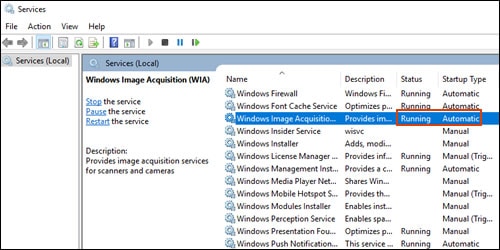
  2. In the Services window, scroll down the list and find Windows Image Acquisition (WIA).

  3. Look at the Status and Startup Type values.

    • If the status is Started or Running and the Startup Type is Automatic, WIA is running correctly. Skip to the next step.

      Making sure WIA Status is Running and Startup Type is Automatic

    • If the status is Disabled or no status displays, right-click Windows Image Acquisition (WIA), click Properties, click the General tab, select Automatic from the Startup type dropdown menu, and then click Start.

      If the Start button is grayed out, go back to the Services menu, make sure Remote Procedure Call, Shell Hardware Detection, RPC Endpoint Mapper, and DCOM Server Process Launcher are running and set as Automatic, and then start WIA.

You can refer this HP document for more assistance:- Click here


Let me know how it goes.

To thank me for my efforts to help you, please mark my post as an accepted solution so that it benefits several others.

Cheers.

Sandytechy20
I am an HP Employee

View solution in original post

3 REPLIES 3
HP Recommended

@MANCHESTERRED


Welcome to the HP support community.


Check Windows Image Acquisition settings

  1. In Windows, search for and open View local services.

  2. In the Services window, scroll down the list and find Windows Image Acquisition (WIA).

  3. Look at the Status and Startup Type values.

    • If the status is Started or Running and the Startup Type is Automatic, WIA is running correctly. Skip to the next step.

      Making sure WIA Status is Running and Startup Type is Automatic

    • If the status is Disabled or no status displays, right-click Windows Image Acquisition (WIA), click Properties, click the General tab, select Automatic from the Startup type dropdown menu, and then click Start.

      If the Start button is grayed out, go back to the Services menu, make sure Remote Procedure Call, Shell Hardware Detection, RPC Endpoint Mapper, and DCOM Server Process Launcher are running and set as Automatic, and then start WIA.

You can refer this HP document for more assistance:- Click here


Let me know how it goes.

To thank me for my efforts to help you, please mark my post as an accepted solution so that it benefits several others.

Cheers.

Sandytechy20
I am an HP Employee

HP Recommended

Tried all that was suggested, all items listed were "Running" and in Automatic mode. Checked HP Scan at same time and showing working. It seems to stop about every 10 days on WIA after running HP Print & Scan Manager or so, then have to re-install full software

HP Recommended

@MANCHESTERRED


Good to know that issue is resolved.

Feel free to contact us in the future if you need any assistance.


Cheers.

Sandytechy20
I am an HP Employee

† The opinions expressed above are the personal opinions of the authors, not of HP. By using this site, you accept the <a href="https://www8.hp.com/us/en/terms-of-use.html" class="udrlinesmall">Terms of Use</a> and <a href="/t5/custom/page/page-id/hp.rulespage" class="udrlinesmall"> Rules of Participation</a>.