• ×
    Information
    Need Windows 11 help?
    Check documents on compatibility, FAQs, upgrade information and available fixes.
    Windows 11 Support Center.
  • post a message
  • ×
    Information
    Need Windows 11 help?
    Check documents on compatibility, FAQs, upgrade information and available fixes.
    Windows 11 Support Center.
  • post a message
Guidelines
Join the HP Community Solve‑a‑thon | Help Others & Share Your Solutions | Live on Zoom | 2:30 PM to 2:30 AM IST | Every Wednesday Click here to know more
Check some of the most frequent questions about Instant Ink: HP INSTANT INK, HP+ PLANS: INK AND TONER.


Check out our WINDOWS 11 Support Center info about: OPTIMIZATION, KNOWN ISSUES, FAQs AND MORE.
HP Recommended
MFP M277dw
Microsoft Windows 10 (64-bit)

After re-arranging my office and moving my MFP printer to function off the LAN vs direct cable to my PC, i'm not able to get the Scan to network folder working.  I have the printer with a static ip, I've ensured that all 3 of the SMB 1.0/CIFS  items are checked, redownloaded/installed the updated version of the software and printer drivers.


no matter what, during the save and test setup I get "error  your printer cannot connect the server.  Please "edit" to connect server name and address?


1 REPLY 1
HP Recommended

@mdharmon


Welcome to the HP support community.


Restart the computer, printer, and router

  1. Turn off the router by pressing the power button or disconnecting the power cord.

  2. Turn off the printer.

  3. Close all running programs on your computer, and then shut down the computer.

  4. Press the power button or reconnect the power cord to the router, and then wait for the Internet activity light to display a normal connected status.

  5. Turn on the printer.

  6. Turn on the computer.

  7. Try to turn on Web Services.

Turn on Web Services from the Embedded Web Server (EWS)

Print a Network Configuration Page.

Print the page from the Wireless, Network Settings or Setup menu.

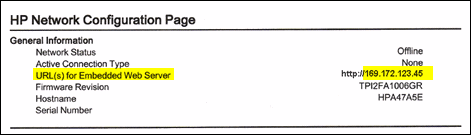
  1. On the Network Configuration Page, locate the URL(s) for Embedded Web Server address.

    NOTE: 

    If the URL for the EWS is http://0.0.0.0, the printer is not connected to a network. Reconnect your printer to the network, and then continue troubleshooting.

    Figure : Locating the URL(s) for Embedded Web Server address

    Locating the URL(s) for Embedded Web Server address
  2. On your computer, open an Internet browser.

  3. Type the URL address for the EWS in the browser address bar, and then press Enter.

    NOTE: 

    Make sure to type the IP address into the Internet browser's address box. If typed into a toolbar search box or search engine, the EWS does not open.

  4. If a website security certificate displays in the Internet browser, click Continue.

    The EWS webpage for the printer opens, which confirms that the printer is on the same network as the computer.

  5. On the EWS webpage, click the Web Services tab.

  6. On the Web Services Setup page, click Continue, Turn On, or Enable, and then follow the on-screen instructions

    Figure : Example of clicking Continue

    Example of clicking Continue.

You can refer this HP document for more assistance:- Click here


I hope that helps.

To thank me for my efforts to help you, please mark my post as an accepted solution so that it benefits several others.

Cheers.

Sandytechy20
I am an HP Employee

† The opinions expressed above are the personal opinions of the authors, not of HP. By using this site, you accept the <a href="https://www8.hp.com/us/en/terms-of-use.html" class="udrlinesmall">Terms of Use</a> and <a href="/t5/custom/page/page-id/hp.rulespage" class="udrlinesmall"> Rules of Participation</a>.