
-
×InformationNeed Windows 11 help?Check documents on compatibility, FAQs, upgrade information and available fixes.
Windows 11 Support Center. -
-
×InformationNeed Windows 11 help?Check documents on compatibility, FAQs, upgrade information and available fixes.
Windows 11 Support Center. -
- HP Community
- Printers
- Printer Setup, Software & Drivers
- Scanner Function

Create an account on the HP Community to personalize your profile and ask a question
Your account also allows you to connect with HP support faster, access a personal dashboard to manage all of your devices in one place, view warranty information, case status and more.
Check some of the most frequent questions about Instant Ink: HP INSTANT INK, HP+ PLANS: INK AND TONER.
Check out our WINDOWS 11 Support Center info about: OPTIMIZATION, KNOWN ISSUES, FAQs AND MORE.

It has been a while since anyone has replied. Simply ask a new question if you would like to start the discussion again.

03-05-2026 07:37 PM
 HP Recommended
How do I get the scanner to work on my Mac? It keeps saying connect the printer to the computer. I can print just fine.
Solved! Go to Solution.
1 ACCEPTED SOLUTION
Accepted Solutions


03-11-2026 05:14 PM
HP Recommended
Hi @Olibee80
Thank you for following up 😇
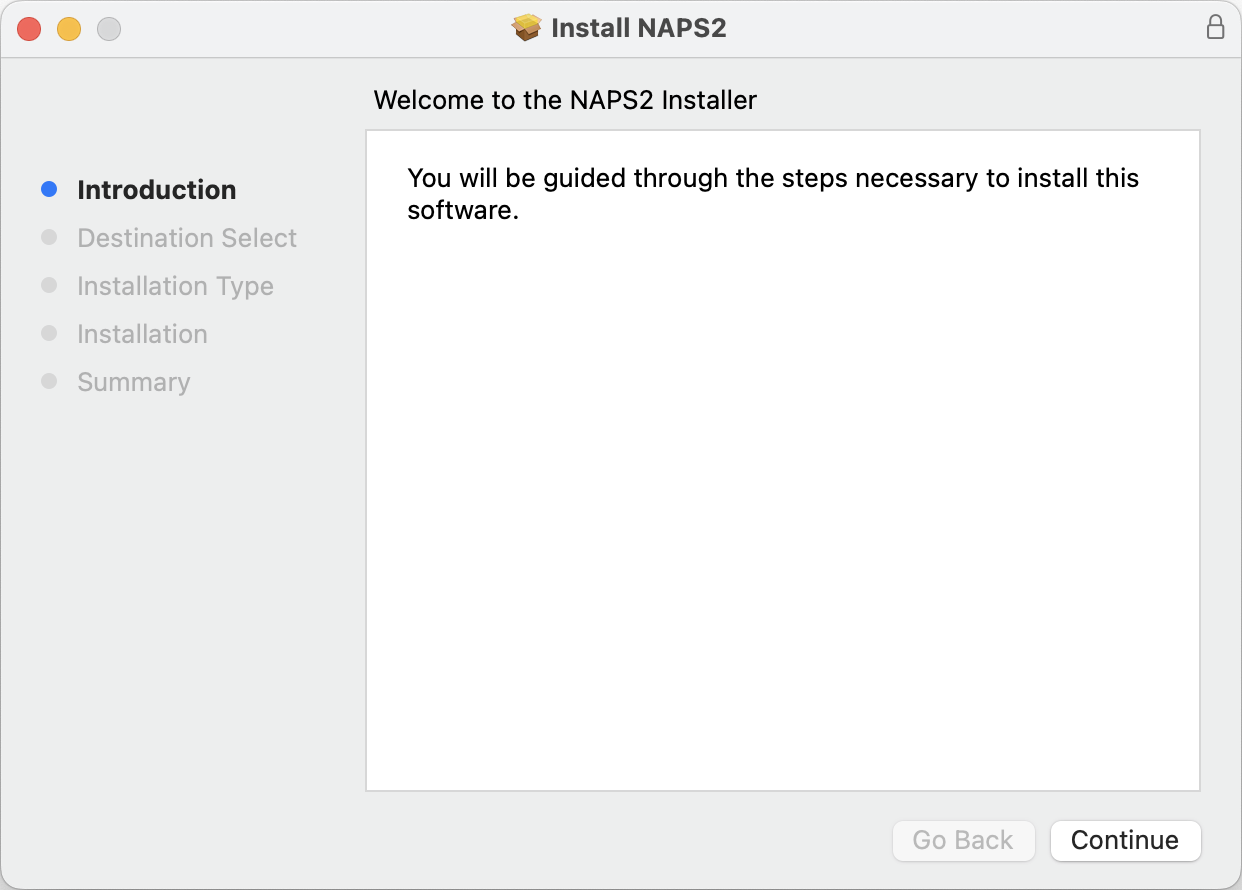
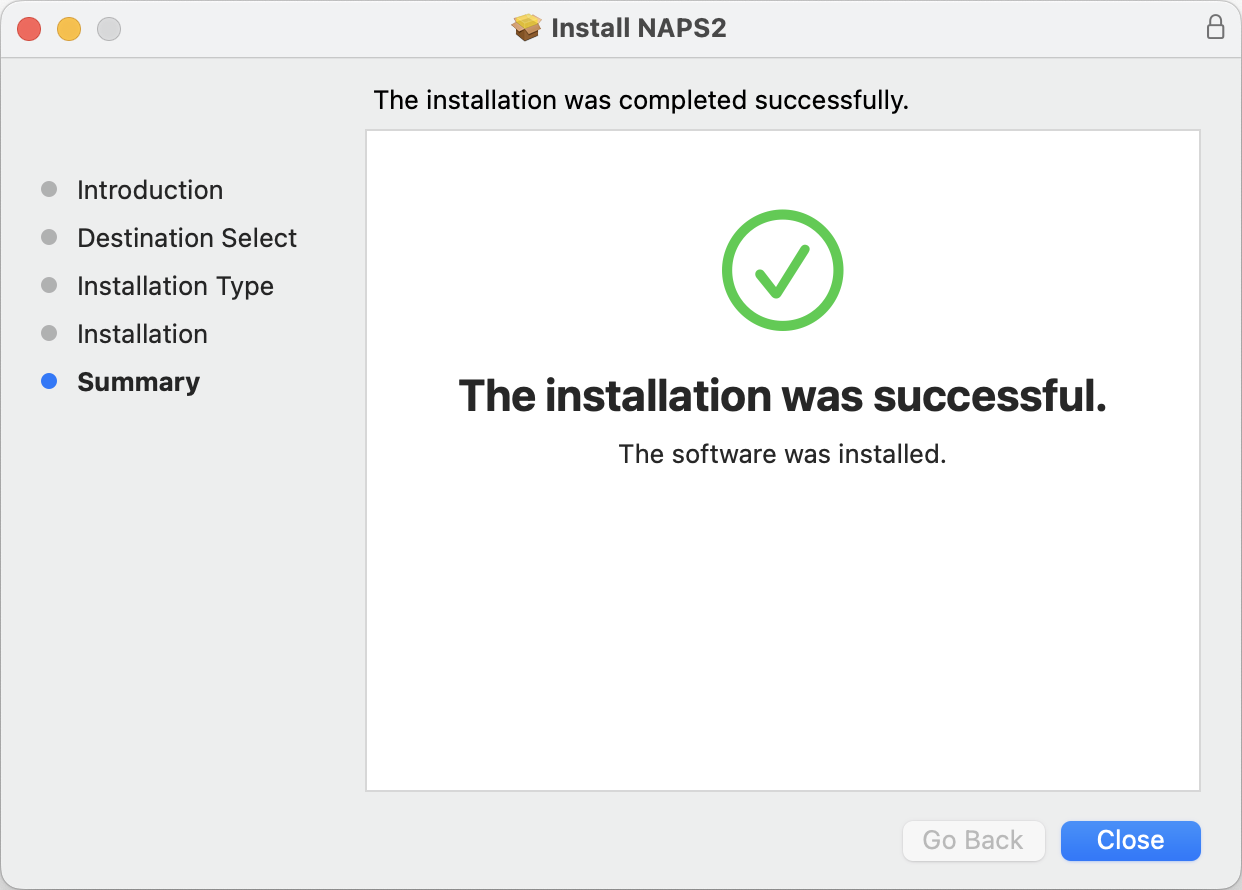
Alternatively, you can download NAPS2 software for the Apple installer (for M1/M2/M3 Macs)
Scanning
To do your first scan, press the "Scan" button.
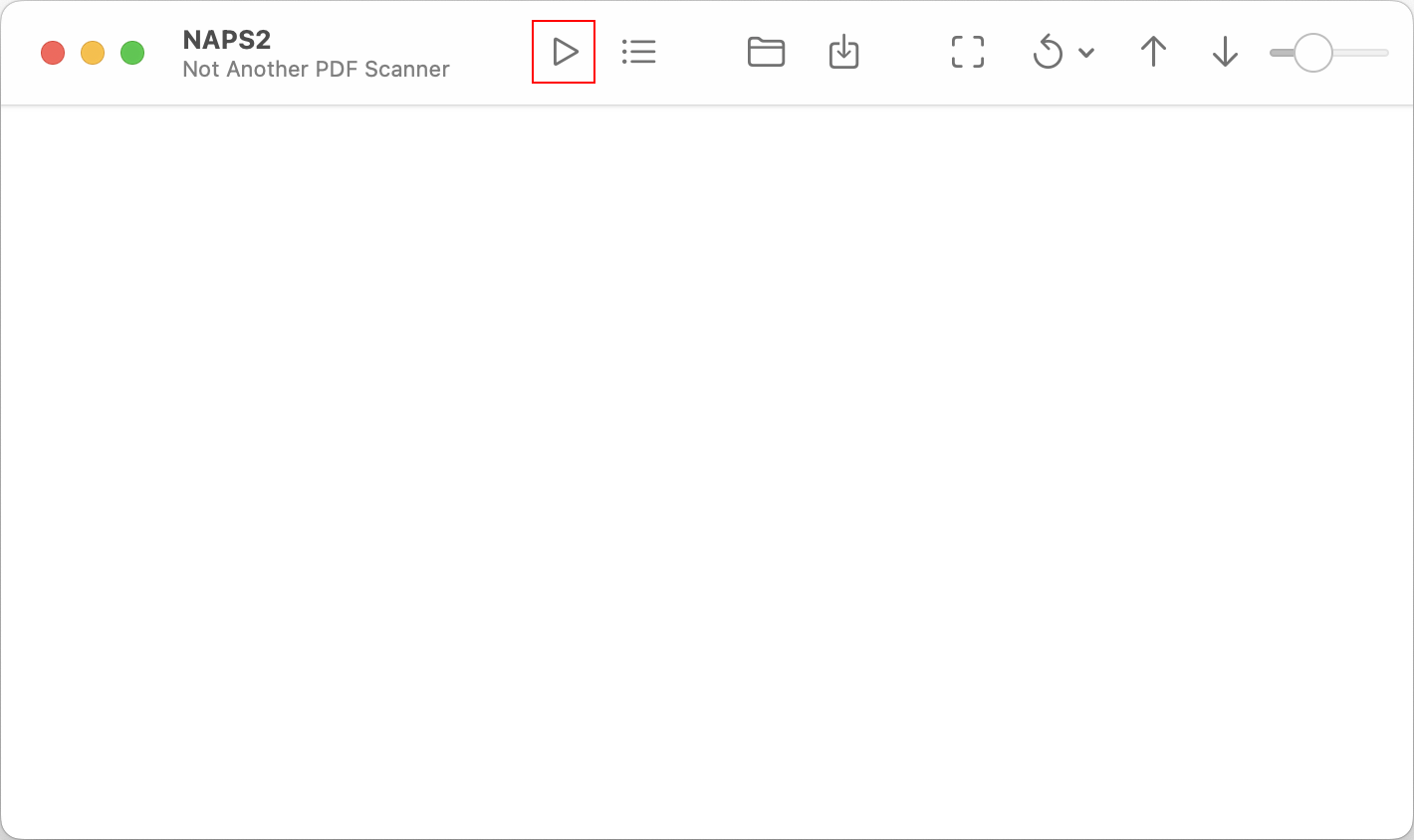
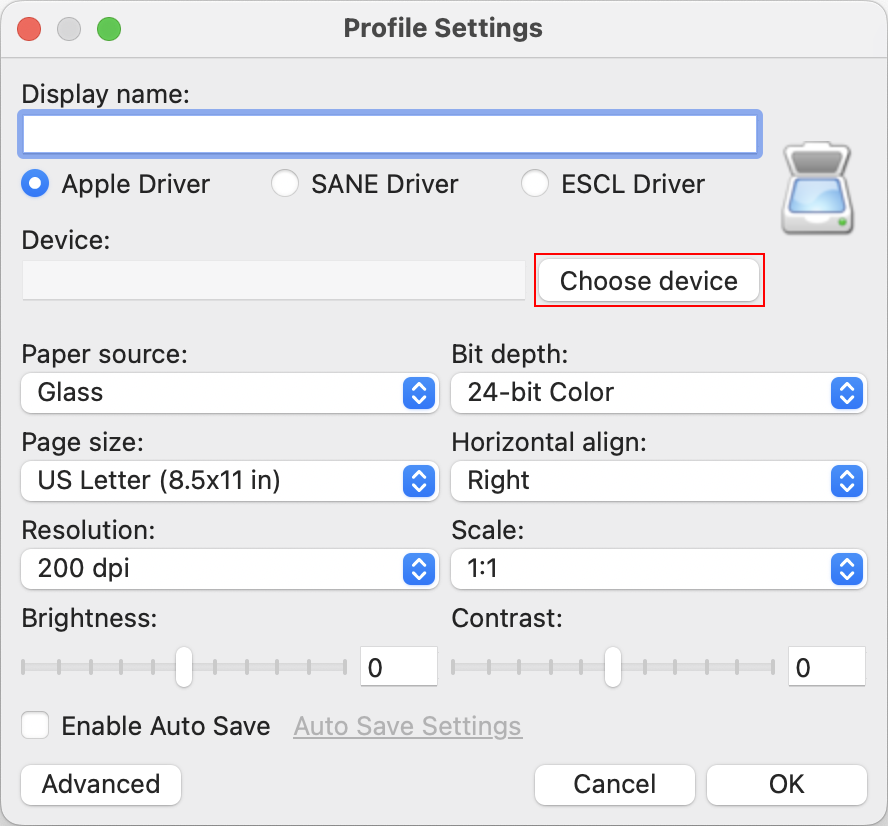
As this is your first scan, you will be prompted to create a profile. Profiles include the settings for your scan (device, page size, resolution, etc.). To create new profiles later you can click the "Profiles" button on the toolbar.
Click the "Choose device" button to select your scanner.
- If Smart Tank doesn't show up, you can trying switching between "Apple Driver", "SANE Driver", and "ESCL Driver".
* Click YES to say thank you,
* Click Accepted as Solution when question is answered.
Best regards,
ferRX.

@ferRX / I am a volunteer posting answers.
12 REPLIES 12
03-06-2026 02:23 AM
HP Recommended
Hi @Olibee80,
if you have a Deskjet printer model, then follow steps from the next video to use your scanner:
>> https://www.youtube.com/watch?v=8CagT7J8CCU
* Click YES to say thank you,
* Click Accepted as Solution when question is answered.
Best regards,
ferRX.
@ferRX / I am a volunteer posting answers.

This video reviews installing your HP Printer in Mac OS Using a USB Cable. Welcome To My Channel - Printer Guruji https://www.youtube.com/c/PrinterGuruji Visit Our Website- https://www.printerguruji.com For Printer Support:- WiFi Printer setup or Troubleshooting any printer. Our IT Professional ...
03-09-2026 04:26 AM - edited 03-09-2026 04:28 AM
HP Recommended
Hi @Olibee80
Thank you for providing the printer full model name 😇
Ok, now try to install with the next Apple Smart Tank basic driver:
1. Connect your printer with USB cable:

2. Then install the next software
* Click YES to say thank you,
* Click Accepted as Solution when question is answered.
Best regards,
ferRX.
@ferRX / I am a volunteer posting answers.

03-09-2026 08:44 PM
HP Recommended
Hi @Olibee80
Ok, then try to add with HP Smart app following steps in the next video:
>> https://www.youtube.com/watch?v=7iHe0qYmbko
* Click YES to say thank you,
* Click Accepted as Solution when question is answered.
Best regards,
ferRX.
@ferRX / I am a volunteer posting answers.

If you are scanning a document or photo with your HP printer from a Mac, and you receive an error message stating that the scanner cannot be found, follow these steps to resolve the issue. Chapters: 00:00 Introduction 00:27 Reset the printing system 01:11 Uninstall the HP software and use HP app ...

03-10-2026 04:39 AM - edited 03-10-2026 08:20 PM
HP Recommended


Be alert for scammers posting fake support phone numbers and/or email addresses on the community.
If you think you have received a fake HP Support message, please report it to us by clicking on "Flag Post".
† The opinions expressed above are the personal opinions of the authors, not of HP. By using this site, you accept the Terms of Use and Rules of Participation.


Didn't find what you were looking for?
Ask the community
† The opinions expressed above are the personal opinions of the authors, not of HP. By using this site, you accept the <a href="https://www8.hp.com/us/en/terms-of-use.html" class="udrlinesmall">Terms of Use</a> and <a href="/t5/custom/page/page-id/hp.rulespage" class="udrlinesmall"> Rules of Participation</a>.