• ×
    Information
    Need Windows 11 help?
    Check documents on compatibility, FAQs, upgrade information and available fixes.
    Windows 11 Support Center.
  • post a message
  • ×
    Information
    Need Windows 11 help?
    Check documents on compatibility, FAQs, upgrade information and available fixes.
    Windows 11 Support Center.
  • post a message
Guidelines
Join the HP Community Solve‑a‑thon | Help Others & Share Your Solutions | Live on Zoom | 2:30 PM to 2:30 AM IST | Every Wednesday Click here to know more
Check some of the most frequent questions about Instant Ink: HP INSTANT INK, HP+ PLANS: INK AND TONER.


Check out our WINDOWS 11 Support Center info about: OPTIMIZATION, KNOWN ISSUES, FAQs AND MORE.
HP Recommended
HP Pro 6970
macOS 10.13 High Sierra

Setting up new printer.  Printer is showing connected to my wifi and configuring.  Mac was showing problem joining.  Suggested restarting download.  Safari now showing HP Easy start not valid dowload file although no indication of problem with it earlier

1 ACCEPTED SOLUTION

Accepted Solutions
HP Recommended

@BartonNN6


Welcome to the HP Support Community!


Restarting your Network devices and following these steps may resolve this issue:


Step 1: Restart your devices

  1. To prepare your printer for a wireless connection, restart the printer, computer, and router.
  2. Turn the printer off, and then wait 10 seconds.
  3. Disconnect the printer power cord from the printer.
  4. Turn off the computer or the device you are trying to print from.
  5. Connect the printer power cord to the printer, and then turn on the printer.
  6. Disconnect the power cord from your wireless router, and then wait 10 seconds.
  7. Reconnect the power cord to the router. Wait until Internet service is restored. Internet service is interrupted while the router is off.
  8. Turn on the computer.

Your printer and network are ready to make a new connection.


Step 2: Connect to the wireless network

  1. From the home screen on the printer control panel, swipe down to open the Dashboard, and then touch the Wireless icon .

  2. Touch the Setup icon .

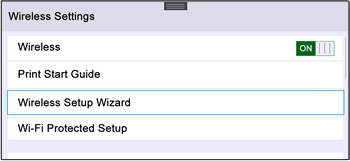
  3. Touch Wireless Settings, and then touch Wireless Setup Wizard.

    Image: Wireless Settings display

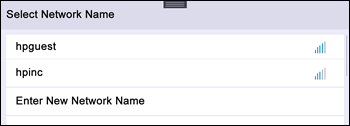
  4. Touch the name of your network in the list of available networks, and then touch OK.

    Image: Network names

  5. If the list does not contain your network name, touch Enter New Network Name, and then follow the on-screen instructions to enter your network name.

  6. If prompted, type the WEP or WPA key (network password), and then touch Done.

    A summary screen displays. Touch OK to return to the home screen.

Step 3: Download and install the driver

Click here to download the HP driver

  1. Once downloaded, Open the Downloads folder on the Mac dock, and then click the HP Easy Start file or the full feature driver .dmg file to begin the installation.

  2. Follow the on-screen instructions to set up the printer connection and install the software.

  3. When prompted by the installer, click Add Printer to create a print queue on the Mac.

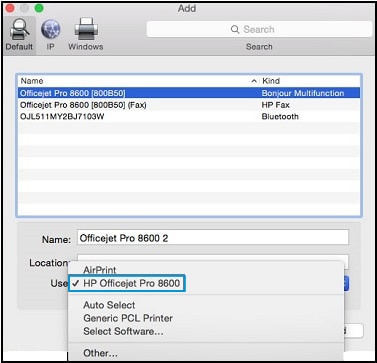
    The Add window opens.

  4. Click the name of your printer, click the Use or Print Using menu, select the name of your printer in the pop-up menu, and then click Add.

    Select your printer name in the Use menu on the Add screen

  5. Return to the HP installer to complete the installation.

Let me know how this goes.


Please click “Accept as Solution” if you feel my post solved your issue, it will help others find the solution. Click the “Kudos/Thumbs Up" on the bottom right to say “Thanks” for helping!

KUMAR0307
I am an HP Employee

View solution in original post

1 REPLY 1
HP Recommended

@BartonNN6


Welcome to the HP Support Community!


Restarting your Network devices and following these steps may resolve this issue:


Step 1: Restart your devices

  1. To prepare your printer for a wireless connection, restart the printer, computer, and router.
  2. Turn the printer off, and then wait 10 seconds.
  3. Disconnect the printer power cord from the printer.
  4. Turn off the computer or the device you are trying to print from.
  5. Connect the printer power cord to the printer, and then turn on the printer.
  6. Disconnect the power cord from your wireless router, and then wait 10 seconds.
  7. Reconnect the power cord to the router. Wait until Internet service is restored. Internet service is interrupted while the router is off.
  8. Turn on the computer.

Your printer and network are ready to make a new connection.


Step 2: Connect to the wireless network

  1. From the home screen on the printer control panel, swipe down to open the Dashboard, and then touch the Wireless icon .

  2. Touch the Setup icon .

  3. Touch Wireless Settings, and then touch Wireless Setup Wizard.

    Image: Wireless Settings display

  4. Touch the name of your network in the list of available networks, and then touch OK.

    Image: Network names

  5. If the list does not contain your network name, touch Enter New Network Name, and then follow the on-screen instructions to enter your network name.

  6. If prompted, type the WEP or WPA key (network password), and then touch Done.

    A summary screen displays. Touch OK to return to the home screen.

Step 3: Download and install the driver

Click here to download the HP driver

  1. Once downloaded, Open the Downloads folder on the Mac dock, and then click the HP Easy Start file or the full feature driver .dmg file to begin the installation.

  2. Follow the on-screen instructions to set up the printer connection and install the software.

  3. When prompted by the installer, click Add Printer to create a print queue on the Mac.

    The Add window opens.

  4. Click the name of your printer, click the Use or Print Using menu, select the name of your printer in the pop-up menu, and then click Add.

    Select your printer name in the Use menu on the Add screen

  5. Return to the HP installer to complete the installation.

Let me know how this goes.


Please click “Accept as Solution” if you feel my post solved your issue, it will help others find the solution. Click the “Kudos/Thumbs Up" on the bottom right to say “Thanks” for helping!

KUMAR0307
I am an HP Employee

† The opinions expressed above are the personal opinions of the authors, not of HP. By using this site, you accept the <a href="https://www8.hp.com/us/en/terms-of-use.html" class="udrlinesmall">Terms of Use</a> and <a href="/t5/custom/page/page-id/hp.rulespage" class="udrlinesmall"> Rules of Participation</a>.