-
×InformationNeed Windows 11 help?Check documents on compatibility, FAQs, upgrade information and available fixes.
Windows 11 Support Center. -

-
×InformationNeed Windows 11 help?Check documents on compatibility, FAQs, upgrade information and available fixes.
Windows 11 Support Center. -
- HP Community
- Printers
- Printer Setup, Software & Drivers
- Tray 2 not available on print dialogs

Create an account on the HP Community to personalize your profile and ask a question
01-25-2023 10:05 AM
I would like to be able to load letterhead or deposit slips in tray 2, but I am unable to select tray 2 in the printer dialog when printing from Acrobat.
Solved! Go to Solution.
Accepted Solutions
01-25-2023 10:50 AM
Welcome to the HP Community Forum.
@print8740 wrote:Product: HP OfficeJet Pro 8740 All-in-One PrinterOperating System: Microsoft Windows 11I would like to be able to load letterhead or deposit slips in tray 2, but I am unable to select tray 2 in the printer dialog when printing from Acrobat.
Some places to check / recheck...
Printer Specifications for HP OfficeJet Pro 8700 Printers
Section Paper Handling >
HP OfficeJet Pro 8730, 8740, and 8745 printers
What else?
The Full Feature Software should be installed.
Printer Software - Windows
>>> Full Feature Software - Web Pack Installation Package - Information and Download <<<
HP OfficeJet Pro 8740 All-in-One Print and Scan Driver and Accessories
After the software is installed, Restart the computer and log in
Next,
Check that the 2nd tray shows as installed and loaded with the appropriate paper size / type supported in that tray.
Reminder: Trays and paper / size support is model dependent
Windows 11
Settings > Bluetooth & devices > Printers & scanners > Select Printer
Printer Properties > tab Device Settings
OR
Control Panel > icon view > Devices and Printers
Right-Click Printer > Printer Properties > tab Device Settings
Example - Printer Properties -
Paper Sizes / Paper Types, Trays, Duplex options
Reminder > Model Dependent, including trays selection and tray paper / size support
9025_Printer_Properties_Advanced_Driver_List_8
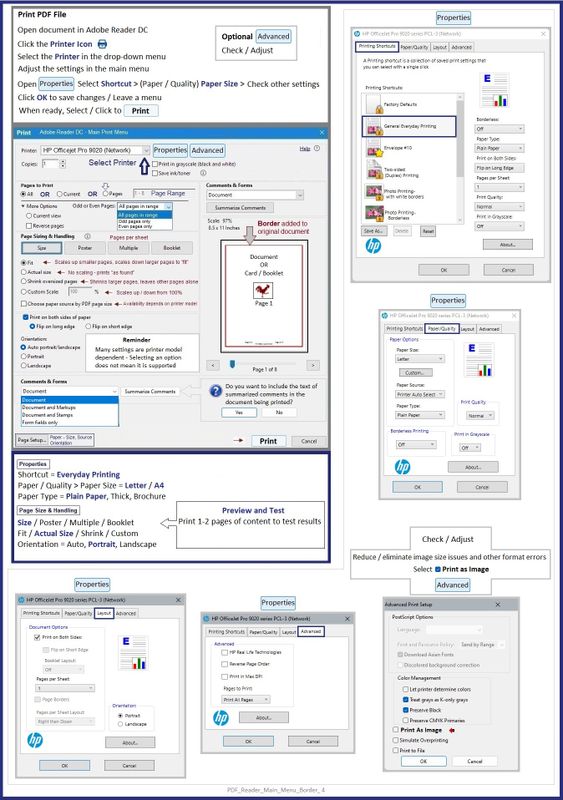
General Example - Adobe Reader > Menu - PDF
In Properties >
Select the appropriate Printing Shortcut for the current job.
Tab Paper / Quality > Select Source as opposed to leaving as "Auto"
PDF_Reader_Main_Menu_Border_4
HP Printer Home Page - References and Resources
Learn about your Printer - Solve Problems
“Things that are your printer”
When the website support page opens, Select (as available) a Category > Topic > Subtopic
NOTE: Content depends on device type and Operating System
Categories: Alerts, Access to the Print and Scan Doctor (Windows), Warranty Check, HP Drivers / Software / Firmware Updates, How-to Videos, Bulletins/Notices, Lots of How-to Documents, Troubleshooting, Manuals > User Guides, Product Information (Specifications), Supplies, and more
Open
HP OfficeJet Pro 8740 All-in-One Printer series
Thank you for participating in the HP Community --
People who own, use, and support HP devices.
Click Yes to say Thank You
Question / Concern Answered, Click "Accept as Solution"
01-25-2023 10:50 AM
Welcome to the HP Community Forum.
@print8740 wrote:Product: HP OfficeJet Pro 8740 All-in-One PrinterOperating System: Microsoft Windows 11I would like to be able to load letterhead or deposit slips in tray 2, but I am unable to select tray 2 in the printer dialog when printing from Acrobat.
Some places to check / recheck...
Printer Specifications for HP OfficeJet Pro 8700 Printers
Section Paper Handling >
HP OfficeJet Pro 8730, 8740, and 8745 printers
What else?
The Full Feature Software should be installed.
Printer Software - Windows
>>> Full Feature Software - Web Pack Installation Package - Information and Download <<<
HP OfficeJet Pro 8740 All-in-One Print and Scan Driver and Accessories
After the software is installed, Restart the computer and log in
Next,
Check that the 2nd tray shows as installed and loaded with the appropriate paper size / type supported in that tray.
Reminder: Trays and paper / size support is model dependent
Windows 11
Settings > Bluetooth & devices > Printers & scanners > Select Printer
Printer Properties > tab Device Settings
OR
Control Panel > icon view > Devices and Printers
Right-Click Printer > Printer Properties > tab Device Settings
Example - Printer Properties -
Paper Sizes / Paper Types, Trays, Duplex options
Reminder > Model Dependent, including trays selection and tray paper / size support
9025_Printer_Properties_Advanced_Driver_List_8
General Example - Adobe Reader > Menu - PDF
In Properties >
Select the appropriate Printing Shortcut for the current job.
Tab Paper / Quality > Select Source as opposed to leaving as "Auto"
PDF_Reader_Main_Menu_Border_4
HP Printer Home Page - References and Resources
Learn about your Printer - Solve Problems
“Things that are your printer”
When the website support page opens, Select (as available) a Category > Topic > Subtopic
NOTE: Content depends on device type and Operating System
Categories: Alerts, Access to the Print and Scan Doctor (Windows), Warranty Check, HP Drivers / Software / Firmware Updates, How-to Videos, Bulletins/Notices, Lots of How-to Documents, Troubleshooting, Manuals > User Guides, Product Information (Specifications), Supplies, and more
Open
HP OfficeJet Pro 8740 All-in-One Printer series
Thank you for participating in the HP Community --
People who own, use, and support HP devices.
Click Yes to say Thank You
Question / Concern Answered, Click "Accept as Solution"