• ×
    Information
    Need Windows 11 help?
    Check documents on compatibility, FAQs, upgrade information and available fixes.
    Windows 11 Support Center.
  • post a message
  • ×
    Information
    Need Windows 11 help?
    Check documents on compatibility, FAQs, upgrade information and available fixes.
    Windows 11 Support Center.
  • post a message
Guidelines
Seize the moment! nominate yourself or a tech enthusiast you admire & join the HP Community Experts!
Check some of the most frequent questions about Instant Ink: HP INSTANT INK, HP+ PLANS: INK AND TONER.


Check out our WINDOWS 11 Support Center info about: OPTIMIZATION, KNOWN ISSUES, FAQs AND MORE.
HP Recommended
HP Color LaserJet Pro M255dw
Microsoft Windows 10 (64-bit)

Some of my toners were working fine, but at some point they gave me the error Used or counterfeit cartridges detected. I am sure they are original and have not been refilled in any way.
Do not insist on suggesting the purchase of new cartridges, which I have already done, but that does not solve the problem of the old ones not working. Also, it would be a better solution if you could offer a service without all this waste.

3 REPLIES 3
HP Recommended

@EchelonBS 


Welcome to the HP support community.


I understnad that you are getting cartrudge error, I am glad to assist you.

Reset the printer

Sometimes an error message persists even though there is no packing material or jammed paper inside the printer. Resetting the printer might resolve the error.

  • With the printer turned on, disconnect the power cord from the printer.
  • Unplug the power cord from the power source.
  • Wait 60 seconds.
  • Reconnect the power cord to a wall outlet and to the printer.

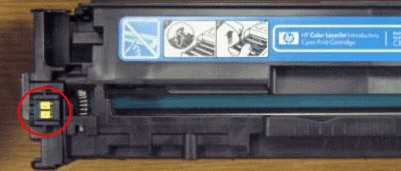
Clean the electric contacts on the toner cartridge

  • The toner cartridge might have a faulty connection to the printer. Use a lint-free cloth to clean the toner cartridge contact (E-label).
  • Open the toner cartridge access door.
  • Remove the toner cartridge from its slot.
  • Use a lint-free cloth to wipe the toner cartridge contact (E-label) on the top left of the toner cartridge.
  • NOTE: Coffee filters work well.
  • Figure : E-label on a toner cartridge
  • Toner cartridge contact (E-label)
  • Insert the toner cartridge into its slot, and then close the toner cartridge access door.

Refer to this HP document to fix the issue:- Click here


Keep me posted.

If this helps, please mark the public post as an accepted solution so that it benefits several others.

Cheers.

Sandytechy20
I am an HP Employee

HP Recommended

Hi, thank for your reply.
I tried both resetting the printer and cleaning the  the toner cartridge contact, but i still have the same error.
If i print the materials report page i get "Used" on my faulty cartridges and I can't see the ink level.

Also I tried swapping those to another printer, without any success.

HP Recommended

@EchelonBS 


This might require one on one interaction to fix the issue, I am sending you a private message with the steps to talk to HP support.

Please check the mailbox icon at the top-right corner of this screen.


I hope this helps resolve this issue completely.

If this helps, please mark the public post as an accepted solution so that it benefits several others.

Cheers

Sandytechy20
I am an HP Employee

† The opinions expressed above are the personal opinions of the authors, not of HP. By using this site, you accept the <a href="https://www8.hp.com/us/en/terms-of-use.html" class="udrlinesmall">Terms of Use</a> and <a href="/t5/custom/page/page-id/hp.rulespage" class="udrlinesmall"> Rules of Participation</a>.