• ×
    Information
    Need Windows 11 help?
    Check documents on compatibility, FAQs, upgrade information and available fixes.
    Windows 11 Support Center.
  • post a message
  • ×
    Information
    Need Windows 11 help?
    Check documents on compatibility, FAQs, upgrade information and available fixes.
    Windows 11 Support Center.
  • post a message
Guidelines
Join the HP Community Solve‑a‑thon | Help Others & Share Your Solutions | Live on Zoom | 2:30 PM to 2:30 AM IST | Every Wednesday Click here to know more
Check some of the most frequent questions about Instant Ink: HP INSTANT INK, HP+ PLANS: INK AND TONER.


Check out our WINDOWS 11 Support Center info about: OPTIMIZATION, KNOWN ISSUES, FAQs AND MORE.
HP Recommended
MacBook
macOS 10.14 Mojave

im looking for drivers to install on my macbook for my HP deskjet 2050A  j510h printer as my device is not listed

PLEASE HELP:HalfEyes:

1 REPLY 1
HP Recommended

@shany,


Thank you for reaching out to the HP Support community!


The printer drivers are no longer available from HP for the OS version Mojave.

But, we can try adding the printer using the Apple Software Update. 


  • Do you have any security software or antivirus installed on your MAC?
  • The USB port on the MAC that you are connecting the printer with, is that a USB 2.0 port or USB 3.0 port?
  • Are you using any USB hub or connector to connect the printer via USB?


First, let's check if the printer is detected on the MAC.

  • From the Apple menu, choose About This Mac.  
  • Click System Report.
  • Under the Hardware heading on the left side of the System Information window, click USB.

          https://lithium-response-prod.s3.us-west-2.amazonaws.com/hpcsc.response.lithium.com/RESPONSEIMAGE/5e808471-b9f5-4b03-92d7-5443919c6424.default.jpg

  • USB 3 devices appear under USB 3.0 Bus, and USB 2 devices appear under USB 2.0 Bus.
  • Check if the printer is listed under USB 2.0 or USB 3.0
  • If the printer is not listed, try connecting the printer to a different USB port on the MAC.

    Check if it gets detected on the MAC using the above steps.


If the printer is detected, add the printer to the MAC using the Apple Software Update.

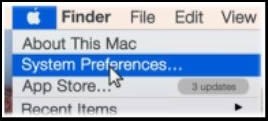
  • Click the Apple menu, then click System Preferences.


  • Depending on your operating system version, click Print & Fax, Print & Scan, or Printers & Scanners.

  • Click the plus signhttps://support.hp.com/doc-images/466/c03678294.gif, click Add Printer or Scanner, click the name of your printer.
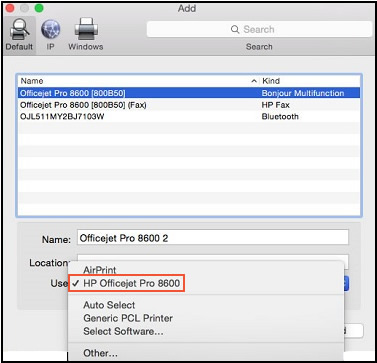
  • Click the Use or Print Using menu, then select the name of your printer.
  • Click the Use or Print Using menu, then select the name of your printer.


  • Click Add to add the printer to the list.
  • Try to print
  • Refer to this document for more info.


Let me know if this information helps. 


Please click “Accept as Solution” if you feel my post solved your issue, it will help others find the solution.

Click the “KudosThumbs Up" on the bottom right to say “Thanks” for helping.

ATHARVA_GP
I am an HP Employee

† The opinions expressed above are the personal opinions of the authors, not of HP. By using this site, you accept the <a href="https://www8.hp.com/us/en/terms-of-use.html" class="udrlinesmall">Terms of Use</a> and <a href="/t5/custom/page/page-id/hp.rulespage" class="udrlinesmall"> Rules of Participation</a>.