-
×InformationNeed Windows 11 help?Check documents on compatibility, FAQs, upgrade information and available fixes.
Windows 11 Support Center. -

-
×InformationNeed Windows 11 help?Check documents on compatibility, FAQs, upgrade information and available fixes.
Windows 11 Support Center. -
- HP Community
- Printers
- Printer Setup, Software & Drivers
- problem printing multiple pages on one page on Laser 108a

Create an account on the HP Community to personalize your profile and ask a question
10-04-2021 01:06 PM - edited 10-04-2021 01:19 PM
Earlier : Used to print two pages onto one a4. When I hold the paper in front of me, it is in landscape, and page 1 and 2 would be printed side by side. The a4 could be folded in the middle and each page would essentially take up half an a4.( like how a greeting card is when you open it and lay it flat)
Now : I made the big mistake of updating the driver and downloading the HP software and I suspect that's what messed up the setup. Since then:
If I print two pages together in landscape mode, pages print one below the other ( sometimes "fit to page" even overlaps the end of page 1 and start of page 2). The sides have so much of useless space and the middle of the page has a column of tiny prints. Have tried multiple setups from the HP software, even used different softwares to print the pdfs. It just wont work.
Since it's printing one below the other, I tried to print in portrait, but then it prints side by side and the whole top and bottom has wasted space while my printout in the middle is microscopic. Please help before I lose my mind.
Edit :Tried to print four pages, two pages in each sheet. Instead of printing on two a4s, it used one sheet and printed all 4 pages in a 2 by 2 grid in portrait mode.
10-04-2021 02:27 PM
Welcome to the HP Community.
The issue might be one of shortcut options tangled up with the main print options for the multiple pages on a sheet.
If not, then only a few minutes to check ...
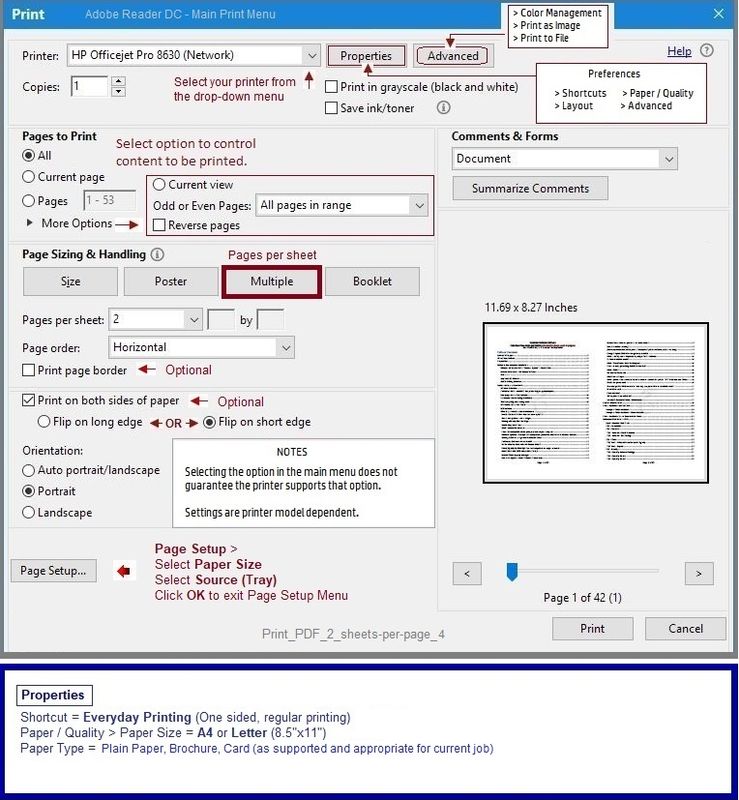
Example - PDF Print - Adobe Reader DC - Multiple pages on a sheet
Open the document you want to print in Adobe Reader DC
Click the Print icon
The view in the example shows the paper rotated after having selected Page Sizing & Handling > "Multiple"
This is correct and is a result of
Properties > Shortcut set to "Everyday Printing", single sided, plain print
NOTE: The name of shortcut doesn't matter - select any shortcut that is "plain and ordinary" printing.
Paper Size = standard for your region. For example "Letter" or "A4"
Paper Type = Plain paper (although, yes, if your paper type needs to be changed to "Brochure" do that.
Click OK to save the changes in Properties and exit that menu
Note, too, that the Orientation selected for the "pages" is marked as Portrait.
This is also a result of the "Multiple" page setting.
Do not second guess the setting and do not sneak into Properties and change the layout in that menu.
Print_PDF_2_sheets-per-page_4
References / Resources
Adobe Reader DC – Install Whether You Use It or Not
If you have not done so,
Reinstall / Update your PDF Reader (Adobe Reader DC /Optional Foxit Reader)
HINT: Watch out for and UNCHECK unwanted extra software
NOTE: Adobe Reader DC software can be installed even if you do not normally open / view / print PDF files directly from the Adobe Reader DC software.
================================================================================
HP Printer Home Page - References and Resources – Learn about your Printer - Solve Problems
“Things that are your printer”
NOTE: Content depends on device type and Operating System
Categories: Alerts, Access to the Print and Scan Doctor (Windows), Warranty Check, HP Drivers / Software / Firmware Updates, How-to Videos, Bulletins/Notices, Lots of How-to Documents, Troubleshooting, Manuals > User Guides, Product Information (Specifications), more
When the website support page opens, Select (as available) a Category > Topic > Subtopic
Open Product Home
Enter the type and name of your HP device
Thank you for participating in the HP Community.
The Community is a separate wing of the HP website - We are not an HP business group.
Our Community is comprised of volunteers - people who own and use HP devices.
Click Thumbs Up to say Thank You.
Question / Concern Answered, Click "Accept as Solution"