• ×
    Information
    Need Windows 11 help?
    Check documents on compatibility, FAQs, upgrade information and available fixes.
    Windows 11 Support Center.
  • post a message
  • ×
    Information
    Need Windows 11 help?
    Check documents on compatibility, FAQs, upgrade information and available fixes.
    Windows 11 Support Center.
  • post a message
Guidelines
Join the HP Community Solve‑a‑thon | Help Others & Share Your Solutions | Live on Zoom | 2:30 PM to 2:30 AM IST | Every Wednesday Click here to know more
Check some of the most frequent questions about Instant Ink: HP INSTANT INK, HP+ PLANS: INK AND TONER.


Check out our WINDOWS 11 Support Center info about: OPTIMIZATION, KNOWN ISSUES, FAQs AND MORE.
HP Recommended
Laser 108a
Microsoft Windows 10 (64-bit)

Earlier : Used to print two pages onto one a4. When I hold the paper in front of me, it is in landscape, and page 1 and 2 would be printed side by side. The a4 could be folded in the middle and each page would essentially take up half an a4.( like how a greeting card is when you open it and lay it flat) 

Now : I made the big mistake of updating the driver and downloading the HP software and I suspect that's what messed up the setup. Since then:
If I print two pages together in landscape mode, pages print one below the other ( sometimes "fit to page" even overlaps the end of page 1 and start of page 2). The sides have so much of useless space and the middle of the page has a column of tiny prints. Have tried multiple setups from the HP software, even used different softwares to print the pdfs. It just wont work.
Since it's printing one below the other, I tried to print in portrait, but then it prints side by side and the whole top and bottom has wasted space while my printout in the middle is microscopic. Please help before I lose my mind. 


Edit :Tried to print four pages, two pages in each sheet. Instead of printing on two a4s, it used one sheet and printed all 4 pages in a 2 by 2 grid in portrait mode. 

1 REPLY 1
HP Recommended

@ini1122 


Welcome to the HP Community.


The issue might be one of shortcut options tangled up with the main print options for the multiple pages on a sheet.

If not, then only a few minutes to check ...


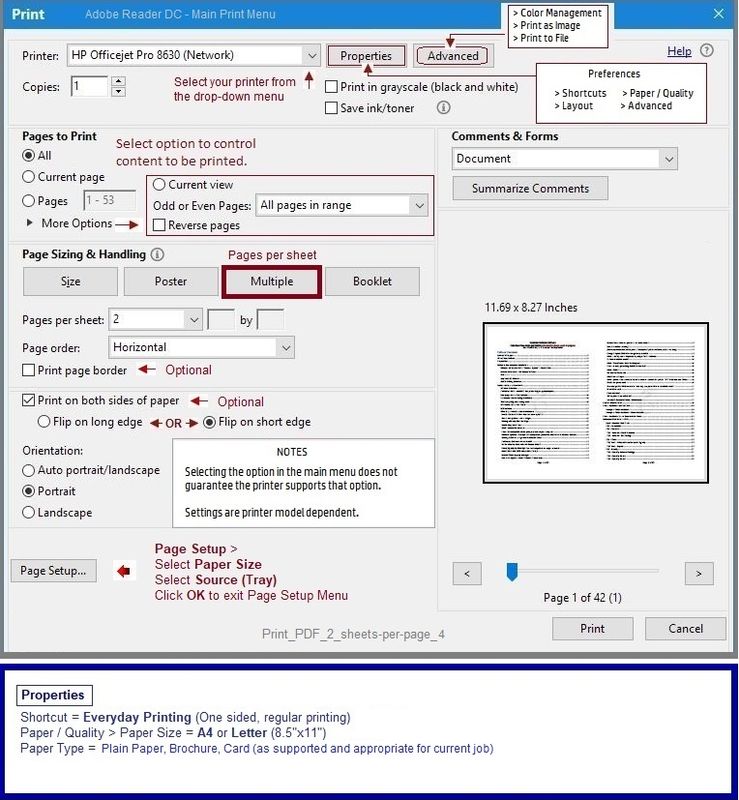
Example - PDF Print - Adobe Reader DC - Multiple pages on a sheet


Open the document you want to print in Adobe Reader DC

Click the Print icon


The view in the example shows the paper rotated after having selected Page Sizing & Handling >  "Multiple"

This is correct and is a result of

Properties > Shortcut set to "Everyday Printing", single sided, plain print

NOTE:  The name of shortcut doesn't matter - select any shortcut that is "plain and ordinary" printing.

Paper Size = standard for your region.  For example "Letter" or "A4"

Paper Type = Plain paper (although, yes, if your paper type needs to be changed to "Brochure" do that.

Click OK to save the changes in Properties and exit that menu


Note, too, that the Orientation selected for the "pages" is marked as Portrait.

This is also a result of the "Multiple" page setting.

Do not second guess the setting and do not sneak into Properties and change the layout in that menu.


Print_PDF_2_sheets-per-page_4Print_PDF_2_sheets-per-page_4


References / Resources


Adobe Reader DC – Install Whether You Use It or Not

If you have not done so,

Reinstall / Update your PDF Reader (Adobe Reader DC /Optional  Foxit Reader)

HINT:  Watch out for and UNCHECK unwanted extra software


NOTE:  Adobe Reader DC software can be installed even if you do not normally open / view / print PDF files directly from the Adobe Reader DC software.


================================================================================

HP Printer Home Page - References and Resources – Learn about your Printer  - Solve Problems

 “Things that are your printer”

NOTE:  Content depends on device type and Operating System

Categories:  Alerts, Access to the Print and Scan Doctor (Windows), Warranty Check, HP Drivers / Software / Firmware Updates, How-to Videos, Bulletins/Notices, Lots of How-to Documents, Troubleshooting, Manuals > User Guides, Product Information (Specifications), more

When the website support page opens, Select (as available) a Category > Topic > Subtopic

Open Product Home

Enter the type and name of your HP device


Thank you for participating in the HP Community.

The Community is a separate wing of the HP website - We are not an HP business group.

Our Community is comprised of volunteers - people who own and use HP devices.

Click Thumbs Up to say Thank You.

Question / Concern Answered, Click "Accept as Solution"


Dragon-Fur

† The opinions expressed above are the personal opinions of the authors, not of HP. By using this site, you accept the <a href="https://www8.hp.com/us/en/terms-of-use.html" class="udrlinesmall">Terms of Use</a> and <a href="/t5/custom/page/page-id/hp.rulespage" class="udrlinesmall"> Rules of Participation</a>.