-
×InformationNeed Windows 11 help?Check documents on compatibility, FAQs, upgrade information and available fixes.
Windows 11 Support Center. -

-
×InformationNeed Windows 11 help?Check documents on compatibility, FAQs, upgrade information and available fixes.
Windows 11 Support Center. -
- HP Community
- Printers
- Printer Setup, Software & Drivers
- Re: scanning to pdf problems

Create an account on the HP Community to personalize your profile and ask a question
01-13-2020 04:15 PM
I have a new HP laptop running Windows 10. Installed existing printer with worked great with older laptop running W7. Prints fine, scans to jpeg fine. However, when scanning to pdf part of the image is cut off. I have verified that I have the current drivers for the device. The really funny part of this is that if I rotate the image and re-scan, the same part of the original document is cut off. HELP!
01-16-2020 06:42 AM
@Mikesmom1, Welcome to HP Support Community!
Let us try to isolate and resolve the issue-
Update the printer firmware
Download available firmware updates from the HP website
With the printer on and connected to the computer, go to HP Customer Support - Software and Driver Downloads, and then identify your printer. Look for and install any available firmware updates. For more information, go to Updating or Upgrading Printer Firmware.
I recommend you delete the driver and root level and retry, follow the steps below:
1) In Windows, search for and open Programs and features
2) Select your HP Printer
3) Select Uninstall
4) In Windows, search for and open Devices and printers
5) In the Devices and Printers windows look for your HP printer. If you see it listed right-click on it and choose ‘Delete’ or ‘Remove Device’
6) Open up the run command with the “Windows key + R” key combo.
7) Type printui.exe /s and click Ok. (Note: there is a space in between “printui.exe”
😎 Click on the “Drivers” tab
9) Look for HP Printer driver. If you see it Click on it and click Remove at the bottom
10) Select Ok
11) Select Apply and Ok on the Print Server Properties windows
12) Close Devices and Printers.
Now, download and install the full-featured software from here.
Once the printer is configured, try scanning. If the issue persists, I'd recommend you install the HP Smart App and try to scan. Refer to the document HP Printers - Install and Use the HP Smart App for help.
Hope this helps! Keep me posted.
Please click “Accept as Solution” if you feel my post solved your issue, it will help others find the solution. Click the “Kudos/Thumbs Up" on the bottom right to say “Thanks” for helping!
TEJ1602
I am an HP Employee
01-16-2020 02:21 PM
I've done all of this MANY times. I am going on the assumption now that there is something wrong with the driver (or with w10) that will hopefully be fixed later. I am at the stage that if I spend any more time on it, I will throw something out the window or return the computer. I have a work around and will just muddle through unless someone comes up with something new. Life is too short to spend it fighting with a piece of equipment. Thanks anyway.
01-16-2020 06:31 PM
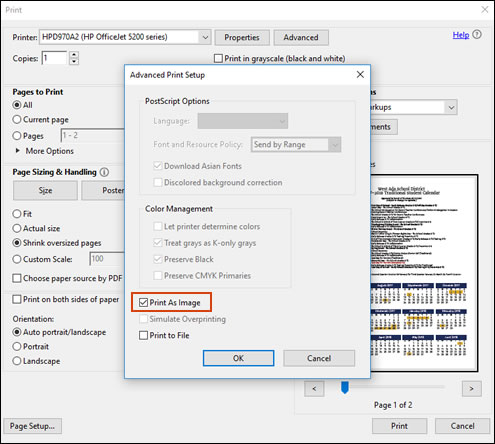
Print the pdf as an image
-
Open the original pdf file.
-
Click File, and then select Print from the list.
The Print window opens.
-
Click Advanced.
The Advanced Print Setup window opens.
-
Click the Print As Image checkbox, change any other settings as desired, and then click OK.

You can refer this HP document for more assistance:- Click here
Let me know how it goes.
To thank me for my efforts to help you, please mark my post as an accepted solution so that it benefits several others.
Cheers.
Sandytechy20
I am an HP Employee