• ×
    Information
    Need Windows 11 help?
    Check documents on compatibility, FAQs, upgrade information and available fixes.
    Windows 11 Support Center.
  • post a message
  • ×
    Information
    Need Windows 11 help?
    Check documents on compatibility, FAQs, upgrade information and available fixes.
    Windows 11 Support Center.
  • post a message
Guidelines
Seize the moment! nominate yourself or a tech enthusiast you admire & join the HP Community Experts!
Check some of the most frequent questions about Instant Ink: HP INSTANT INK, HP+ PLANS: INK AND TONER.


Check out our WINDOWS 11 Support Center info about: OPTIMIZATION, KNOWN ISSUES, FAQs AND MORE.
HP Recommended
deskjet 3050a
Microsoft Windows 7 (64-bit)

My deskjet 3050A cannot print in black anymore. New ink added and cleaned. Cannot update driver either

1 REPLY 1
HP Recommended

@steve1717


Welcome to the HP support community.


I understand that the black ink cartridge is not working, I am glad to assist you.

Did you make a copy and check if that prints fine?

If that does not print fine, follow these steps to fix the issue.

Clean the area around the ink nozzles

  1. Gather the following materials:

    • Dry foam-rubber swabs, lint-free cloth, or any soft material that will not come apartor leave fibers (coffee filters work well)

    • Clean sheets of paper

    • Distilled, filtered, or bottled water (tap water might contain contaminants that candamage the print cartridges)

        caution:

      Do not use platen cleaners or alcohol to clean the area. These can damage the cartridge or the printer.

  2. Press the Power button to turn on the printer, if it is not already on.

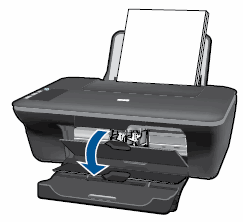
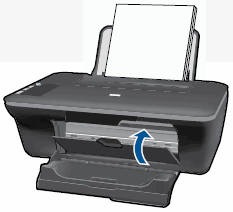
  3. Open the cartridge access door. The carriage moves to the center of the printer. Wait until the carriage is idle and silent to continue.

    Figure : Open the cartridge access door

    Image: Open the cartridge access door
  4. Lightly press down on the cartridge to release it, and then pull the cartridge out to remove it from its slot.

    Figure : Remove the cartridge

    Image: Remove the cartridge
      caution:

    Do not touch the copper-colored contacts or the ink nozzles. Touching these parts can result in clogs, ink failure, and bad electrical connections.

    Figure : Do not touch the contacts or nozzles

    Image: Do not touch the contacts or nozzles
  5. Place the cartridge on a piece of paper with the ink nozzles up.

  6. Lightly moisten a clean, foam-rubber swab with distilled water.

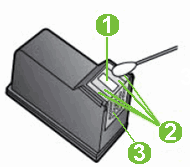
  7. Clean the face and edges around the ink nozzle with the swab.

      caution:

    Do not clean the ink nozzle plate.

    Figure : Clean the area around the ink nozzle

    1.  

      Illustration of the ink nozzle and cartridge contacts

      Nozzle plate - DO NOT CLEAN
    2. Area surrounding ink nozzle - Do clean

    3. Cartridge contacts - Do not clean

  8. Let the cartridge sit for 10 minutes to allow the cleaned area to dry, or use a new swab to dry it.

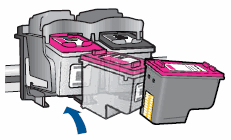
  9. Hold the cartridge by its sides with the nozzles toward the printer, and then insert the cartridge into its slot. Make sure that the icon on the cartridge matches the icon on the slot.

    • The tri-color cartridge () goes in the slot on the left

    • The black cartridge () goes in the slot on the right

    Figure : Insert the cartridge into its slot

    Image: Insert the cartridge into its slot
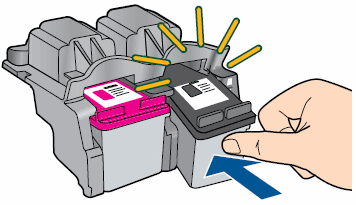
  10. Push the cartridge forward into its slot until it snaps into place.

    Figure : Snap the cartridge into place

    Image: Snap the cartridge into place
  11. Repeat these steps to clean the area surrounding the ink nozzle on the other cartridge.

  12. Close the cartridge access door.

    Figure : Close the cartridge access door

    Image: Close the cartridge access door
  13. Try to print again.

Here is the HP document for your reference:- Click here


Keep me posted.

To thank me for my efforts to help you, please mark my post as an accepted solution so that it benefits several others.

Cheers.

Sandytechy20
I am an HP Employee

† The opinions expressed above are the personal opinions of the authors, not of HP. By using this site, you accept the <a href="https://www8.hp.com/us/en/terms-of-use.html" class="udrlinesmall">Terms of Use</a> and <a href="/t5/custom/page/page-id/hp.rulespage" class="udrlinesmall"> Rules of Participation</a>.