• ×
    Information
    Need Windows 11 help?
    Check documents on compatibility, FAQs, upgrade information and available fixes.
    Windows 11 Support Center.
  • post a message
  • ×
    Information
    Need Windows 11 help?
    Check documents on compatibility, FAQs, upgrade information and available fixes.
    Windows 11 Support Center.
  • post a message
Guidelines
Seize the moment! nominate yourself or a tech enthusiast you admire & join the HP Community Experts!
Common problems for Connectivity Issues
We would like to share some of the most frequently asked questions about Printer Wi-Fi, Connectivity Issues and Offline Status. Check out this link: HP printer is offline or unavailable.
HP Recommended
7520
macOS 11.0 Big Sur

Happened on windows 10; happens on the Mac now

3 REPLIES 3
HP Recommended

Hi @WAL50,


I'd like to help!


To assist better -

  1. What is the status of the wireless light on the printer, steady or blinking?
  2. Are the printer and Mac connected to the same network?
  3. Is your router dual-band enabled i.e., both 2.4GHz and 5GHz? If yes, make sure the dual-band has different SSIDs for 2.4G and 5G networks.
  4. What is the distance between the router and the printer?
  5. Is there antivirus software installed on your Mac?
  6. Could you perform a ping test and let me know the results? Use the printer IP address to perform a ping test, the printer IP can be located by selecting the wireless icon on the printer display.


Perform a ping test to check the connectivity

  1. Click Applications > Utilities > Terminal.

type ping "IP address" and press enter

Wait until 10 pings have been performed and then press ctrl c on the keyboard and hit return. 


The results will appear.


Hope this helps! Keep me posted. 


And, Welcome to the HP Support Community. 


Please click “Accept as Solution” if you feel my post solved your issue, it will help others find the solution.

Click the “Kudos, Thumbs Up" on the bottom right to say “Thanks” for helping

HP Recommended

Thanks for the response.

The light is always on.

Printer and router are on the same network.

2.4 and 5G are enabled

Router is about 2 feet from the printer.

The only antivirus protections what Apple provides.  


I decides to just get a cable and connect them directly.  FYI, when the printer did drop, the 7520 screen always said it was still connected.  Just didn't work.  Aggravating.  Remote printing happens infrequently enough that the cable will suffice.  Thanks anyway

HP Recommended

I respect your decision.


If you choose to try again, the steps are as below-


 Add the AirPrint printer to the Mac printer queue


Confirm you are using AirPrint by adding the printer in System Preferences.

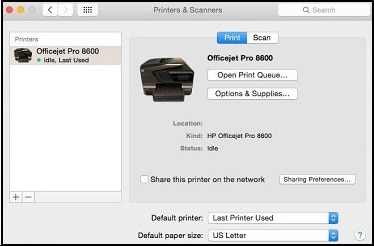
  1. Click the Apple menu, click System Preferences, and then click Print & Scan or Printers & Scanners.

    Figure : Example of the Printers & Scanners window

     Example of the Printers & Scanners window
  2. Check if your printer name displays in the Printers list, and then do one of the following steps.

    • If your printer is listed, remove and re-add the printer to confirm it is set up for AirPrint. Click the printer name, click the minus sign  to delete the printer, click the plus sign , click Add Printer or Scanner, click the printer name and then continue to the next step.
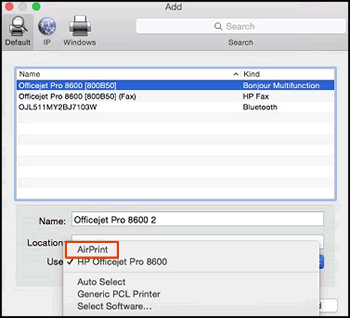
    • If your printer is not listed, click the plus sign, click Add Printer or Scanner, click the name of your printer, and then continue to the next step.

    • If your printer is not listed in the Add Printer or Scanner window, go to the Frequently asked questions in this document to resolve connection issues, try to add the printer again, and then continue to the next step.

  3. Confirm AirPrint or Secure AirPrint displays in the Use or Print Using menu, and then click Add.

    Figure : AirPrint displays in the Use menu

    Select AirPrint from the Use menu
  4. Open a document or photo, click File, and then click Print.

Hope this helps! Keep me posted. 


† The opinions expressed above are the personal opinions of the authors, not of HP. By using this site, you accept the <a href="https://www8.hp.com/us/en/terms-of-use.html" class="udrlinesmall">Terms of Use</a> and <a href="/t5/custom/page/page-id/hp.rulespage" class="udrlinesmall"> Rules of Participation</a>.