• ×
    Information
    Need Windows 11 help?
    Check documents on compatibility, FAQs, upgrade information and available fixes.
    Windows 11 Support Center.
  • post a message
  • ×
    Information
    Need Windows 11 help?
    Check documents on compatibility, FAQs, upgrade information and available fixes.
    Windows 11 Support Center.
  • post a message
Guidelines
Join the HP Community Solve‑a‑thon | Help Others & Share Your Solutions | Live on Zoom | 2:30 PM to 2:30 AM IST | Every Wednesday Click here to know more
Common problems for Connectivity Issues
We would like to share some of the most frequently asked questions about Printer Wi-Fi, Connectivity Issues and Offline Status. Check out this link: HP printer is offline or unavailable.

HP Recommended

My HP 6100e series connected now as HP Universal Printing is not scanning since Sky Wifi network took over.

2 REPLIES 2
HP Recommended

My HP Envy Printer is not being recognised by my HP PC since I changed network provider to sky.  I cannot connect the device to my PC anylonger so cannot PRINT OR SCAN

HP Recommended

Hello @randeep3, Welcome to the HP Support Community.
 

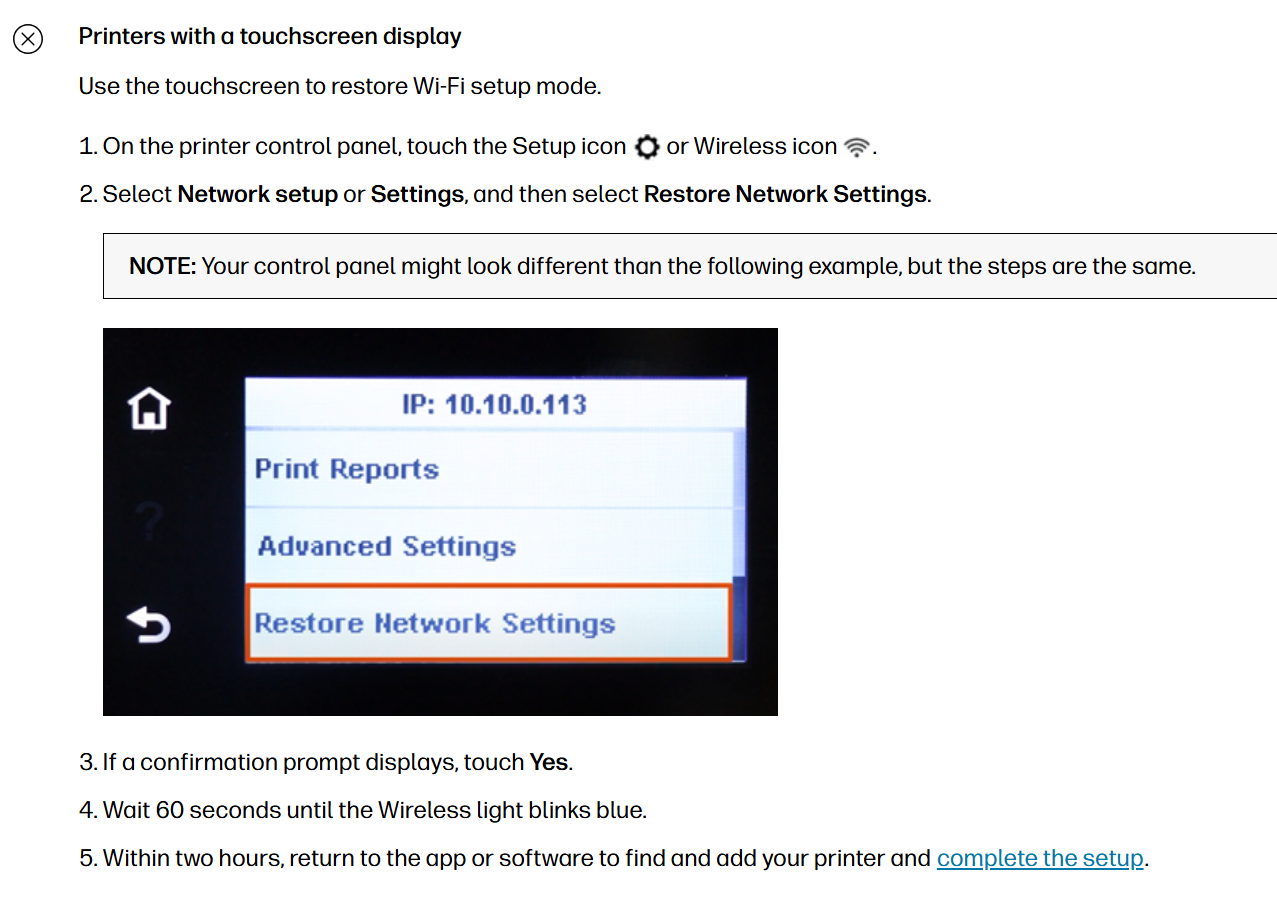
I also noticed that you created another post mentioning that you are experiencing issues connecting the printer to a new Wi-Fi network. In this post, I have shared the steps to perform a network reset and instructions on how to re-add the printer to the HP app.

To fix your scanning issue after switching to Sky Wi-fi, re-add the printer to your computer using the HP App so it updates the new network IP address and installs the correct scanning drivers. 

1. Install/Update HP Universal Scan Driver
 

  1. On your Windows PC, open a browser and go to
    HP Customer Support - Software and Driver Downloads.
  2. Click Printer.
  3. Enter your exact printer model name (for example, “HP OfficeJet 6100e” if that is your model), then click Submit.
    The Software and drivers page for your printer opens.
  4. Click All Drivers.
  5. Under Driver – Universal Scan Driver, expand Basic Drivers.
  6. Download HP Universal Scan – Basic Feature Software and Driver.
  7. Run the downloaded file and follow the on‑screen instructions to install the driver.
  8. Open the HP app and try scanning again.

If your printer is currently added as “HP Universal Printing” only, this step ensures a proper scan driver is also installed, which is required for scanning to work.
 

2. Reconnect Printer on the New Sky Wi‑Fi 

  1. Connect the printer to your new Sky Wi‑Fi network via the printer’s wireless setup.
  2. In the HP app, remove the old printer entry (if it shows offline).
  3. Add the printer again so HP App discovers it on the new network.
  4. Try scanning from HP App.

Please check the link for more information - Restore Wi-Fi setup mode on your HP printer | HP® Support
 

Have a great day!

I'm an HP Employee.


If this reply helped resolve your issue, please select the Accept as Solution as it helps others in the community quickly find the answer they’re looking for.


And if you found this reply helpful, clicking Yes below is a great way to let us know we’re providing the support you need, as it encourages us to keep improving and sharing helpful guidance.

† The opinions expressed above are the personal opinions of the authors, not of HP. By using this site, you accept the <a href="https://www8.hp.com/us/en/terms-of-use.html" class="udrlinesmall">Terms of Use</a> and <a href="/t5/custom/page/page-id/hp.rulespage" class="udrlinesmall"> Rules of Participation</a>.
-->