
-
×InformationNeed Windows 11 help?Check documents on compatibility, FAQs, upgrade information and available fixes.
Windows 11 Support Center. -
-
×InformationNeed Windows 11 help?Check documents on compatibility, FAQs, upgrade information and available fixes.
Windows 11 Support Center. -
- HP Community
- Archived Topics
- Printers Archive
- Re: Back to back printing

Create an account on the HP Community to personalize your profile and ask a question
Your account also allows you to connect with HP support faster, access a personal dashboard to manage all of your devices in one place, view warranty information, case status and more.
 This topic has been archived. Information and links in this thread may no longer be available or relevant. If you have a question create a new topic by clicking here and select the appropriate board.

6 REPLIES 6

06-20-2014
11:19 AM
- last edited on
03-07-2017
11:01 AM
by
 OscarFuentes
 HP Recommended
Hi richstone0178,
I would like to help you duplex print with your Envy 5530. What operating system do you have on the computer and which program are you printing from?
I look forward to hearing from you.
Sunshyn2005
I work on behalf of HP
If you found this post helpful, you can let others know by clicking the “Accept as Solution” button. You can also show your appreciation, with a kudos, by clicking the “thumbs up" button!
06-25-2014 06:59 AM
HP Recommended
Hi richstone0178,
Let's begin by checking your print settings. Click on the appropriate link below for instructions to Print on both sides of the paper (duplex printing) in Word.
I hope this helps.
Sunshyn2005
I work on behalf of HP
If you found this post helpful, you can let others know by clicking the “Accept as Solution” button. You can also show your appreciation, with a kudos, by clicking the “thumbs up" button!
06-26-2014 01:09 AM
HP Recommended
Hi Sunshyn2005
I use Microsoft Office 2007 & Word 2007.
Am I right in thinking that Duplex printing means that the printer will print one side of the sheet then automatically take the sheet back into the printer, print the other side of the sheet then eject the paper.
If it dosn't do this then I might as well have stuck with my old printer.
When printing I select Two Sided (Duplex) Printing & Flip Along Long Edge on the printer settings but it simply prints one side then ejects the paper. I am really frustrated as I feel I may not be understanding the concept of Dupex Printing. If I have to manually put the paper back into the printer to print the second side then I have picked the wrong printer.
06-26-2014 06:44 AM
HP Recommended
Hi richstone0178,
The envy 5530 has an automatic duplexing accessory (ENVY 5530 e-All-in-One Printer data sheet). This means it will automatically print 2 sided, you do not need to turn the page over yourself to have the printer print on the other side of the page, this would be manual duplexing.
It seems to me that, from your posts, you fully understand the concept of duplexing, the trouble must be with the settings on the computer. I would like to determine if the issue is with the driver or with Word. Can you duplex print from a different program?
Print on both sides of the paper (duplex printing) in Word - Applies to: Word 2007
If you can not print 2 sided automatically with other programs either, I suggest using the following steps to delete the printer from device and printers, and the driver from the server properties.
1. In the ‘Devices and Printers’ folder
2. Choose ‘Print server properties’.
- Win XP – With no printer selected, click ‘File’ then ‘Server Properties’.
- Windows Vista – With no printer selected, press ‘Alt’ then click ‘File’ then ‘Server Properties’.
- Windows 7/8 and 8.1 – Select any printer in the ‘Devices and Printers’ folder and click ‘Print Server properties’ above.
3. Click on the ‘Drivers’ tab at the top of ‘Print server properties’ window
4. Choose the printer you want to uninstall and click ‘Remove’
5. Choose 'Remove driver only'
6. The next screen will give a warning, letting you know that deleting the driver package will remove it from the system. Click ‘Yes’ to say that you are sure you want to do this.
If documents are stuck in the print spooler, you may see an error, cancel any documents pending in the print queue, or try restarting the print spooler, then try to remove the driver from ‘Print server properties’ again. If it still won’t remove the package, restarting the computer and the printer should resolve this ‘in use’ error and allow the driver to be removed.
After the driver is removed, open Start > All Programs > HP folder > Printer folder > HP Setup and Software (or the printer icon).
The Setup and software screen will open and you can click on Connect a new printer.
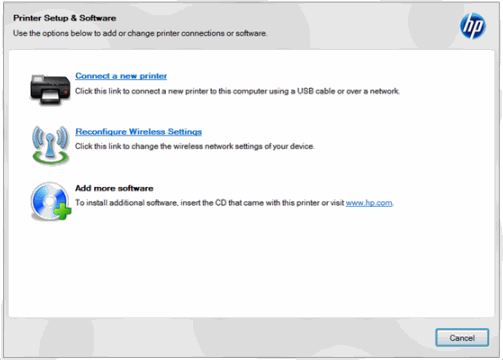
Please let me know the outcome of these efforts. At this point, the way I see it is, this is either an issue with the driver, or maybe just an issue with Word. Do you have the full feature software and driver installed? HP ENVY 5530 e-All-in-One Printer series Full Feature Software and Drivers.
I look forward to hearing from you.
Sunshyn2005
I work on behalf of HP
If you found this post helpful, you can let others know by clicking the “Accept as Solution” button. You can also show your appreciation, with a kudos, by clicking the “thumbs up" button!
06-27-2014 08:12 AM
HP Recommended
Hi Sunshyn2005
many thanks for you replies & I think you have hit the nail on the head with your last one regarding full feature software & driver. Yesterday I used the "Chat" facility on the HP help website & spoke online to someone who suggested various solutions but non of which worked. However she then remotely accessed my computer & reloaded all of the software & driver. This has now solved the problem so I supect that I did not install it correctly in the first place.
Thank you again for your help & suggestions, as a novice I really do appreciate help from people like yourself
Cheers richstone0178
This topic has been archived. Information and links in this thread may no longer be available or relevant. If you have a question create a new topic by clicking here and select the appropriate board.
† The opinions expressed above are the personal opinions of the authors, not of HP. By using this site, you accept the Terms of Use and Rules of Participation.


Didn't find what you were looking for?
Ask the community
† The opinions expressed above are the personal opinions of the authors, not of HP. By using this site, you accept the <a href="https://www8.hp.com/us/en/terms-of-use.html" class="udrlinesmall">Terms of Use</a> and <a href="/t5/custom/page/page-id/hp.rulespage" class="udrlinesmall"> Rules of Participation</a>.